
Image Tools
How to Remove Image Background Online for Free
Remove image backgrounds online for free with UseBoldTools. Upload JPG, PNG, or WebP, preview the cutout, and download transparent PNG or flat JPG.
By UseBoldTools Team 6 min readPublished June 28, 2026
Introduction
A clean cutout can make a product photo, profile picture, logo, or social graphic look instantly more usable. With the free Image Background Remover on UseBoldTools, you can upload an image, remove the background in your browser, compare the result, and download a transparent PNG or flat-background JPG without creating an account.
This guide explains how to remove an image background online for free, when to choose PNG vs JPG, what kinds of images work best, and how to prepare the finished cutout for websites, stores, slides, and social media.
For more practical image-editing guides, browse the UseBoldTools blog.
What the background remover does
UseBoldTools Image Background Remover separates the main subject from the background of a JPG, PNG, or WebP file. The result can be saved as a transparent PNG or as a JPG with a white, black, or custom flat color behind the subject.
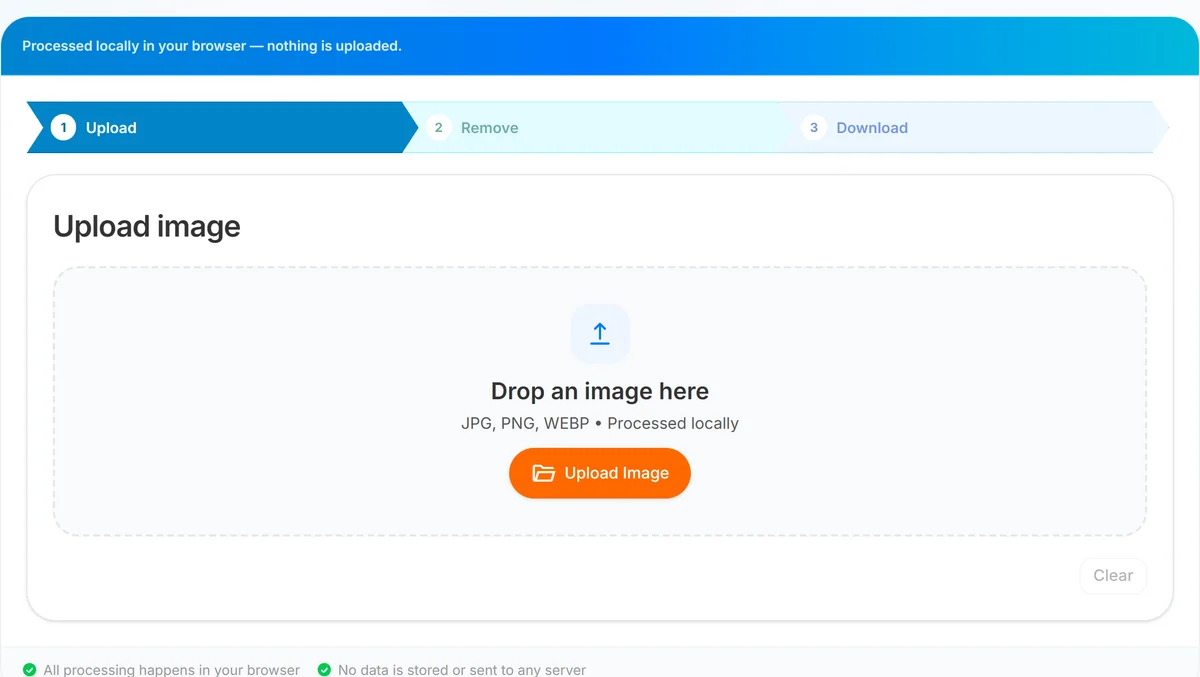
The page uses a simple three-step workflow: Upload, Remove, and Download. You can compare the original image and cutout side by side, preview transparency on a checkerboard background, and choose the export format that fits your next use.
Files are processed locally in your browser. The first removal may take longer while the browser downloads the AI model it needs for cutout generation; later removals in the same session are usually faster.
Step-by-step: remove an image background
Open Image Background Remover. Start with a JPG, PNG, JPEG, or WebP image under 10 MB. Product photos, portraits, logos, and objects on plain backgrounds are usually the easiest to cut out cleanly.
- Upload your image. Choose a file from your computer, phone gallery, camera, or file picker.
- Run background removal. Click Remove background and wait while the browser-side model creates the cutout preview.
- Compare original and cutout. Review the edge quality against the original image before downloading.
- Pick a preview background if needed. Use transparent checkerboard for PNG, or white, black, or custom color when preparing a JPG export.
- Download the result. Save a transparent PNG for compositing or a JPG when you need a flat background.
If the final image must fit exact dimensions, use Image Cropper or Image Resizer after background removal.
Best use cases
- Product photos. Remove tabletops, walls, room backgrounds, or quick photo setups before placing items on a clean listing template.
- Profile pictures. Create cleaner cutouts for resumes, team pages, social avatars, and professional profiles.
- Logo cleanup. Separate simple marks or icons from plain white or solid backgrounds.
- Presentation graphics. Place a product, object, or person on a slide without the original photo background.
- Social media creatives. Prepare transparent PNG cutouts for thumbnails, promos, cover art, and quick composites.
After download, Image Compressor can reduce file size for uploads, while Image Converter can change the result into another format when a platform asks for something specific.
Transparent PNG vs flat JPG
Choose your download format based on where the image will go next.
- Transparent PNG keeps the background removed. Use it for websites, design tools, product mockups, overlays, stickers, thumbnails, and layouts where the subject needs to sit on different backgrounds.
- Flat JPG bakes in the preview background. Use it for email, Word documents, slides, forms, marketplaces, or tools that do not handle transparency well.
If you are unsure, download PNG first. You can always place that PNG on a white background later, but a JPG cannot preserve transparency once saved.
Privacy and local processing
The background remover runs in your browser. Your uploaded image is read locally, processed locally, and previewed locally. UseBoldTools does not receive the image for this background-removal workflow.
For sensitive product photos, internal visuals, or personal portraits, this local workflow is useful. Still, close the tab or clear the tool when you are done on shared devices.
What works best
Automatic background removal is strongest when the subject has clear contrast from the background. A product on a plain table, a portrait against a simple wall, or a logo on a solid color usually gives better results than a busy street scene.
- Good candidates: packshots, simple portraits, logos, icons, apparel on plain backgrounds, and objects with clear edges.
- Harder candidates: hair flyaways, glass, smoke, mesh, motion blur, shadows, reflections, low-resolution images, and subjects that share colors with the background.
Use this tool for a fast clean cutout. For pixel-perfect masking, complex hair, or studio retouching, use a dedicated editor such as Image Editor or professional design software after the first cutout.
Common mistakes to avoid
- Using a tiny source image. Low-resolution files leave less edge detail for the cutout.
- Expecting perfect hair and glass masking. Automatic tools are fast, but fine transparent edges may need manual cleanup.
- Downloading JPG when you need transparency. JPG always has a flat background; choose PNG for transparent output.
- Ignoring platform dimensions. Marketplaces and profile pages often need exact sizes after removal.
- Forgetting to review edges. Always compare original and cutout before using the final image in public materials.
Best practices
- Start with the highest-quality original image you have, ideally with the subject in focus.
- Use plain backgrounds and clear lighting when taking new product or profile photos.
- Download PNG for reusable assets, then make JPG copies only when a destination requires them.
- Resize or crop with Image Resizer and Image Cropper after removal so the subject fits the final platform.
- Compress large PNG or JPG output with Image Compressor before uploading to websites or marketplaces.
Conclusion
UseBoldTools Image Background Remover keeps background removal practical: upload an image, create a browser-side cutout, review the preview, then download a transparent PNG or flat JPG. It is especially useful for product photos, profile pictures, simple logos, presentations, and social graphics.
Open Image Background Remover when you need a quick background-free image, then use the related image tools to crop, resize, compress, or convert the finished result.
Frequently asked questions
How do I remove an image background online for free?
Open Image Background Remover, upload a JPG, PNG, or WebP image, click Remove background, review the cutout, then download a transparent PNG or JPG with a flat background.
Are my images uploaded to UseBoldTools servers?
No. The file is processed locally in your browser. The first run may download a browser-side AI model, but your image is not sent to UseBoldTools servers for background removal.
Which file types can I upload?
You can upload JPG, JPEG, PNG, or WebP images up to 10 MB.
Should I download PNG or JPG after removing the background?
Download PNG when you need transparency for websites, design tools, overlays, and product mockups. Download JPG when you want a white, black, or custom flat background.
Does background removal work for product photos and profile pictures?
Yes. Product photos, simple logos, and profile pictures on plain backgrounds usually work best. Complex hair, glass, shadows, and busy scenes may need manual touch-up.
Related tools
Image Resizer
Resize image online free — change width, height, or percentage for forms, Instagram, YouTube, and more.
Image Compressor
Compress images online without losing quality
Image Converter
Convert JPG, PNG, and WebP online free—JPG to PNG, PNG to JPG, WebP converter in your browser
Image Cropper
Crop photos online free—square, 16:9, circle profile crop, JPG/PNG/WebP in browser
Ready to try Image Background Remover?
Use our free Image Background Remover tool in your browser — no account required for most workflows.
Open Image Background Remover