
PDF Tools
Open Password vs Owner Password in PDF Explained
Understand the difference between open password and owner password in PDF files, including access control, permissions, use cases, and limits.
By UseBoldTools Team 3 min readPublished July 2, 2026
Introduction
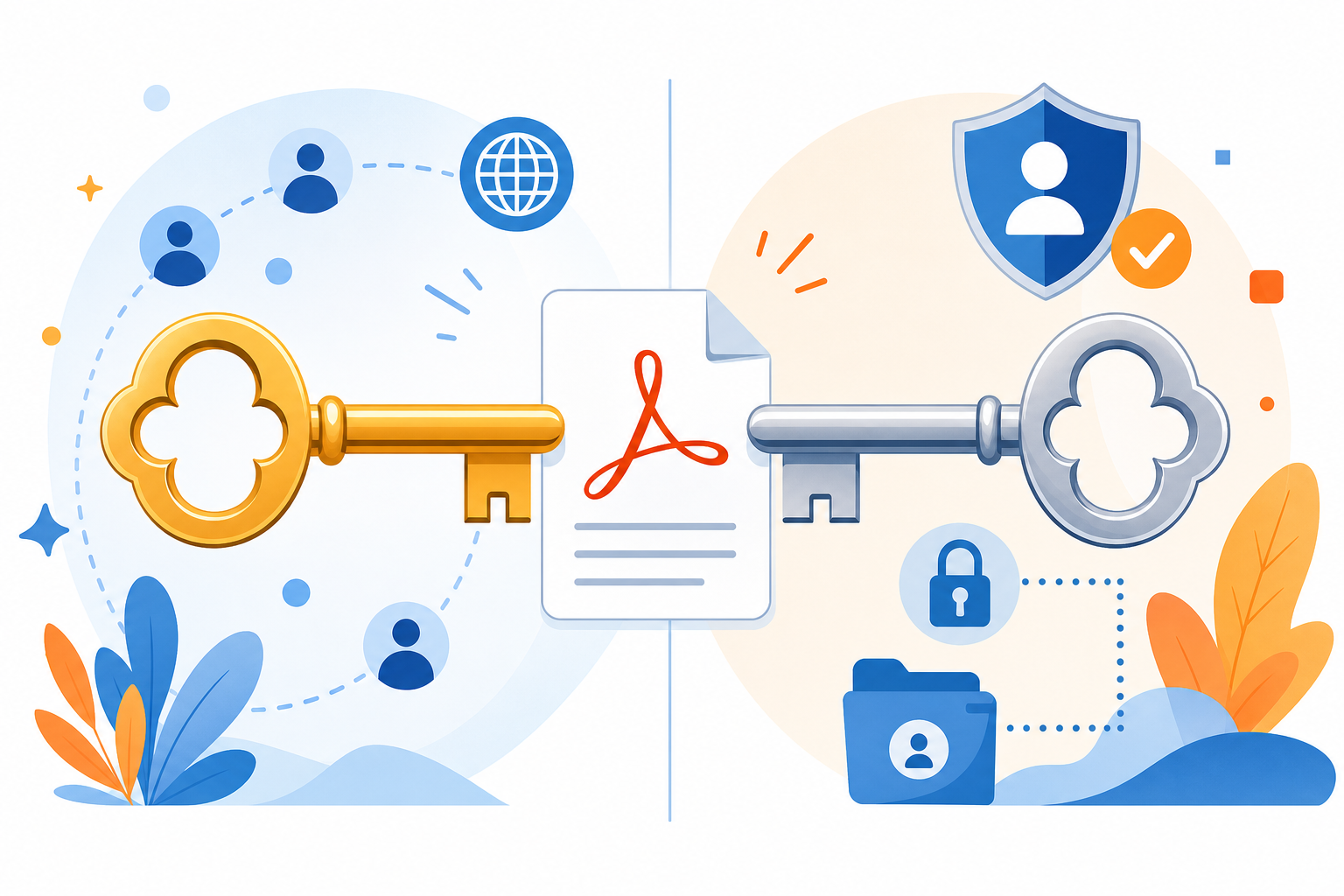
PDF security can be confusing because there are two common password ideas: an open password and an owner password. PDF Password Protect supports an open password and optional owner password permissions, so it helps to know what each one does before protecting a file.
This guide explains open password vs owner password in PDFs, when to use each, and what the limits are. For a practical walkthrough, start with how to password protect a PDF online.
What is an open password?
An open password is the password someone must enter before the PDF can be opened and viewed. If the recipient does not know this password, the document should not open in normal PDF readers.
- Use it for private documents that should not be casually opened.
- Share the password separately from the PDF.
- Use a strong password and test the downloaded PDF before sending it.
What is an owner password?
An owner password is used to manage permissions. For example, you may allow or restrict printing and copying while still giving someone the open password to view the file.
In UseBoldTools, the owner password section is optional. You can use a separate owner password when you want permission controls in addition to the open password.
Open password vs owner password
- Open password: controls who can open and view the PDF.
- Owner password: controls permissions such as printing or copying.
- Open password is usually required for privacy. Owner permissions alone do not stop someone from opening the PDF.
- Owner permissions depend on reader support. Some apps may not enforce every permission in the same way.
When to use each password type
- Use only an open password for most private sharing: salary slips, bank statements, tax files, and personal documents.
- Use open plus owner password when you want the recipient to view the file but discourage printing or copying.
- Skip owner permissions when they add confusion and the main requirement is simply preventing casual access.
- For sensitive-file workflows, see how to secure sensitive PDF documents with a password.
Important limits
PDF passwords reduce risk, but they do not control everything after a document is opened. A recipient may still take screenshots, photograph the screen, or use a PDF reader that handles permission flags differently.
Use PDF passwords as part of safer sharing, not as a perfect guarantee. For very sensitive material, combine passwords with access controls, secure storage, recipient verification, and your organization’s document rules.
What about unlocking later?
If you own a protected PDF and have permission to remove the password, PDF Unlock can help with authorized unlock workflows. Keep the password available, because a protected file may be difficult or impossible to recover without it.
Conclusion
The open password protects access to the PDF. The owner password controls permissions. For most users, the open password in PDF Password Protect is the key setting. Add owner permissions only when you understand what they do and they fit the document-sharing workflow.
Browse more browser-based PDF utilities in the PDF tools category.
Frequently asked questions
What is an open password in a PDF?
An open password is required before someone can open and view the PDF. It protects access to the document.
What is an owner password in a PDF?
An owner password controls permissions such as printing, copying, or editing. It is different from the password used to open the file.
Do I need both open password and owner password?
For most private sharing, an open password is the important setting. Use a separate owner password when you also want permission controls.
Are PDF permission controls perfect?
No. Permission controls depend on PDF readers respecting them. They help guide usage but are not the same as complete digital rights management.
Related guides
How to Password Protect a PDF File Online
Learn how to password protect a PDF file online with browser-side encryption, strong password tips, permissions, and safer sharing steps.
How to Secure Sensitive PDF Documents with a Password
Learn how to secure sensitive PDF documents with a password, safer sharing habits, browser-side protection, and common mistakes to avoid.
Related tools
PDF Password Protect
Add a password to PDF files free in your browser—lock salary slips, bank statements, ITR proofs, and contracts before sharing.
PDF Unlock
Remove password protection from a PDF when you already know the password.
PDF Merge
Merge PDF files online — combine invoices, job applications, and other PDFs in your browser.
PDF Organizer + Cleanup Studio
Reorder, rotate, and delete PDF pages in your browser—ideal for office filings, ITR bundles, school work, and portal uploads.
Ready to try PDF Password Protect?
Use our free PDF Password Protect tool in your browser — no account required for most workflows.
Open PDF Password Protect