
Text Tools
How to Count Words and Characters Online
Count words, characters, sentences, paragraphs, reading time, and speaking time online with a free browser-based Word Counter.
By UseBoldTools Team 5 min readPublished June 28, 2026
Introduction
Word and character limits show up everywhere: essay assignments, meta descriptions, product listings, social captions, short bios, email subject lines, scripts, and form fields. The free Word Counter on UseBoldTools gives you live counts in one clean browser tab, so you can edit and check length without moving between apps.
This guide explains how to count words and characters online, what each metric means, how reading and speaking time are estimated, and how to use the numbers without over-editing your writing.
For more writing and cleanup guides, browse the UseBoldTools blog.
What the Word Counter measures
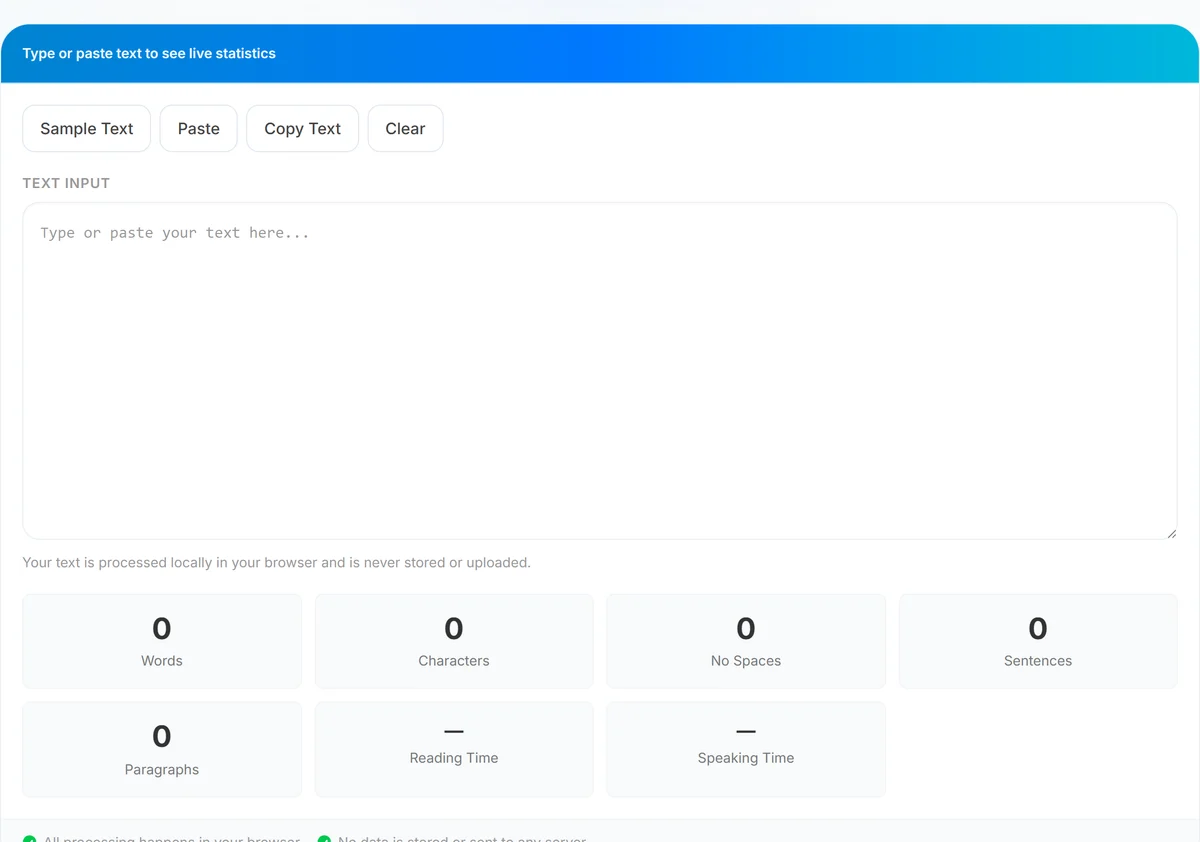
UseBoldTools Word Counter analyzes text as soon as you type or paste it. It shows words, characters with spaces, characters without spaces, sentences, paragraphs, reading time, and speaking time.
- Words. The tool splits text on whitespace and counts non-empty tokens.
- Characters. The full raw length, including spaces and line breaks.
- No spaces. The character count after whitespace is removed.
- Sentences. A practical count based on period, exclamation mark, and question mark delimiters.
- Paragraphs. Non-empty blocks separated by line breaks.
- Reading and speaking time. Quick estimates based on word count.
Because the stats update live, you can trim, expand, or restructure text and immediately see the result.
Step-by-step: count words and characters online
Open Word Counter. You will see a large text area for your draft and a set of count cards that update as the text changes.
- Paste or type your text. Add an essay, article draft, caption, email, script, or any other plain text.
- Review the main counts. Check words first when you have an assignment or editorial limit. Check characters for forms, ads, social posts, and snippets.
- Compare spaces vs no spaces. Use the no-spaces count when a platform ignores whitespace or when you need a compact content length.
- Check structure. Sentence and paragraph counts help you spot dense passages that may need clearer breaks.
- Use the actions. Copy the edited text, paste from the clipboard, load sample text, or clear the field when finished.
The workflow is intentionally simple: write, watch the numbers change, and keep editing until your text fits the target.
When a word counter helps
- School and university writing. Stay inside essay, abstract, response, and discussion-board limits.
- Blog and SEO drafts. Check article length, summaries, titles, meta descriptions, and intro sections.
- Social content. Tune captions, bios, ad copy, and short updates before posting.
- Presentations and voiceover scripts. Estimate speaking time before recording or rehearsing.
- Editing and proofreading. Spot long paragraphs, thin sections, and drafts that need tightening.
If pasted content has odd spacing from PDFs, emails, or spreadsheets, clean it first with Remove Extra Spaces, then return to the counter for more accurate review.
Reading time vs speaking time
Reading time and speaking time are useful estimates, not promises. Silent reading is usually faster than speaking aloud, so the tool uses different baselines.
- Reading time assumes 200 words per minute, a practical average for quick web reading.
- Speaking time assumes 130 words per minute, which leaves more room for natural pauses and emphasis.
For a presentation, podcast intro, or video script, trust the speaking-time estimate more than the reading-time estimate. For articles and documentation, reading time is the more useful signal.
Privacy and browser processing
The counter runs locally in your browser. When you paste text, JavaScript calculates the counts in the page state instead of sending your draft to UseBoldTools servers for counting.
That makes the tool convenient for everyday drafts and private notes, but you should still be careful on shared devices. Clear the field and close the tab when you are finished with sensitive writing.
Common mistakes to avoid
- Checking only words when the limit is characters. Forms, ads, and snippets often care about characters instead.
- Forgetting spaces. Some platforms include spaces in character limits, while others focus on visible letters and symbols.
- Counting before cleanup. Extra line breaks and repeated spaces can make character totals noisy.
- Assuming sentence count is grammar-perfect. Abbreviations and unusual punctuation can affect simple sentence splitting.
- Over-trimming for the number. A shorter draft still needs clarity, flow, and the right information.
Best practices
- Check the required limit first: words, characters with spaces, or characters without spaces.
- Use paragraph count as a readability cue when a draft looks dense.
- Run pasted text through Remove Extra Spaces before counting if it came from a PDF, email thread, or copied webpage.
- Use Case Converter after editing if your title, heading, or label needs a consistent case style.
- Compare two versions with Text Compare when you need to see exactly what changed while trimming.
Conclusion
UseBoldTools Word Counter gives you the numbers that matter while you write: words, characters, no-spaces characters, sentences, paragraphs, reading time, and speaking time. It is fast enough for quick captions and practical enough for essays, articles, scripts, and everyday editing.
Open Word Counter, paste your draft, and edit with the counts visible beside your work.
Frequently asked questions
How do I count words and characters online?
Open Word Counter, paste or type your text, and the page updates words, characters, sentences, paragraphs, reading time, and speaking time as you edit.
Does the tool count characters with and without spaces?
Yes. Characters includes spaces and line breaks, while No Spaces removes whitespace before counting.
Is my text uploaded to UseBoldTools servers?
No. The counting logic runs in your browser with JavaScript, so your pasted text is not sent to UseBoldTools for analysis.
How is reading time calculated?
Reading time uses 200 words per minute. Speaking time uses 130 words per minute for a more natural presentation pace.
Can I use it for essays, blogs, and social captions?
Yes. It is useful for school assignments, article drafts, SEO summaries, ad copy, social posts, bios, scripts, and any text with a length limit.
Related tools
Remove Extra Spaces
Clean tabs, repeated spaces, and blank lines from pasted text instantly.
Case Converter
Convert text to uppercase, lowercase, title case, sentence case, and toggle case instantly.
Text Compare
Compare text, JSON, XML, logs, code, and configuration files with a professional online diff viewer.
Lorem Ipsum Generator
Generate placeholder words, sentences, and paragraphs instantly.
Ready to try Word Counter?
Use our free Word Counter tool in your browser — no account required for most workflows.
Open Word Counter