
PDF Tools
How to Merge PDF Files Online (Free, In Your Browser)
Combine multiple PDFs into one file using a clear Upload → Arrange → Merge → Download workflow. Everything runs locally in your browser with pdf-lib.
By UseBoldTools Team 8 min readPublished June 3, 2026
Introduction
You need one PDF, but you have several: a cover letter and resume, monthly invoices, scanned receipts, or exhibit packets for a review. Merging keeps recipients on a single download and preserves page order you control—without emailing five attachments or re-scanning a stack.
This guide walks through how to merge PDF files online with the free PDF Merge tool on UseBoldTools. The workflow is built for real tasks: upload multiple files, arrange them, trim pages per file when needed, review the plan, then download a single combined PDF. Processing uses pdf-lib in your browser, so merging is not sent to our servers for that step.
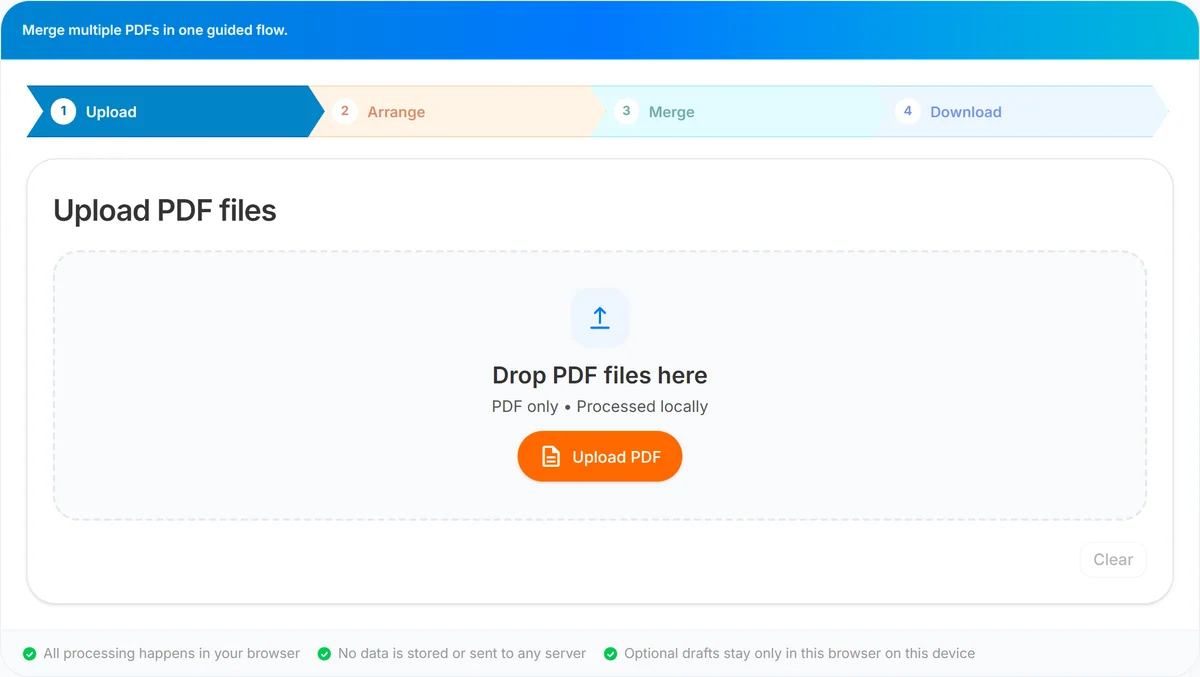
Whether you are on a laptop or phone, you will see the same chevron steps—Upload, Arrange, Merge, and Download—so you always know what comes next. For more guides, visit the UseBoldTools blog.
What the PDF Merge tool does
UseBoldTools PDF Merge combines two or more PDF documents into one output file. You choose the sequence of source files, optionally include only selected pages from each source, name the download, and save the result locally.
Unlike desktop software that requires installation, this tool opens in a tab and runs immediately. Unlike many ad-heavy merge sites, the page focuses on the workflow: a compact upload area, file cards with page-range controls, a merge summary, and a dedicated download screen when the file is ready.
The tool does not add a UseBoldTools watermark. It does not require an account for the public merge flow. Duplicate filenames are labeled automatically so your list stays readable when you upload several files with similar names.
When you need to merge PDFs
- Job and school applications. Applicants often merge a resume, cover letter, and transcripts into one upload for an ATS or university portal that accepts a single PDF.
- Finance and operations. Accounting teams append invoices, statements, or approval PDFs in chronological order before sending one file to a client or auditor.
- Legal and compliance. You may need a tight exhibit list—only certain pages from each contract or scan batch—rather than dumping whole files into one bundle.
- Personal records. Home users merge insurance documents, warranties, or travel receipts after scanning from a phone.
If you only need to remove pages or split one file into parts first, use PDF Split or PDF Organizer + Cleanup Studio, then return to merge the cleaned pieces.
Before you start
Gather every PDF you plan to include. If a file is password-protected, unlock or re-export it first—encrypted PDFs often fail in-browser merge.
For very large jobs, note that the tool recommends staying near 50 MB total across selected files for smoother performance on typical devices. If you are far above that, merge in batches or Smart PDF Compressor before combining.
Keep your original files until you open the merged download and confirm page order and ranges. Browser tabs on shared computers should be closed when you are finished.
Step 1: Upload your PDF files
Open the PDF Merge tool. On the Upload step, add files in either way:
- Drag and drop PDFs onto the dashed upload area.
- Choose files with Upload PDF (mobile shows a touch-friendly control; desktop uses the orange upload button).
Only PDF files are accepted. As files load, you will see chips for file count, total included pages, and total size. You need at least two PDFs before the Arrange files button appears.
Use Clear to reset the list if you picked the wrong batch. You can add more files later from the Arrange step with Add PDF.
Step 2: Arrange order and page ranges
Click Arrange files to open step 2. Each PDF appears as a card showing its position (#1, #2, …), page count, included pages, and file size.
Reorder files so the final document reads in the sequence you want:
- Use the Up and Down arrows on each card.
- Or drag a card and drop it on another file to move it in the list.
Under Pages to include, control what enters the merge from that file:
- Type all to include every page.
- Or enter a range such as 1-3,5 to include pages 1 through 3 and page 5 only.
Invalid range syntax shows an error on that card—fix it before continuing. When every card is valid and at least two files remain, click Merge to open the review step.
Step 3: Review and run merge
The Merge PDF step summarizes files, included pages, and total size. You will also see a one-line order summary listing the exact sequence used for output—double-check this before merging.
Set the Output file name if you want something clearer than the default timestamped name (the download still saves as a .pdf file).
Click Merge PDF. Your browser builds the document locally; the button shows Merging… while pdf-lib works. Large merges can take a few seconds depending on page count and device speed.
If merge fails, the tool surfaces an error message. Common fixes: remove passwords, export a new PDF from Word or Acrobat, or split an oversized file with PDF Split and merge smaller parts.
Step 4: Download your merged PDF
After a successful merge, the workflow moves to Download. You will see the output filename, file size, and page count.
Click Download PDF to save the file. On iOS installed as a PWA, follow any on-screen note if the system handles downloads differently.
Use Merge another to start a new job without reloading the page, or go back to earlier steps if you need to adjust order before re-merging.
Benefits of merging PDFs in the browser
- Speed for small and medium jobs. No install, no queue—open the tool and merge.
- Control over order and pages. Reorder files and trim pages per source before anything is combined.
- Predictable output. No service watermark on the merged file.
- Privacy-aware workflow. Merging itself stays in your browser; you are not uploading PDFs to UseBoldTools servers for that operation.
- Works with your existing PDF toolkit. Pair merge with Smart PDF Compressor before email, or PDF Password Protect after you have the final bundle.
Privacy and security
UseBoldTools PDF Merge reads your files in the browser and combines them with pdf-lib locally. That means the merge operation does not depend on sending your PDFs to our servers.
You should still treat sensitive documents carefully: use trusted networks, close the tab on shared computers, and keep originals until you verify the download. Browser extensions, screen recorders, and compromised devices are outside what any web tool can control.
If you need to share the merged file securely, consider protecting it with PDF Password Protect after merge, and share passwords through a separate channel.
Common mistakes to avoid
- Wrong file order. Always review the order summary on the Merge step. Applicants often put the cover letter after the resume by accident.
- Forgetting page ranges. Leaving all on a file when you only needed the signature page adds bulk and confusion.
- Merging password-locked PDFs. Unlock or re-export first; otherwise merge may fail with no useful output.
- One giant batch on a slow device. Hundreds of pages or dozens of scans can stress mobile browsers—split or compress first.
- Deleting originals too soon. Open the merged PDF and spot-check first and last pages of each section before archiving sources.
Best practices
- Name files clearly before upload (e.g. 01-cover.pdf, 02-resume.pdf) so cards are easy to scan.
- Merge in logical sections when a single job is huge: Part A + Part B, then optionally merge those outputs if the tool handles the size comfortably.
- Run a quick visual check on the Download step file size and page count—they should match your expectations from the Arrange step totals.
- For portals with file size caps, compress after merge with Smart PDF Compressor rather than lowering scan quality beforehand.
- Bookmark PDF Merge and this guide if you merge packets regularly.
Conclusion
Merging PDFs online does not have to mean cluttered sites or mystery uploads. On UseBoldTools you upload files, arrange them, set page ranges, review the plan, merge in the browser, and download one clean PDF—without a watermark and without an account for the standard flow.
When you are ready, open PDF Merge and walk through Upload → Arrange → Merge → Download. Explore more guides on the UseBoldTools blog as we publish them.
Frequently asked questions
How many PDFs do I need to merge on UseBoldTools?
You need at least two PDF files. After upload, the Arrange step unlocks so you can set order and page ranges before merging.
Are my PDFs uploaded to UseBoldTools servers?
No. Merging runs with pdf-lib inside your browser tab. Your files are read and combined locally for that operation.
Can I merge only some pages from each PDF?
Yes. On the Arrange step, leave "all" or enter a range such as 1-3,5 for each file so only those pages appear in the final document.
Does the merged PDF include a watermark?
No. UseBoldTools does not add a watermark to merged output.
What if merge fails for one of my files?
Password-protected, corrupted, or unusually complex PDFs can fail in-browser. Try exporting a fresh copy, removing passwords with PDF Unlock, or splitting a very large file first.
Related guides
Related tools
PDF Split
Split one PDF by range, selected pages, or fixed page intervals in your browser.
Smart PDF Compressor
Reduce PDF file size with goal-based presets, target-size guidance, and browser-side optimization.
PDF Password Protect
Add a password to PDF files free in your browser—lock salary slips, bank statements, ITR proofs, and contracts before sharing.
Ready to try PDF Merge?
Use our free PDF Merge tool in your browser — no account required for most workflows.
Open PDF Merge