
PDF Tools
Is Online PDF Merge Safe?
Understand how browser-based PDF merge works on UseBoldTools, what data leaves your device, and practical steps to merge resumes, contracts, and scans more safely.
By UseBoldTools Team 6 min readPublished June 3, 2026
Introduction
“Is online PDF merge safe?” is the right question before you combine tax forms, HR packets, medical records, or client contracts. Not every website works the same way: some tools upload your files to a remote server, while others process PDFs entirely inside your browser.
This guide explains how PDF Merge on UseBoldTools handles your files, what stays on your device during merge, what site-wide practices still apply, and habits that reduce risk when you merge online. If you want the full walkthrough first, read our guide on how to merge PDF files online.
Short answer for UseBoldTools PDF Merge
For the merge operation itself, UseBoldTools is designed around client-side processing: your PDFs are read and combined with pdf-lib in your browser tab. They are not uploaded to UseBoldTools servers for merging. The tool does not add a watermark, and no account is required for the public workflow.
That does not mean “zero risk.” You still use a website in a browser, which can involve analytics, cookies, and device-level threats. The sections below separate merge processing from general site use so you can decide with clear expectations.
How PDF merge works on UseBoldTools
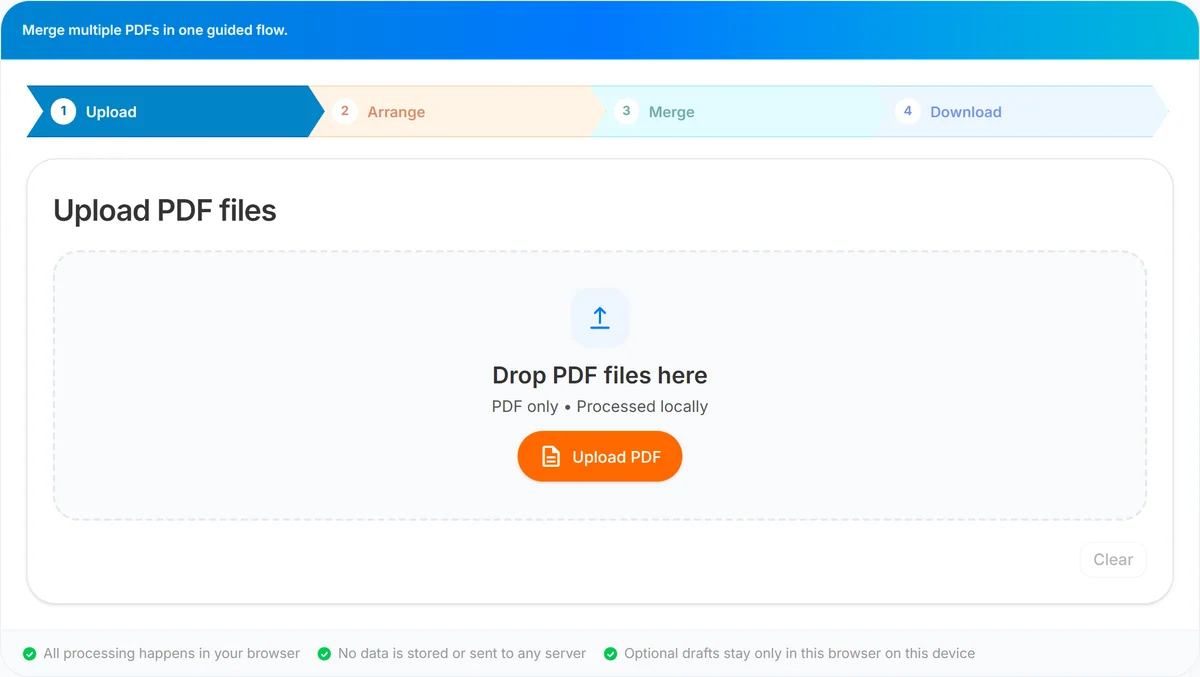
PDF Merge follows a guided flow: Upload → Arrange → Merge → Download. When you select PDFs, the tool loads them into memory in your browser, lets you reorder files and set page ranges, then builds one output PDF locally when you click Merge PDF.
- Files are accepted as PDF only on the upload step.
- The UI states that PDFs are processed locally (not sent away for the merge step).
- Merging uses pdf-lib in the tab—no server round-trip for combining pages.
- You download the result from a blob URL created in your browser.
This model is different from “email your files to us” services. If a tool never mentions local or in-browser processing, assume files may leave your device until proven otherwise.
What stays on your device
- Source PDF bytes while you prepare and run the merge.
- Page range choices and file order you set on the Arrange step.
- The merged PDF until you download or clear the session.
Until you download, the output lives in browser memory like any other in-tab file operation. Closing the tab or clicking Clear ends that session from a practical standpoint—still follow good habits on shared machines.
What the website may still collect
Being honest about safety means naming what a website can collect even when merge is local. Like most public sites, UseBoldTools may use analytics and cookies as described in our Privacy Policy. That can include page views, general usage events (such as tool interactions), device/browser metadata, and referral information—not the contents of your merged PDF for the merge step.
If you block analytics or use strict browser privacy settings, the tool should still merge PDFs locally; you may only lose optional usage telemetry the site relies on for improvements.
Third-party scripts (for example advertising or embedded widgets, if present on a page) are governed by their own policies. When in doubt, read the Privacy Policy and use browser extensions you trust.
Browser merge vs server upload tools
Before using any online PDF merger, check which column applies:
- Browser-local merge (UseBoldTools PDF Merge): Files stay in the tab for combining; good for reducing server exposure during merge.
- Server-side merge: Files upload to a remote system; necessary for some heavy operations but higher data-handling exposure.
- Desktop software: No website, but installs and updates carry their own trust requirements.
None of these options removes the need to think about device security, backups, and who receives your final download.
When online merge is usually reasonable
- Combining non-sensitive drafts, public brochures, or internal samples on a trusted laptop.
- Joining invoices or statements on a work machine with standard endpoint protection.
- Students merging assignments when the school policy allows browser tools.
- Quick merges when you verify the tool states local processing (as UseBoldTools does for merge).
When to take extra care
- Medical, legal, financial, or HR documents governed by strict compliance rules.
- Shared library computers, internet café devices, or family PCs with unknown software.
- Classified or trade-secret PDFs—prefer approved enterprise tools your IT team supports.
- Password-protected PDFs you cannot unlock—fix sources with PDF Unlock or re-export before merging.
For high-sensitivity workflows, pair local merge with PDF Password Protect on the finished file and share passwords out-of-band.
Practical safety habits
- Confirm you are on useboldtools.com and the tool path is /pdf-merge before uploading.
- Keep original PDFs until you open the merged download and spot-check first/last pages.
- Use PDF Unlock or re-export if a file is encrypted and merge fails.
- On shared PCs: download, sign out of cloud drives if needed, Clear the tool, close the tab.
- Avoid merging on unsecured public Wi‑Fi when possible; use a VPN your organization approves.
- After merge, use Smart PDF Compressor only if you need smaller files—another local browser step on UseBoldTools.
What UseBoldTools PDF Merge does not do
- Does not upload your PDFs to our servers for the merge operation.
- Does not add a UseBoldTools watermark to merged output.
- Does not require login for the public merge flow.
- Does not replace your organization’s formal compliance review—check internal policy when required.
Common safety mistakes
- Assuming “online” always means “uploaded to a server.” Read the tool’s privacy notes first.
- Merging on a shared computer and leaving the tab open with files still loaded.
- Trusting look-alike domains or sponsored ads that lead to unrelated merge sites.
- Emailing the merged PDF to the wrong address because order was not checked—merge order matters for reviewers.
- Skipping verification of the downloaded file size and page count before deleting originals.
Conclusion
Online PDF merge can be safe when you understand the architecture: on UseBoldTools, merging happens in your browser with pdf-lib, without sending your PDFs to our servers for that step and without watermarking the result. Site-wide analytics and general web risks still exist, so combine the tool with sensible device habits and our published Privacy Policy.
Ready to merge? Open PDF Merge, or read how to merge PDF files online for step-by-step instructions. More guides are on the UseBoldTools blog.
Frequently asked questions
Is UseBoldTools PDF Merge safe for confidential documents?
Merging runs locally in your browser with pdf-lib; PDFs are not uploaded to UseBoldTools servers for that operation. You should still use trusted devices and networks, close the tab on shared computers, and read the Privacy Policy for site-wide analytics.
Are my PDF files sent to a server when I merge?
No. The merge step reads your files in the browser and builds the output there. The upload area even notes that PDFs are processed locally.
Does UseBoldTools add a watermark to merged PDFs?
No. The merged download does not include a UseBoldTools watermark.
Do I need an account to merge PDFs?
No login is required for the public PDF Merge tool.
What should I do on a shared or public computer?
Merge only if you must, download the result, clear the tool with Clear or Merge another when finished, and close the browser tab. Keep originals until you verify the merged file.
Are online PDF tools always the same?
No. Some sites upload files to remote servers for processing. Always check whether the tool states browser-local processing before merging sensitive material.
Related guides
Related tools
PDF Split
Split one PDF by range, selected pages, or fixed page intervals in your browser.
PDF Unlock
Remove password protection from a PDF when you already know the password.
PDF Password Protect
Add a password to PDF files free in your browser—lock salary slips, bank statements, ITR proofs, and contracts before sharing.
Ready to try PDF Merge?
Use our free PDF Merge tool in your browser — no account required for most workflows.
Open PDF Merge