
PDF Tools
Why Can’t I Edit or Print My PDF File?
Understand why a PDF cannot be edited or printed, including password protection, owner permissions, scanned pages, and viewer limits.
By UseBoldTools Team 3 min readPublished July 2, 2026
Introduction
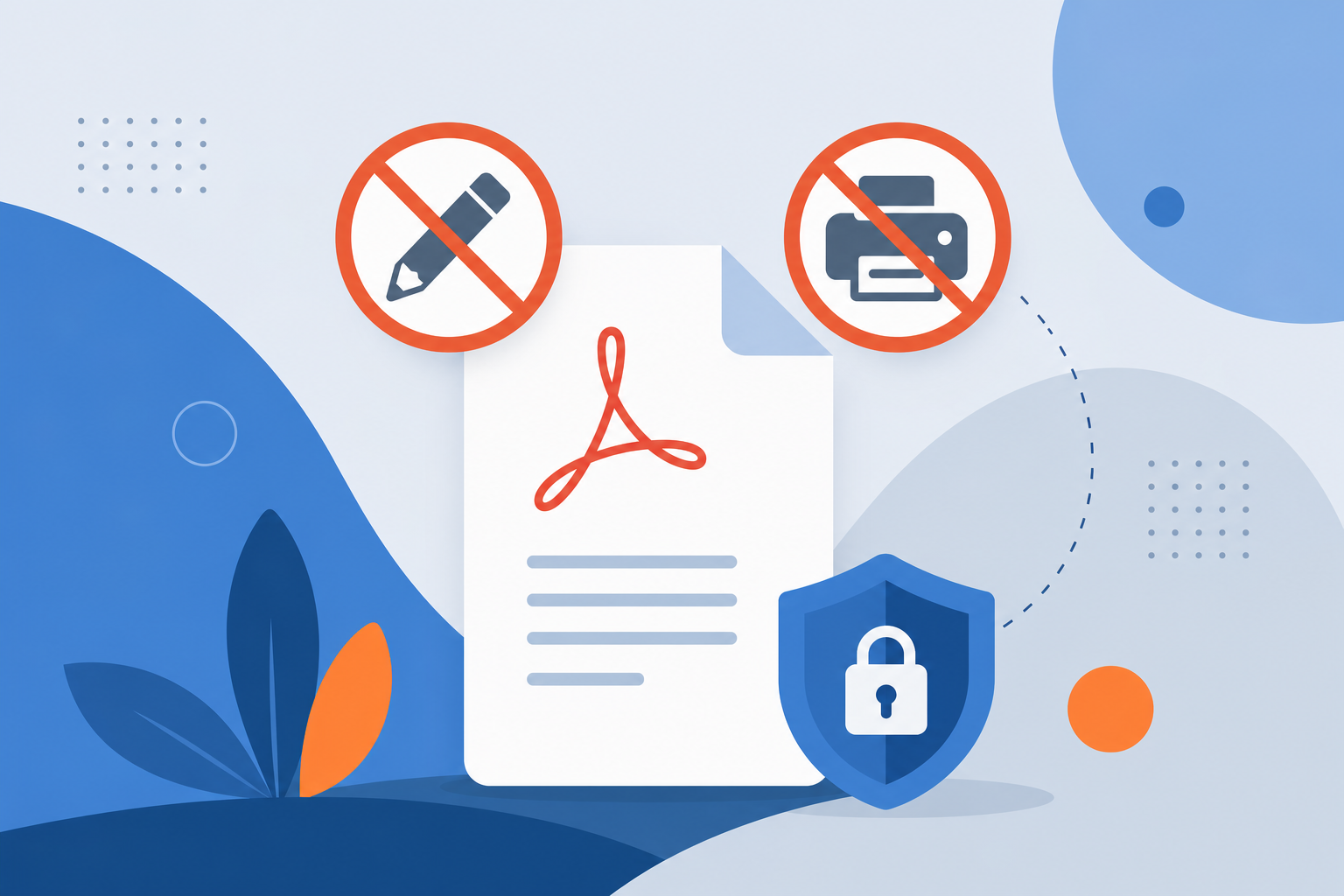
If you cannot edit, copy, or print a PDF, the reason is not always obvious. The file may have an open password, an owner password, permission restrictions, scanned image pages, or a viewer limitation. PDF Unlock can help only in authorized password-removal cases where you know the current password.
This guide explains the common reasons a PDF cannot be edited or printed, how to diagnose the issue, and when to use PDF Unlock. For password concepts, see the open password vs owner password guide.
Reason 1: PDF permission restrictions
Some PDFs allow opening but restrict printing, copying, editing, or page extraction. These restrictions are often set with an owner password.
- The file opens normally but print or copy is disabled.
- The viewer may show a permissions or security panel.
- If you own the document and have permission, you may need to remove a password from a PDF you own.
Reason 2: open password protection
An open password prevents access until the password is entered. If you do not know the password, you cannot legitimately unlock the file with UseBoldTools.
If you created the password earlier with PDF Password Protect, use your saved password to unlock or re-export the file.
Reason 3: the PDF is scanned or image-based
A scanned PDF can look like normal text but actually contain page images. In that case, selecting or editing text may not work because there is no real text layer.
Unlocking removes password protection when authorized, but it does not perform OCR. For conversion workflows, try PDF to Editable Word / Excel when suitable.
Reason 4: viewer or app limitations
Some browser viewers are good for reading but not editing. A print issue can also come from printer settings, missing fonts, or a damaged local download rather than PDF security.
- Try opening the file in another trusted PDF reader.
- Download the file again if it came from email or cloud storage.
- Check whether another PDF prints correctly from the same device.
- Ask the file owner for an editable or printable version if permissions are intentional.
What to do next
- Check whether the PDF asks for an open password.
- Check whether printing, copying, or editing is disabled after opening.
- Confirm you own the PDF or have permission to modify it.
- Use PDF Unlock only if you know the password and are authorized to unlock it.
- Use PDF Organizer + Cleanup Studio after unlocking when page cleanup is needed.
- Browse the PDF tools category for related PDF workflows.
Common mistakes to avoid
- Assuming every edit problem is a password problem. Scanned PDFs and viewer limits are different issues.
- Trying to bypass restrictions without permission. Only unlock files you own or are authorized to modify.
- Editing the only copy. Keep an original backup.
- Forgetting to re-protect sensitive files. If the file remains private, protect the final version again.
Conclusion
A PDF may be uneditable or unprintable because of password protection, owner permissions, scanned pages, viewer limits, or file damage. Use PDF Unlock only when the issue is authorized password removal and you know the current password.
Frequently asked questions
Why can’t I edit my PDF?
The PDF may be password-protected, permission-restricted, scanned as an image, locked by a form workflow, or opened in a viewer that does not support editing.
Why can’t I print my PDF?
Printing may be restricted by PDF permissions, blocked by the viewer, or affected by a corrupted file or printer setup.
Can PDF Unlock fix edit or print restrictions?
PDF Unlock can help only when you own the PDF, know the password, and are authorized to remove password protection. It does not bypass unauthorized restrictions.
What if my PDF is scanned?
A scanned PDF may behave like an image. Unlocking it will not automatically make text editable; you may need OCR or conversion tools.
Related guides
How to Remove Password from a PDF You Own
Learn how to remove a password from a PDF you own using the current password, browser-local unlocking, and safe handling steps.
Open Password vs Owner Password in PDF Explained
Understand the difference between open password and owner password in PDF files, including access control, permissions, use cases, and limits.
Related tools
PDF Unlock
Remove password protection from a PDF when you already know the password.
PDF Password Protect
Add a password to PDF files free in your browser—lock salary slips, bank statements, ITR proofs, and contracts before sharing.
PDF to Editable Word / Excel
Convert PDF files into editable Word or Excel outputs with guided format selection and browser-first extraction.
PDF Organizer + Cleanup Studio
Reorder, rotate, and delete PDF pages in your browser—ideal for office filings, ITR bundles, school work, and portal uploads.
Ready to try PDF Unlock?
Use our free PDF Unlock tool in your browser — no account required for most workflows.
Open PDF Unlock