
Developer Tools
How to Pretty Print JSON for Debugging
Pretty-print JSON for debugging with UseBoldTools: validate syntax, format with indentation, read line/column errors, compare versions, and work locally in your browser.
By UseBoldTools Team 8 min readPublished July 2, 2026
Introduction
Debugging API responses, config files, and log exports often starts with one frustrating step: the JSON arrives as a single unreadable line. A missing comma, an unescaped quote, or a nested object buried ten levels deep is much harder to spot when everything runs together. The free JSON Formatter on UseBoldTools solves that first problem quickly. Paste raw JSON, pretty-print it in the browser, validate syntax, and inspect errors with line and column hints when the parser can provide them.
This guide explains how to pretty-print JSON for debugging with the UseBoldTools workflow: format with indentation, use keyboard shortcuts, read validation messages, compare versions, and avoid the mistakes that waste time during incident response. If your payload is huge rather than malformed, pair this article with our how to read large JSON files more easily guide.
For more developer utility walkthroughs, browse the UseBoldTools blog.
What the JSON Formatter does for debugging
UseBoldTools JSON Formatter is a browser-based workspace for beautifying, validating, and minifying JSON. For debugging, the most important actions are Format, Validate, and Compare. Format restructures compact JSON with readable indentation. Validate confirms whether the text parses as JSON and surfaces syntax problems. Compare sends your current document to Text Compare so you can diff it against a modified copy.
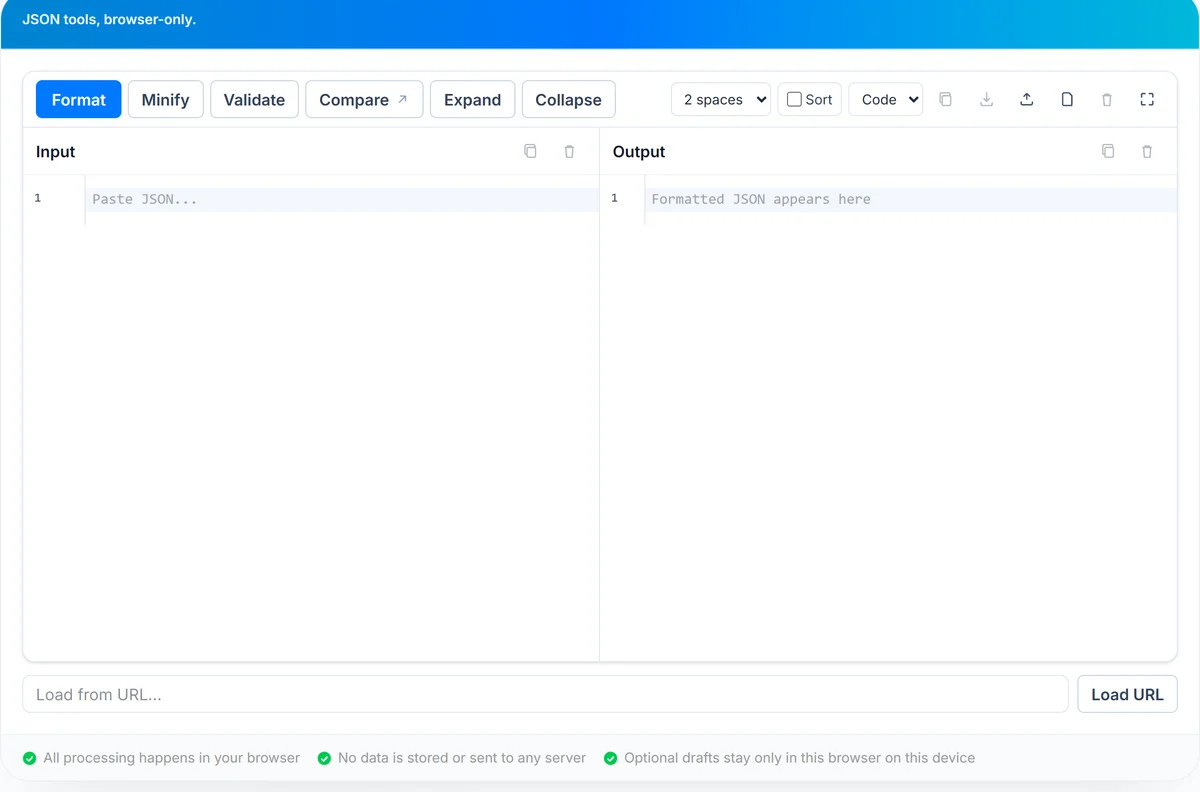
The default Code view shows a split layout: Input on the left and formatted Output on the right. Both panels use a monospace editor with folding, lint hints on the input side, and synchronized scrolling behavior. You can switch indent width between 2 and 4 spaces, optionally sort object keys alphabetically at every level, and move between Code, Tree, Form, and Text view modes when a different perspective helps.
Additional controls support real debugging sessions: copy input or output independently, upload a .json file, load sample data, download formatted results, clear panels, and enter full screen when you need more vertical space. Press Ctrl+Enter to format without reaching for the mouse.
When pretty-printing JSON helps debugging
- API responses. Network tabs and server logs often capture minified JSON. Pretty-printing reveals structure before you trace a specific field.
- Broken configs. Environment files, feature flags, and deployment manifests are easier to review when indentation exposes nesting mistakes.
- Test fixtures. Expected and actual payloads are simpler to compare after formatting both sides consistently.
- Third-party webhooks. Incoming event bodies may arrive escaped or compressed. Formatting is the fastest sanity check before you map fields.
- Code review. Pull requests that touch JSON are easier to approve when reviewers can see object shape instead of one long line.
When you are building sample payloads with generated IDs, follow how to generate GUIDs online with GUID Generator, then paste values into JSON and format the full document. For log lines that repeat the same error text, clean supporting lists with how to remove duplicate lines from text files instantly and Remove Duplicate Lines before you paste related context into your notes.
Step-by-step: pretty-print JSON for debugging
Open JSON Formatter. You can paste JSON directly into the Input panel, drag a .json file onto the input area, click Upload, or use Load URL when CORS allows fetching a public endpoint.
- Paste or load the raw JSON. Start with the exact text from your log, response tab, or file. Do not manually add commas until you have seen the parser error.
- Click Validate if the source looks suspicious. A green success message confirms well-formed JSON. If parsing fails, read the error banner for the summary and line/column details.
- Click Format or press Ctrl+Enter. Indented output appears in the Output panel (Code view) or replaces the text area (Text view). Choose 2 or 4 space indent to match your project style.
- Inspect nested fields. Use editor folding, Expand, and Collapse controls to open only the branch you are debugging.
- Compare when something changed. Click Compare to open the current JSON in Text Compare, paste the modified version, and review highlighted differences.
- Copy or download the result. Copy output when you need to share a readable snippet in Slack, Jira, or documentation.
If you toggle Sort keys, the tool reorders object keys alphabetically at every level. That is useful when two configs should match structurally but key order differs. It does change presentation, so turn it off when order carries meaning.
Reading validation errors and line hints
Invalid JSON is the most common blocker during debugging. UseBoldTools runs validation in the browser and shows a red error panel with a short summary. When the runtime parser reports position data, you also see line and column numbers. Jump to that location in the Input editor first instead of reformatting the entire document blindly.
- Trailing commas. JSON does not allow a comma after the last item in an object or array. The error often points just after the extra comma.
- Unquoted keys. JavaScript object literals allow bare keys; JSON requires double-quoted property names.
- Single quotes. JSON strings must use double quotes. Single-quoted values fail validation immediately.
- Comments and BOM markers. Standard JSON has no comments. Remove // lines, /* blocks */, and invisible BOM characters copied from editors.
- Concatenated documents. Two JSON objects pasted back-to-back are invalid. Split them or wrap them in an array if that matches your intent.
For pattern-based cleanup before validation, such as finding unquoted keys or stray characters in semi-structured text, Regex Tester can help you test a replacement regex on a small sample. Always re-validate in JSON Formatter after bulk edits.
Benefits of browser-based pretty-printing
- Instant feedback. Format and validate run immediately without waiting on a server round trip.
- No account or install. Open the page, paste JSON, and debug from any machine with a modern browser.
- Accurate error positioning. Line and column hints shorten the search for syntax mistakes.
- Multiple views. Switch to Tree or Form when a flat text layout still feels dense.
- Integrated compare. Jump to Text Compare with one click instead of copying into a separate diff tool.
- Private by default. Sensitive staging data stays in your browser tab during formatting.
Privacy and security
Core JSON formatting, validation, and minify operations run locally in your browser. UseBoldTools does not upload pasted JSON to its servers for those actions. That matters when you debug production-like configs, customer payloads, or internal API responses.
Two features deserve extra caution. Load URL fetches a resource from your machine and is subject to CORS rules on the target host. The tool may also offer to restore a previous session from local storage in the same browser; dismiss or clear saved drafts on shared computers.
Pretty-printing does not remove secrets. If a token, password, or private key is inside the JSON, formatting only makes it easier to read. Redact sensitive values before sharing screenshots or copied output with teammates.
Common mistakes to avoid
- Assuming pretty-print fixes syntax. Formatting cannot repair invalid JSON. Validate first when the source is untrusted.
- Ignoring character encoding issues. Smart quotes or non-UTF-8 bytes from email and PDF copy can break parsing. Paste into a plain-text buffer first.
- Comparing minified vs formatted text. Diff tools highlight whitespace noise. Format both sides—or minify both—before comparing.
- Sorting keys during incident review. Key order can hide recent edits. Leave Sort off when investigating what changed.
- Debugging huge files only in Code view. Very large payloads may be easier in Tree view with search; see our large JSON guide for that workflow.
- Treating JSON as JavaScript. undefined, functions, and unquoted keys are not valid JSON even when they work in JS.
When exported logs contain thousands of repeated lines, deduplicate supporting context with guidance from how to remove duplicate lines from text files instantly so your debugging notes stay readable.
Best practices for JSON debugging
- Validate before format when the payload comes from logs, user input, or a third-party integration.
- Use Ctrl+Enter to reformat quickly after each small fix so you can see whether nesting improved.
- Pick one indent width per project—usually 2 spaces for compact APIs or 4 spaces for config files—and stay consistent.
- Format both sides before opening Text Compare so the diff focuses on real value changes.
- Collapse unrelated branches in the editor to keep attention on the failing path.
- Redact secrets before copying output into tickets or chat.
- Generate test IDs with GUID Generator, document expected structure, and keep readable fixtures formatted with JSON Formatter.
Related utilities: Text Compare for line diffs, Regex Tester for pattern checks, Remove Duplicate Lines for noisy log lists, and Word Counter when you need to measure embedded string lengths in documentation. Browse the Developer tools category for more browser-based tools.
Conclusion
Pretty-printing is the fastest way to turn unreadable JSON into something you can reason about. UseBoldTools JSON Formatter keeps that step local, immediate, and paired with validation errors, keyboard shortcuts, and one-click compare. Start with Validate when syntax is uncertain, Format with Ctrl+Enter when structure is the bottleneck, and switch views or full screen when the payload outgrows a single panel.
Open JSON Formatter the next time a response arrives minified, and read how to read large JSON files more easily when the file is valid but too large to scan in Code view alone.
Frequently asked questions
How do I pretty-print JSON for debugging?
Paste your JSON into the Input panel, click Format (or press Ctrl+Enter), and review the indented output in Code view. Use Validate first if you are unsure the text is valid JSON.
What does pretty-printing change in JSON?
Pretty-printing adds indentation and line breaks so nested objects and arrays are easier to scan. The underlying data values stay the same; only whitespace and presentation change.
How does the tool show JSON syntax errors?
When JSON is invalid, the tool displays an error summary and, when available, the line and column where parsing failed. Fix that spot first, then validate again.
Can I compare two JSON versions while debugging?
Yes. Click Compare in the action rail to open your current JSON in Text Compare. Paste the modified version on the right to see added, removed, and changed lines.
Is my JSON uploaded when I format it?
No. Formatting, validation, and minify run locally in your browser. Your pasted JSON is not sent to UseBoldTools servers for processing.
Related guides
How to Read Large JSON Files More Easily
Read large JSON files more easily with UseBoldTools: upload .json files, explore Tree and Form views, search nested data, use full screen, and process everything locally.
How to Generate a GUID Online
Generate random UUID v4 GUIDs online with UseBoldTools: choose count, format output, copy values, or download TXT and CSV files from your browser.
How to Remove Duplicate Lines from Text Files Instantly
Remove duplicate lines from text files instantly with UseBoldTools. Paste a list, keep first occurrences, trim spaces, sort unique lines, and copy the cleaned result.
Related tools
Text Compare
Compare text, JSON, XML, logs, code, and configuration files with a professional online diff viewer.
GUID Generator
Generate unique identifiers in one click.
Regex Tester
Test and debug regular expressions with live match highlighting.
Remove Duplicate Lines
Remove repeated lines from any block of text instantly.
Word Counter
Count words, characters, platform limits, and reading time in your browser — no upload.
Ready to try JSON Formatter?
Use our free JSON Formatter tool in your browser — no account required for most workflows.
Open JSON Formatter