
Developer Tools
How to Read Large JSON Files More Easily
Read large JSON files more easily with UseBoldTools: upload .json files, explore Tree and Form views, search nested data, use full screen, and process everything locally.
By UseBoldTools Team 9 min readPublished July 2, 2026
Introduction
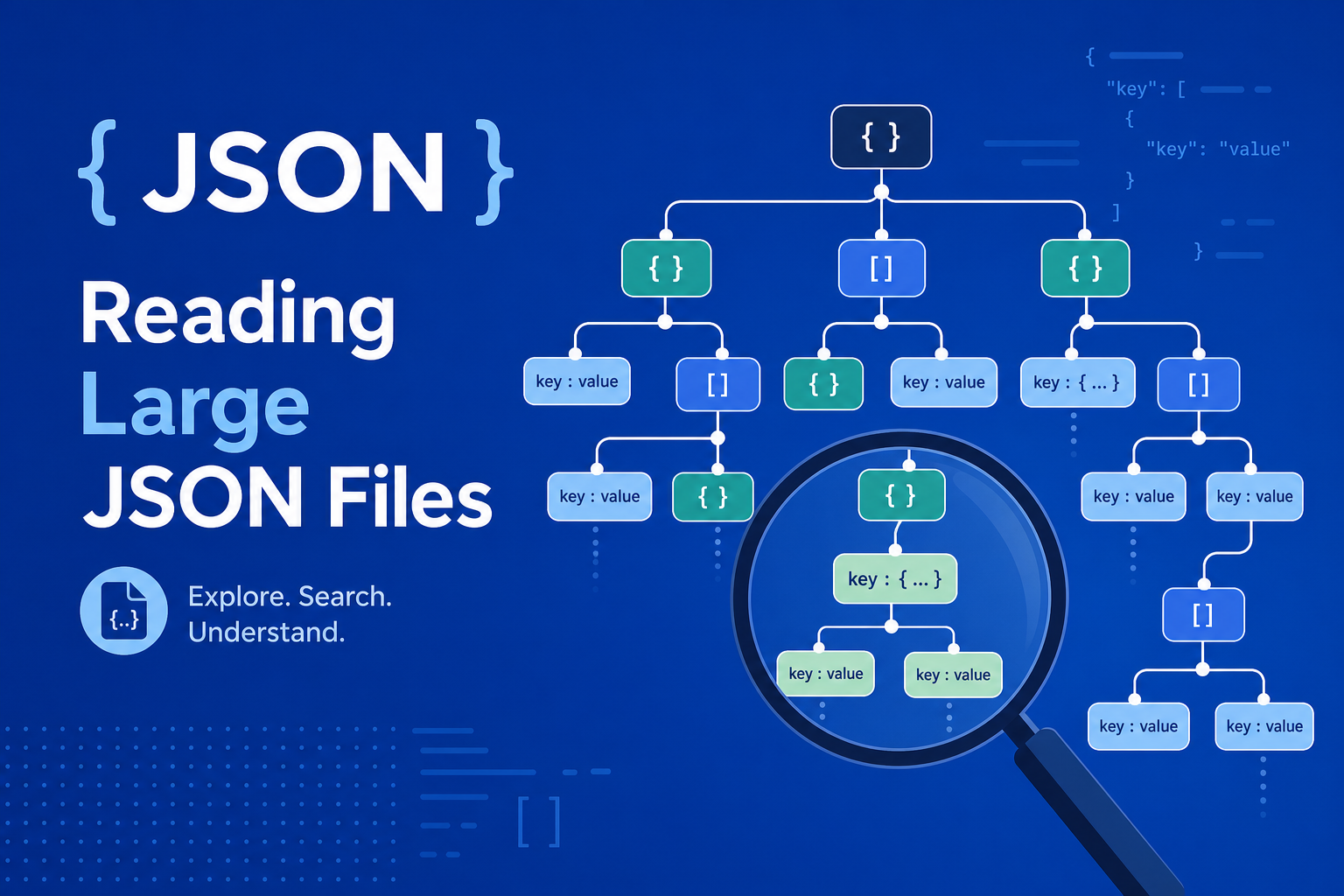
Large JSON files show up everywhere in modern development: analytics exports, feature-flag snapshots, GraphQL responses, telemetry batches, and generated config bundles. The file parses fine, but scrolling through thousands of lines in a plain text editor makes it easy to miss the one field you care about. The free JSON Formatter on UseBoldTools gives you multiple ways to read big JSON locally—Tree, Form, Code, and Text views, plus full screen, search, folding, and file upload—without shipping the document to a server.
This guide explains how to read large JSON files more easily using the UseBoldTools workflow. You will learn which view mode to pick, how to navigate nested objects, when to format versus explore, and how to combine the JSON Formatter with compare and cleanup tools. If your main problem is invalid syntax rather than size, start with our how to pretty-print JSON for debugging article.
For more developer-focused guides, browse the UseBoldTools blog.
Why large JSON is hard to read in plain text
A JSON document can be perfectly valid and still impractical in a basic editor. Deep nesting pushes important keys off-screen. Arrays with hundreds of items look identical until you open each object. Minified exports remove the little visual rhythm that helps your eyes track structure. Even formatted Code view can feel overwhelming when a single file spans tens of thousands of lines.
- Depth. Configuration and API payloads nest objects inside arrays inside objects. Without folding or a tree, you lose context quickly.
- Width. Wide objects with many keys create long horizontal lines that are hard to scan on smaller screens.
- Repetition. Log-style JSON repeats similar objects. You need search and collapse tools to isolate anomalies.
- Mixed editing and reading. Sometimes you only want to inspect values, not edit raw text. Form view reduces noise for that task.
UseBoldTools addresses these problems with view modes and navigation controls designed for real inspection work, not just one-time pretty-printing.
What the JSON Formatter offers for large files
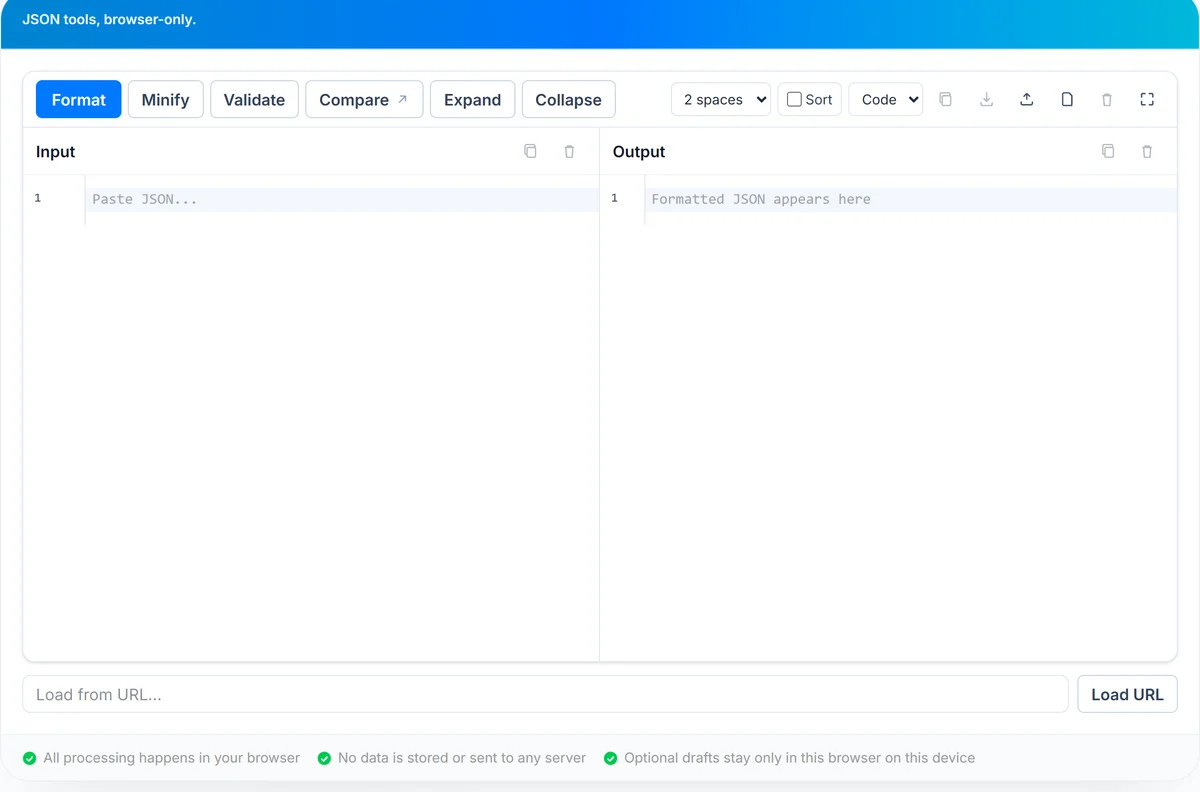
The JSON Formatter is more than a beautifier. For large documents, four view modes matter most. Code view shows split Input and Output editors with folding and lint on the input side. Tree view renders a navigable hierarchy with expand/collapse, search, and copy-path/copy-value actions. Form view lists leaf fields with paths and editable values for quick spot checks. Text view provides a single textarea when you want a simpler full-document surface.
Supporting controls help long sessions: upload or drag-and-drop .json files, optional Load URL for public endpoints, full screen mode, independent copy/clear actions per panel, download formatted output, and a stats summary in the action rail when available. Format and Validate still run locally with Ctrl+Enter as the keyboard shortcut for format.
The tool can also restore a previous session from local browser storage, which is convenient when you are iterating on the same large file across breaks. Clear saved drafts on shared machines.
When you need a better way to read large JSON
- Analytics and BI exports. Event batches and dashboard dumps are easier to explore in Tree view with search.
- Feature flags and remote config. Find one key among hundreds without manual scrolling.
- API exploration. Inspect a sample response before mapping fields in your client code.
- Support and success workflows. Review customer-provided JSON attachments during triage.
- Data migration reviews. Compare structure across environments before cutover.
- QA reproduction. Locate the exact array element referenced in a failing test.
When sample data needs fresh identifiers, use how to generate GUIDs online with GUID Generator, then load the resulting JSON here. If supporting text files contain duplicate error lines, clean them with how to remove duplicate lines from text files instantly before you merge context into your investigation notes.
Step-by-step: read a large JSON file more easily
Open JSON Formatter. For large files, prefer Upload or drag-and-drop over pasting megabytes from the clipboard, which can be slower and easier to interrupt accidentally.
- Load the file. Click Upload or drop a .json file onto the Input panel. Wait for the parser to finish; invalid files show an error with line and column hints when available.
- Format once for structure. Click Format (or Ctrl+Enter) so Code view and Tree view work from a consistent parsed object.
- Switch to Tree view. Open the View selector and choose Tree. Expand only the branches relevant to your question.
- Search. Type a key name, path fragment, or value in the Tree search box to filter visible nodes.
- Copy paths or values. Select a node, then use Path or Value copy buttons when you need to reference a field in code or a ticket.
- Use full screen. Click the full screen icon when you need maximum vertical space for deep trees or tall editors.
- Compare changes. Click Compare to send the document to Text Compare when you need a line-level diff against another version.
If you only need to verify a handful of fields, try Form view. It lists paths and values in a scrollable table-like layout that can be faster than hunting through raw text.
Benefits for large JSON workflows
- Local processing. Large files stay in your browser tab instead of uploading to a remote formatter.
- Multiple perspectives. Tree, Form, Code, and Text views suit different inspection styles on the same parsed data.
- Targeted navigation. Search and collapse reduce scrolling through irrelevant branches.
- Full screen focus. More room for deep trees on laptops and tablets.
- Integrated compare. Move to Text Compare without re-copying from another app.
- File-friendly input. Upload and drag-and-drop support real .json files from disk.
Privacy and security with large JSON
Parsing, formatting, and tree rendering run client-side. UseBoldTools does not receive your uploaded JSON for processing. That is especially important when files contain customer records, internal metrics, unreleased product configuration, or security review data.
Load URL fetches from your browser and depends on CORS policies. Session restore stores drafts in local storage on that device. Dismiss or clear saved sessions on shared hardware.
Large JSON often contains more secrets than small samples: API keys in config objects, email addresses in user arrays, tokens in webhook payloads. Redact before sharing screenshots from Tree or Form view.
Common mistakes with large JSON files
- Staying in Code view only. Valid but huge files are usually faster to explore in Tree view.
- Pasting multi-megabyte clipboard data. Upload from disk when possible for stability.
- Expanding the entire tree. Expand all on very large documents can overwhelm the browser DOM.
- Sorting keys during comparison. Alphabetical sort changes layout and can confuse structural diffs; sort only when you intend to normalize.
- Editing in Form view without checking types. Form view focuses on scalar fields; complex nested edits may still need Code view.
- Assuming minify helps reading. Minify reduces size for transport but makes inspection harder. Use minify only when you need compact output.
For adjacent text cleanup—deduplicating long lists of keys extracted from logs—see how to remove duplicate lines from text files instantly and Remove Duplicate Lines.
Best practices for large JSON inspection
- Upload files instead of pasting when the document is more than a few hundred kilobytes.
- Format once, then navigate in Tree view unless you are actively editing raw text.
- Search for stable identifiers—orderId, userId, featureName—before expanding random branches.
- Use full screen during long reviews to reduce visual clutter.
- Copy paths from Tree view into tickets so teammates can find the same field quickly.
- Compare versions in Text Compare after formatting both sides consistently.
- Document field meanings with Word Counter when writing internal guides that reference large sample payloads.
Related tools: Text Compare for diffs, GUID Generator for sample IDs, Regex Tester for pattern checks, Remove Duplicate Lines for list cleanup, and Word Counter for documentation metrics. Explore the Developer tools category for more utilities that complement JSON work.
Conclusion
Large JSON does not have to mean endless scrolling. UseBoldTools JSON Formatter combines upload support, Tree search, Form inspection, full screen layout, and local parsing so you can find the field you need and move on. Start with upload and format, switch to Tree view for navigation, and reach for Compare when the question is what changed—not just where a value lives.
Open JSON Formatter for your next big export, and read how to pretty-print JSON for debugging when syntax errors—not size—are the blocker.
Frequently asked questions
What is the best view for large JSON files?
Tree view is usually best for navigation: expand only the branches you need, search for keys or values, and copy paths or values without scrolling through the entire file in Code view.
Can I upload a large .json file instead of pasting?
Yes. Use Upload or drag a .json file onto the Input panel. The tool reads the file in your browser without sending it to UseBoldTools servers.
How do I find a specific field in a big JSON document?
Switch to Tree view, type in the Search box to filter nodes, then expand matching branches. You can copy the node path or value from the tree toolbar.
Does full screen mode help with large JSON?
Yes. Full screen removes surrounding page chrome and gives the editor or tree more vertical space, which makes long sessions easier on laptop screens.
Will formatting a huge JSON file slow down my browser?
Very large documents can take longer to parse and render. If Code view feels heavy, stay in Tree view for exploration or use Text view for targeted edits, then validate.
Related guides
How to Pretty Print JSON for Debugging
Pretty-print JSON for debugging with UseBoldTools: validate syntax, format with indentation, read line/column errors, compare versions, and work locally in your browser.
How to Generate a GUID Online
Generate random UUID v4 GUIDs online with UseBoldTools: choose count, format output, copy values, or download TXT and CSV files from your browser.
How to Remove Duplicate Lines from Text Files Instantly
Remove duplicate lines from text files instantly with UseBoldTools. Paste a list, keep first occurrences, trim spaces, sort unique lines, and copy the cleaned result.
Related tools
Text Compare
Compare text, JSON, XML, logs, code, and configuration files with a professional online diff viewer.
GUID Generator
Generate unique identifiers in one click.
Regex Tester
Test and debug regular expressions with live match highlighting.
Remove Duplicate Lines
Remove repeated lines from any block of text instantly.
Word Counter
Count words, characters, platform limits, and reading time in your browser — no upload.
Ready to try JSON Formatter?
Use our free JSON Formatter tool in your browser — no account required for most workflows.
Open JSON Formatter