
PDF Tools
How to Merge PDF Files on Windows, Mac, and Mobile
Merge PDF files on Windows, Mac, iPhone, iPad, or Android with a browser-based workflow for upload, arrange, merge, and download.
By UseBoldTools Team 4 min readPublished July 2, 2026

Introduction
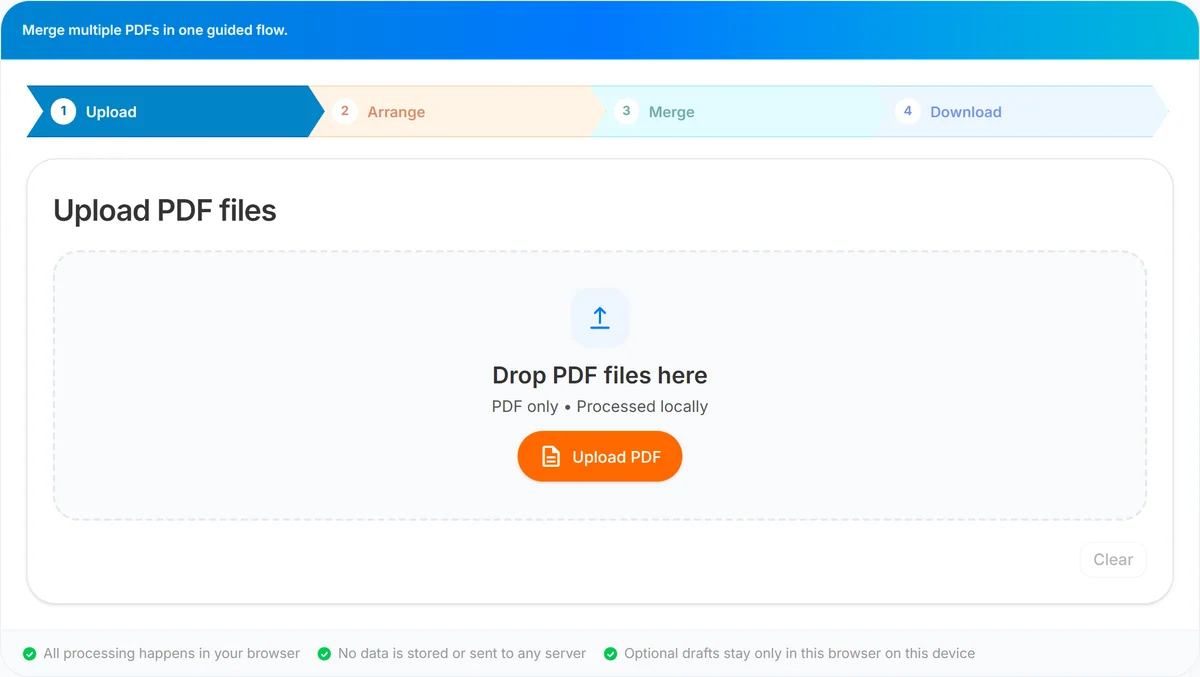
Merging PDF files should feel the same whether you are on Windows, Mac, iPhone, Android, or a tablet. With PDF Merge, the workflow stays simple: upload PDFs, arrange the order, choose page ranges if needed, merge in the browser, and download one combined file.
This guide focuses on device-specific tips for merging PDFs on Windows, Mac, and mobile. For the complete workflow, see our how to merge PDF files online. For privacy details, read the online PDF merge safety guide.
Why the same tool works across devices
UseBoldTools PDF Merge runs inside a modern browser. That means you do not need a Windows-only app, a Mac-only app, or a separate mobile app. The page adapts to the screen size while keeping the same Upload, Arrange, Merge, and Download steps.
The merge itself runs locally in your browser tab. This is useful when you are combining documents from a laptop, a desktop, or phone storage without installing extra software. Browse more related workflows from the UseBoldTools blog.
How to merge PDF files on Windows
- Open PDF Merge in Chrome, Edge, Firefox, or another modern browser.
- Click Upload PDF or drag files from File Explorer into the upload area.
- Click Arrange files after at least two PDFs are loaded.
- Move files up or down until the order is correct.
- Use page ranges such as 1-3,5 if you only need selected pages.
- Review the summary, click Merge PDF, then download the result.
If Windows files are large scans, merge may be smoother after compressing them with Smart PDF Compressor. If you only need part of a source file, use PDF Split first.
How to merge PDF files on Mac
On Mac, the browser flow is almost identical. You can drag PDFs from Finder or use the upload button. The main thing is to review the order carefully, because Finder sorting and upload order may not always match the final order you want.
- Rename files with numbers before upload if the order matters: 01-cover.pdf, 02-report.pdf, 03-appendix.pdf.
- Use the Arrange step to confirm the final sequence.
- Use PDF Organizer + Cleanup Studio before merging if a PDF needs page deletion or rotation.
- Use PDF Password Protect after merging if the final document needs a password.
How to merge PDFs on iPhone, iPad, or Android
Mobile merging is useful for receipts, forms, scanned documents, school uploads, and quick admin tasks. The biggest difference is file selection: choose documents from Files, Downloads, Drive, or the storage provider your browser can access.
- Keep the batch small if the phone is older or low on memory.
- Use clear filenames so the Arrange screen is easy to scan.
- After download, open the merged PDF once to confirm it saved correctly.
- If a mobile browser struggles with a large merge, try the same files on desktop.
Common device-specific issues
- File picker does not show PDFs: check that the files are saved locally or in a supported cloud location.
- Order looks wrong: use the Arrange step instead of relying on upload order.
- Download is hard to find: check the Downloads folder or browser download list.
- Merge fails on mobile: reduce file size, split the job into smaller groups, or use a desktop browser.
- Source PDF has extra pages: use PDF Split or page ranges before merging.
Best practices before merging
- Put files in one folder before starting.
- Rename files in the order you expect to merge them.
- Remove passwords or re-export locked files before upload.
- Check page ranges before clicking Merge PDF.
- Use the PDF tools category when you need splitting, compressing, protecting, or organizing before the final merge.
Conclusion
You can merge PDFs on Windows, Mac, and mobile with the same browser-based PDF Merge workflow. Upload the files, arrange them, confirm page ranges, merge locally, and download the final PDF.
For deeper instructions, keep the how to merge PDF files online open beside this device guide, and review the online PDF merge safety guide if you are working with sensitive documents.
Frequently asked questions
Can I merge PDFs on Windows without installing software?
Yes. Open PDF Merge in a browser, upload at least two PDF files, arrange the order, choose page ranges if needed, and download the merged PDF.
Can I merge PDF files on a Mac in the browser?
Yes. PDF Merge works in modern Mac browsers. You can drag files into the upload area or choose them from Finder, then merge locally in the tab.
Can I merge PDFs on iPhone or Android?
Yes, as long as the browser can access the files. Use the upload control, select PDFs from Files or storage, arrange them, and download the final PDF.
Are files uploaded to UseBoldTools servers when merging?
No. PDF Merge runs in your browser, so the merge operation runs locally in your browser.
Related guides
How to Merge PDF Files Online (Free, In Your Browser)
Combine multiple PDFs into one file using a clear Upload → Arrange → Merge → Download workflow. Everything runs locally in your browser.
Is Online PDF Merge Safe?
Understand how browser-based PDF merge works on UseBoldTools, what data leaves your device, and practical steps to merge sensitive documents more safely.
Related tools
PDF Split
Split one PDF by range, selected pages, or fixed page intervals in your browser.
Smart PDF Compressor
Reduce PDF file size with goal-based presets, target-size guidance, and browser-side optimization.
PDF Organizer + Cleanup Studio
Reorder, rotate, and delete PDF pages in your browser—ideal for office filings, ITR bundles, school work, and portal uploads.
PDF Password Protect
Add a password to PDF files free in your browser—lock salary slips, bank statements, ITR proofs, and contracts before sharing.
Ready to try PDF Merge?
Use our free PDF Merge tool in your browser — no account required for most workflows.
Open PDF Merge