
PDF Tools
How to Organize PDF Pages Before Merging
Learn how to organize PDF pages before merging by using page ranges, visual cleanup, splitting, compression, and a final review workflow.
By UseBoldTools Team 4 min readPublished July 2, 2026
Introduction
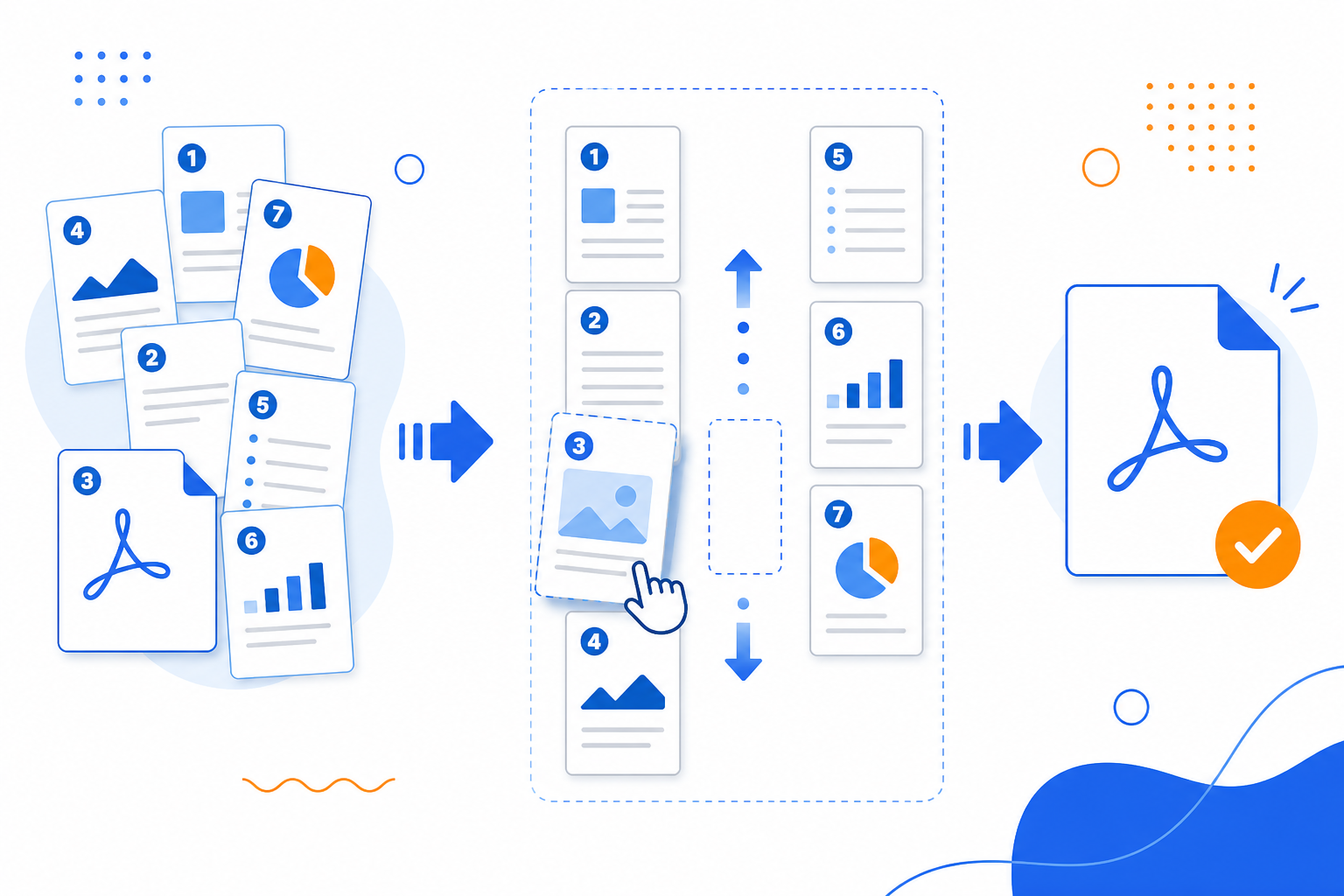
A merged PDF is only useful if the pages are in the right order. Before using PDF Merge, it is worth checking whether each source file has extra pages, missing pages, rotated scans, or content that belongs in a different position.
This guide shows how to organize PDF pages before merging, when to use page ranges inside PDF Merge, and when to clean a file first with PDF Organizer + Cleanup Studio or PDF Split. For the full merge process, keep the PDF merge step-by-step guide nearby.
Why organize pages before merging
Merging is the final assembly step. If a source PDF has blank pages, duplicate scans, wrong rotations, or old drafts, those problems will appear in the final combined file unless you handle them first.
- Applications look cleaner when cover letter, resume, certificates, and portfolio pages are ordered correctly.
- Invoice packets are easier to audit when months or vendors are grouped consistently.
- Legal and compliance bundles are safer when only the intended exhibit pages are included.
- Client documents look more professional when blank scan pages and accidental duplicates are removed.
Use page ranges for simple cleanup
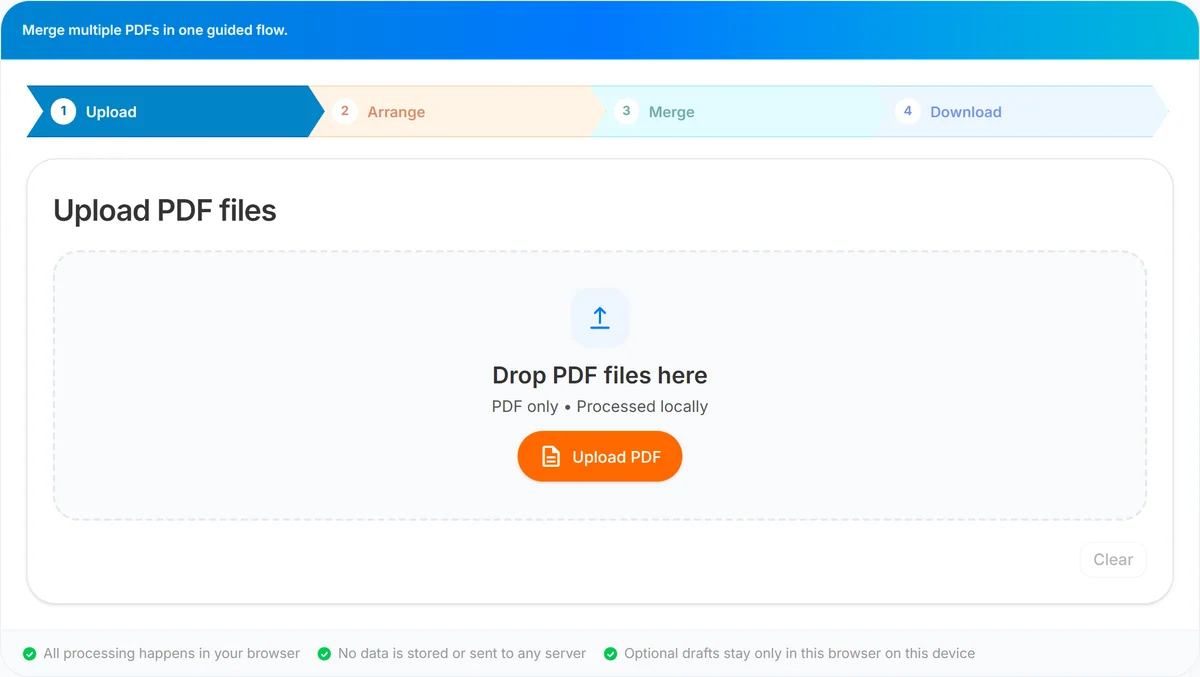
Inside PDF Merge, the Arrange step lets you include all pages or a specific range from each uploaded file. This is the fastest option when you already know which pages you need.
- all: include every page from that PDF.
- 1-3: include pages 1 through 3.
- 1-3,5: include pages 1 through 3 plus page 5.
- 2,4,6: include only those individual pages.
Page ranges are ideal when a file has an appendix you do not need or when you only want a signed page from a longer document.
Use PDF Organizer for visual cleanup
Use PDF Organizer + Cleanup Studio before merging when you need to inspect pages visually. It is better for page-level cleanup tasks that are hard to do from a simple range field.
- Delete blank pages from scanned files.
- Rotate sideways pages before combining.
- Move pages inside one PDF before it joins the final bundle.
- Export a cleaned version, then merge that cleaned PDF with the rest.
Split large files before merging
If one source file is too large or contains many unrelated sections, use PDF Split before merging. Splitting gives you smaller, clearer pieces that are easier to arrange in the final list.
This is especially helpful on mobile. For device-specific tips, read the Windows, Mac, and mobile PDF merge guide.
Recommended workflow
- Open each source PDF and confirm what pages should be included.
- Use PDF Organizer + Cleanup Studio for visual cleanup when pages need deleting, rotating, or reordering.
- Use PDF Split if one file needs to become smaller pieces first.
- Open PDF Merge and upload the cleaned or original PDFs.
- Arrange file order and set page ranges for each source.
- Merge the final bundle, then use Smart PDF Compressor if the output is too large.
- Use PDF Password Protect if the final merged document needs password protection.
Common mistakes to avoid
- Relying only on filenames: always verify page content before merging important documents.
- Using all pages by default: check whether a file has extra cover sheets, blank pages, or old versions.
- Fixing order after merging: it is usually cleaner to arrange before the final merge.
- Skipping a final preview: open the merged PDF and check section boundaries before sending it.
- Compressing too early: clean pages first, merge second, compress last when possible.
Conclusion
Organizing pages before merging prevents messy output. Use page ranges in PDF Merge for simple selection, PDF Organizer + Cleanup Studio for visual cleanup, and PDF Split when a large file needs to be broken into smaller pieces.
Once the pages are ready, follow the PDF merge step-by-step guide to upload, arrange, merge, and download the finished PDF.
Frequently asked questions
Should I organize pages before merging PDFs?
Yes, if the source files contain extra pages, pages in the wrong order, rotated scans, or sections that should be removed before the final combined PDF.
Can I choose page ranges inside PDF Merge?
Yes. In the Arrange step, each file can use all pages or a range such as 1-3,5 to include only selected pages.
When should I use PDF Organizer before PDF Merge?
Use PDF Organizer when you need visual page cleanup such as deleting, rotating, or reordering pages inside a single PDF before it is merged with others.
Can organizing pages reduce file size?
Removing unnecessary pages can reduce size. If the merged PDF is still too large, use Smart PDF Compressor after merging.
Related guides
How to Merge PDF Files Online (Free, In Your Browser)
Combine multiple PDFs into one file using a clear Upload → Arrange → Merge → Download workflow. Everything runs locally in your browser.
How to Merge PDF Files on Windows, Mac, and Mobile
Merge PDF files on Windows, Mac, iPhone, iPad, or Android with a browser-based workflow for upload, arrange, merge, and download.
Is Online PDF Merge Safe?
Understand how browser-based PDF merge works on UseBoldTools, what data leaves your device, and practical steps to merge sensitive documents more safely.
Related tools
PDF Organizer + Cleanup Studio
Reorder, rotate, and delete PDF pages in your browser—ideal for office filings, ITR bundles, school work, and portal uploads.
PDF Split
Split one PDF by range, selected pages, or fixed page intervals in your browser.
Smart PDF Compressor
Reduce PDF file size with goal-based presets, target-size guidance, and browser-side optimization.
PDF Password Protect
Add a password to PDF files free in your browser—lock salary slips, bank statements, ITR proofs, and contracts before sharing.
Ready to try PDF Merge?
Use our free PDF Merge tool in your browser — no account required for most workflows.
Open PDF Merge