
PDF Tools
How to Add a Signature to a PDF Online
Add a signature to a PDF in your browser: draw, type a name, or upload an image in UseBoldTools Edit PDF, place it on the page, and export locally with no watermark.
By UseBoldTools Team 8 min readPublished September 28, 2026
Introduction
Offer letters, delivery notes, permission slips, and internal forms still ask for a signature on a PDF. Printing, signing with a pen, and scanning wastes time and often produces a crooked photo of the page. A dedicated “sign PDF” desktop app is more than you need when the job is a name in a signature block on page one.
This guide covers how to add a signature to a PDF online with Edit PDF on UseBoldTools. You draw, type, or upload a signature image, place it on the page, and export a new PDF in the browser. You do not create an account. The file is not uploaded to UseBoldTools servers for this job. The download does not carry a UseBold watermark.
For the full overlay toolkit (text, ticks, whiteout, shapes), see how to edit a PDF online. If the PDF is locked, read why you cannot edit or print a locked PDF and use PDF Unlock first. More guides sit on the UseBoldTools blog.
What the Sign tool does
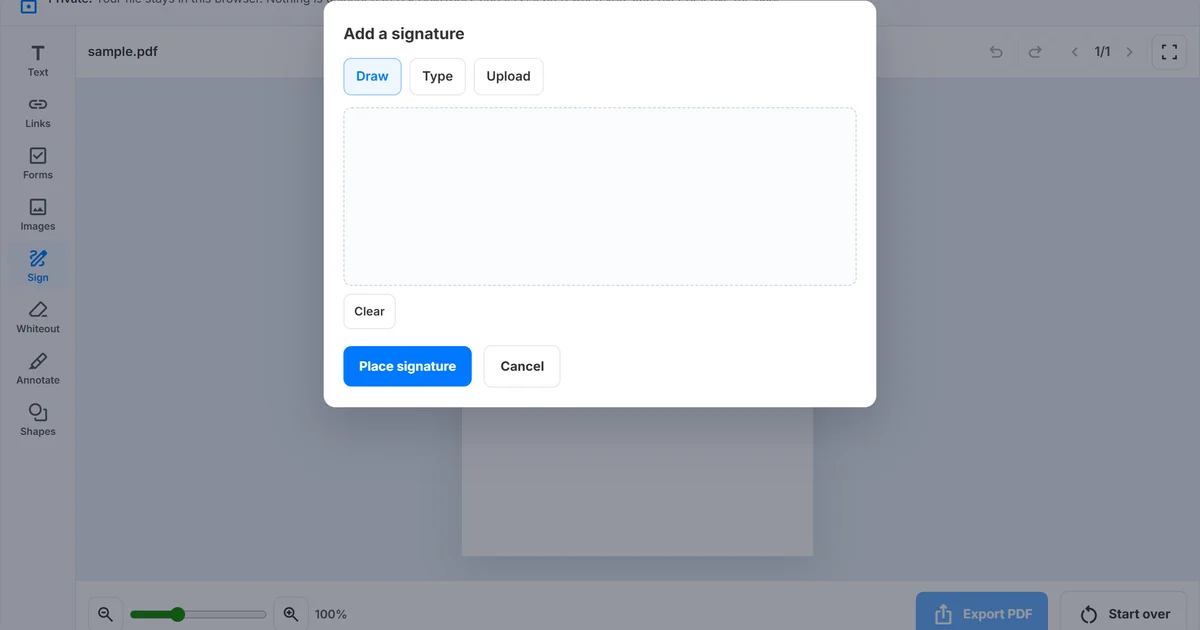
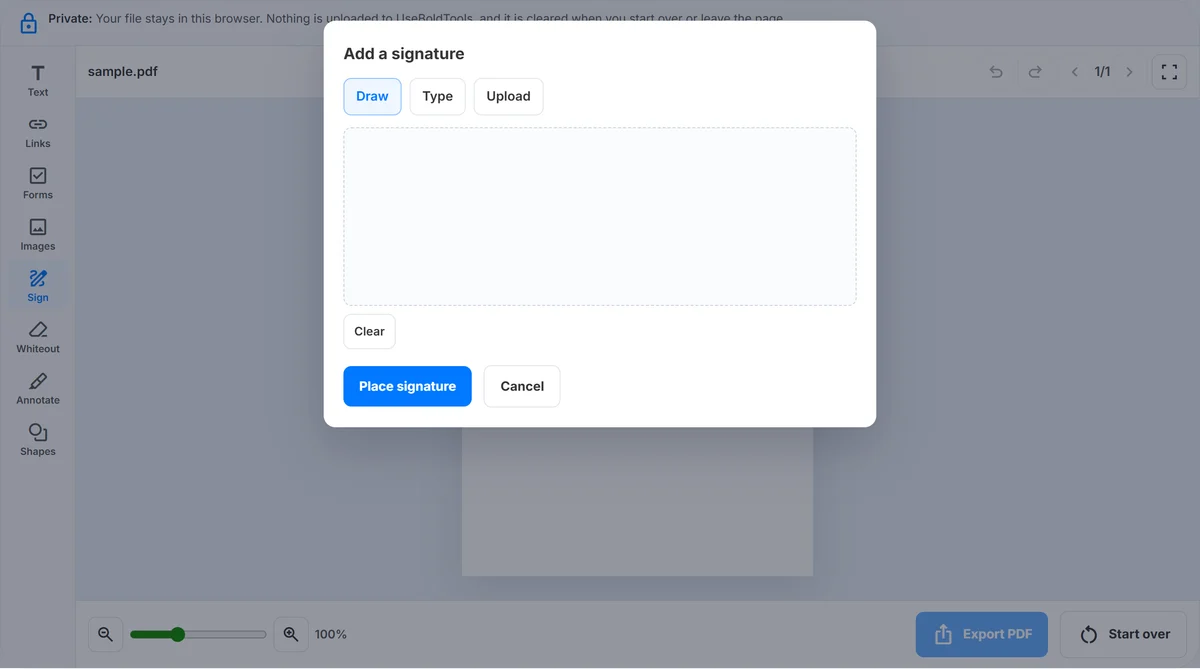
Sign lives on the left rail of Edit PDF, not as a separate product. It opens a modal titled “Add a signature” with three modes: Draw on a canvas, Type a name in a script-style preview, or Upload a PNG or JPEG. After you click Place signature, the mark is an overlay you can drag and resize like an image.
This is not a certificate-based digital signature and not DocuSign. It is a visual signature baked into a new PDF. Recipients see ink or a typed name on the page. They do not get a cryptographic identity from UseBoldTools. If a counterparty requires Adobe-certified signing or a qualified electronic signature, this tool is the wrong product.
You can still add a printed name or date in the same session with Text. You can copy the signature overlay onto every page. Export bakes the mark into a new file; the original upload is left unchanged on disk until you replace it yourself.
When a visual signature is enough
- Internal forms that only need a name in a signature block.
- School or club slips you return as a PDF.
- A scanned agreement where both sides already agreed and you only need a mark on the page.
- Delivery or acknowledgement notes where a drawn mark is the usual practice.
If the PDF is locked, use PDF Unlock first. If you still need to attach photos as pages, convert them with Image to PDF, merge with PDF Merge, then sign the combined file. PDF Organizer can drop blank sheets or rotate a landscape scan before you open Sign.
Before you start
Keep the unsigned original. Export writes a new PDF; it does not replace the file on disk until you save over it yourself. If a counterparty later disputes the mark, you still have the blank form.
Decide Draw vs Type vs Upload before you open the dialog. Draw looks closest to ink on a tablet. Type is fastest when the form only needs a readable name in the signature block. Upload is best when you already have a PNG of a wet-ink signature on white paper.
Confirm you are allowed to use a visual overlay. Some banks, courts, and HR portals insist on their own signing product. UseBoldTools will still bake a picture onto the page; that does not make the file a qualified electronic signature.
Step 1: Open the PDF in Edit PDF
Go to Edit PDF and upload one PDF. Drop it on the dashed area or click Upload. The empty screen matches the rest of the PDF family: one file, no chevron wizard, no UseBold logo on the later download.
Encrypted files must be unlocked first. The empty screen shows a link to Unlock when the file has an open password. After a valid PDF loads, the left rail appears with Text, Forms, Images, Sign, Whiteout, Annotate, and Shapes.

Step 2: Draw, type, or upload the signature
Click Sign on the left rail. The dialog has Draw, Type, and Upload.
- Draw. Sign on the pad with a mouse or finger, then Place signature. Use Clear if the stroke is messy. A finger on a phone often looks more like real ink than a mouse on a laptop.
- Type. Enter the name and Place signature. The tool renders it as a signature image on the page. This is still a picture of a name, not a certificate.
- Upload. Choose a PNG or JPEG of an existing signature scan. A clean background sits better on a white form than a photo of a desk.
After it lands on the page, drag it into the signature line. Resize from the handles. On a multi-page PDF, Copy to all pages duplicates that overlay onto every sheet. Add the date with Text if the form has a separate date field so the signature block and the date field stay aligned.
Zoom in the footer before you drop the mark on a small printed line. Full screen helps on a laptop when the signature block sits near the bottom of a dense page.
If you also need a printed name under the ink, use Text after you place the signature. Keep the two overlays separate so you can nudge the name without stretching the signature image. If the packet has a date field, add that with Text as well rather than handwriting it into the signature PNG.
Step 3: Save the signed PDF
Click Save PDF. Download from the Done screen. The overlay is not in the original file until save runs. Continue with Protect if the signed file should require a password, or Compress if a scan made the file large.
For a password after signing, follow how to password protect a PDF online with PDF Password Protect. Smart PDF Compressor and PDF Organizer are the other common next steps. Start over returns to the drop zone after you confirm, so a shared computer does not keep the signed page on screen.
What Sign does not do
Sign does not issue a digital certificate, timestamp from a trust service, or an audit trail of who opened the file. Recipients cannot “verify” the signature in Acrobat the way they would for a certified digital signature. They can only see that a mark was drawn or typed onto the page.
It also does not fill the rest of a PDF form’s interactive fields. If the file has AcroForm fields, this tool still places overlays on top of the page image. For a name, date, tick, and signature in one pass, use Text, Forms, and Sign together, then export once.
If you need many files combined before anyone signs, merge first. If you only needed a signature and you also want ticks and whiteout, stay in the same workspace and follow how to edit a PDF online instead of downloading twice.
Benefits
- Three signature methods in one dialog: draw, type, or upload.
- The signature moves on the page like any other overlay.
- Local processing and no UseBold watermark.
- You can add a date or printed name with Text in the same session.
- Copy to all pages covers multi-sheet packets without repeating the dialog.
Privacy and security
The PDF and the signature image stay in the tab until you download or start over. That is convenient on your own laptop. On a shared PC, download, then Start over or close the tab so the next person does not see the signed page.
A visual signature does not encrypt the file. Anyone who has the PDF can see it. Add a password when the content is sensitive. Do not treat a typed name as a qualified electronic signature; it is a picture of a name.
On a shared computer, do not leave the Add a signature dialog open. Close it, export or Start over, and close the tab. A drawn signature on a public machine is as sensitive as a photo of your ink.
Common mistakes
- Placing the signature and never saving. The overlay is not in the original file until Save PDF runs.
- Signing a password-locked PDF. Unlock it first when you know the password.
- Uploading a photo with a busy background. A PNG with a clean background sits better on the page.
- Assuming the typed name is a qualified electronic signature. It is a picture of a name, not a certificate.
- Signing the wrong page. Use the page arrows before you open Sign so the mark lands on the signature block, not on page one by habit.
Best practices
- Zoom in on the signature line before you drop the overlay.
- Keep a copy of the unsigned original.
- Add the date with Text if the form has a separate date field.
- Use other tools in the PDF tools category for merge, split, and protect instead of forcing those jobs into the signature dialog.
Conclusion
Adding a signature online on UseBoldTools is Sign → Draw, Type, or Upload → place → Export. The mark is an overlay baked into a new PDF in your browser, with no watermark and no server upload for this job.
Open Edit PDF to sign a file now. For text, ticks, and whiteout in the same editor, read how to edit a PDF online. The UseBoldTools blog has the rest of the PDF series.
Frequently asked questions
How do I add a signature to a PDF on UseBoldTools?
Open Edit PDF, upload the PDF, click Sign, then Draw, Type a name, or Upload a PNG or JPEG. Place the signature, drag it into position, and Save PDF.
Is my signed PDF uploaded to UseBoldTools servers?
No. Signing and export run in your browser. The file is not uploaded to UseBoldTools servers for this job.
Can I copy a signature onto every page?
Yes. Select the signature overlay and use Copy to all pages when the PDF has more than one page.
Does a typed name count as a legal signature?
That depends on the document and local rules. The tool places a visual signature overlay. It does not give legal advice or a certificate-based digital signature.
Will the signed download have a watermark?
No. UseBoldTools does not add a watermark.
Related guides
How to Edit a PDF Online (Free, In Your Browser)
Edit a PDF in your browser with UseBoldTools: add text, ticks, images, or a signature as overlays, then export a new file locally—no watermark and no server upload.
How to Password Protect a PDF File Online
Learn how to password protect a PDF file online with browser-side encryption, strong password tips, permissions, and safer sharing steps.
Why Can’t I Edit or Print My PDF File?
Understand why a PDF cannot be edited or printed, including password protection, owner permissions, scanned pages, and viewer limits.
How to Merge PDF Files Online (Free, In Your Browser)
Combine multiple PDFs into one file using a clear Upload → Arrange → Merge → Download workflow. Everything runs locally in your browser.
Related tools
PDF Unlock
Remove password protection from a PDF when you already know the password.
PDF Password Protect
Add a password to PDF files free in your browser—lock salary slips, bank statements, ITR proofs, and contracts before sharing.
PDF Merge
Merge PDF files online — combine invoices, job applications, and other PDFs in your browser.
Smart PDF Compressor
Reduce PDF file size with goal-based presets, target-size guidance, and browser-side optimization.
Image to PDF Converter
Convert JPG, PNG, and WEBP images into one PDF directly in your browser.
Ready to try Edit PDF?
Use our free Edit PDF tool in your browser — no account required for most workflows.
Open Edit PDF