
PDF Tools
How to Edit a PDF Online (Free, In Your Browser)
Edit a PDF in your browser with UseBoldTools: add text, ticks, images, or a signature as overlays, then export a new file locally—no watermark and no server upload.
By UseBoldTools Team 10 min readPublished September 28, 2026
Introduction
Most “edit this PDF” jobs are small. You need a name on a school form, a date on a letter, a tick in a printed checkbox, a cover over a line you do not want in a screenshot, or a signature in a block that was left empty. Full desktop editors are heavy for that. Many websites also ask you to upload the file to a server before you can even see the first page.
This guide shows how to edit a PDF online with the free Edit PDF tool on UseBoldTools. You upload one PDF, place overlays on the page, export a new file, and download it. Processing stays in the browser. You do not create an account. The download does not carry a UseBold logo. For more guides, visit the UseBoldTools blog.
If you only need a signature, jump to how to add a signature to a PDF online. If the file will not open, print, or accept marks because it is locked, read why you cannot edit or print a locked PDF and try PDF Unlock before you edit.
What Edit PDF does
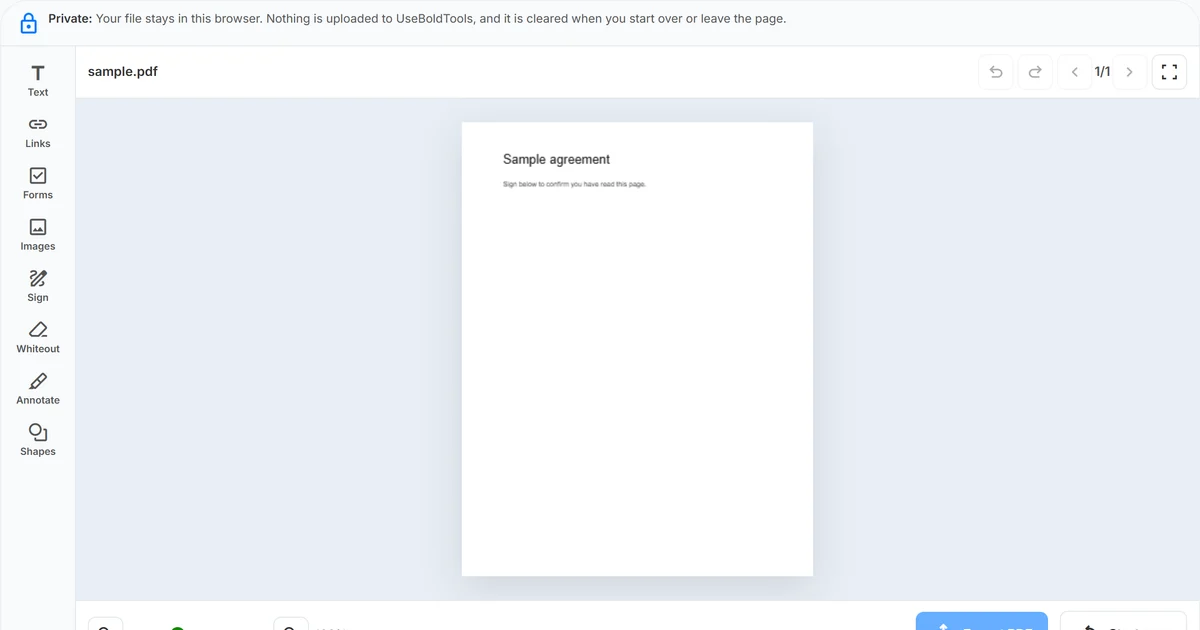
UseBoldTools Edit PDF is an overlay editor. You add new content on top of the existing page: text boxes, PNG or JPEG images, drawn or typed signatures, whiteout rectangles, highlights, rectangles, ellipses, and form ticks. You drag and resize those overlays, copy one overlay onto every page when the file has more than one sheet, then export a new PDF with the overlays baked in.
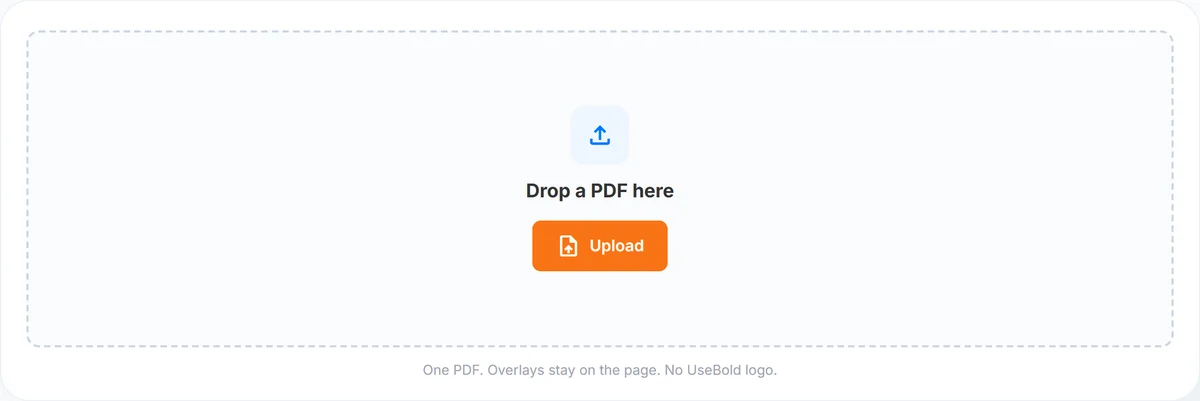
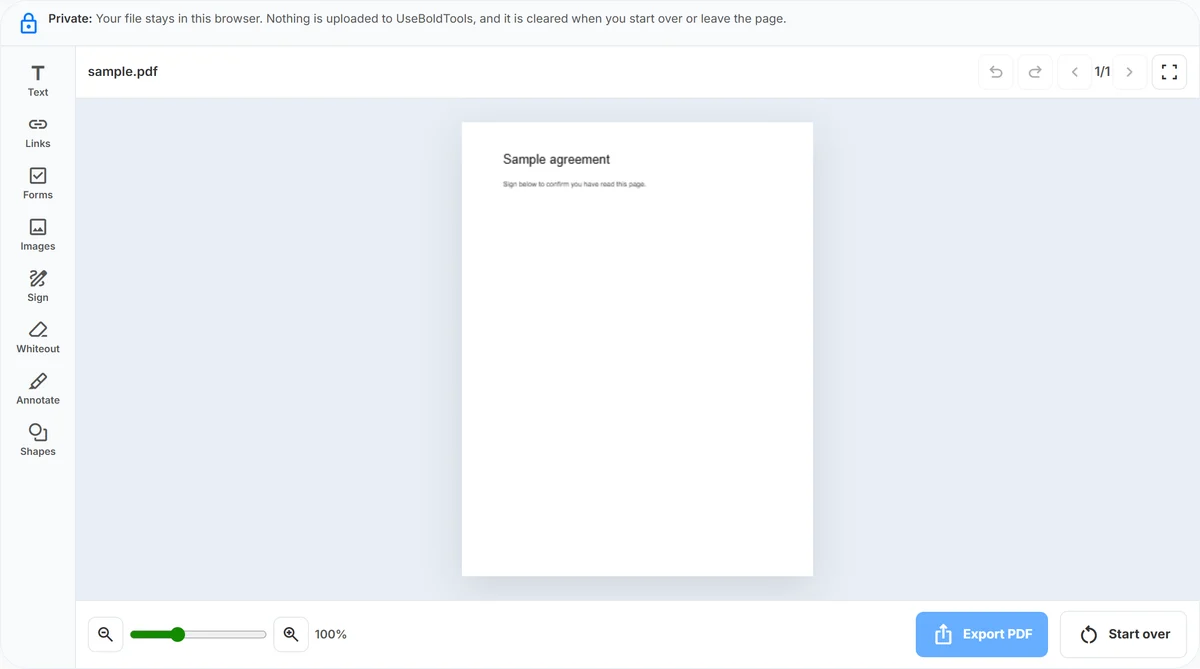
The workspace follows the same Empty / Working / Done pattern as other tools in the PDF family. Empty is a drop zone: “Drop a PDF here” plus an orange Upload button. Working is a left tool rail plus the page canvas. Done is the download screen with Continue with chips so the same result can go to Protect, Compress, Split, Merge, Watermark, or Organizer without finding the file again.
Text, ticks, and signatures are overlays. The original PDF drawing underneath stays as it was. That is why a white box can hide a line on screen while the old characters may still be selectable in some PDF viewers. Use the tool for labels and marks you are adding, not for secretly deleting source text.
The tool does not rewrite original PDF sentences in place. It does not require an account. It does not stamp a UseBold logo on the download. Links on the left rail are listed as coming soon; they are not a live feature yet.
When you need to edit a PDF
- Forms and school work. Add a name, date, or tick without printing and scanning.
- Approvals. Place a signature on an offer letter, delivery note, or internal form.
- Quick visual cover. Whiteout a line you do not want visible in a share, knowing the old text may still be in the file.
- Markup. Highlight a clause or draw a box around a figure before you send the file.
- A stamp that is not a full watermark. A small image or typed label on one page is often enough; use Watermark when every page needs the same stamp.
If you need several files in one packet first, follow how to merge PDF files online with PDF Merge, then edit the merged PDF. If you need a stamp across every page instead of a single overlay, use PDF Watermark. If the packet is messy, PDF Organizer can reorder, rotate, or drop pages before you annotate.
Before you start
Keep a copy of the original PDF. Export writes a new file; it does not overwrite the upload on disk. If the source is a scan, a cleaner export from the scanner or phone often places overlays more accurately than a photo of a screen.
If the file asks for a password, stop and use PDF Unlock first. Edit PDF will not open an encrypted document. If you only need some pages annotated, PDF Split the packet or drop pages in PDF Organizer so you are not placing ticks on sheets you will throw away.
Decide whether you need in-place rewrite. This tool cannot change the original sentence in the PDF stream. If the job is “fix a typo in the contract body,” you need the source app (Word, Google Docs, the form designer) or a true PDF editor that rewrites content streams. If the job is “put my name on the line,” overlays are the right fit.
Step 1: Upload one PDF
Open Edit PDF. On the empty screen you see a dashed drop zone, an orange Upload button, and a short note: one PDF, overlays stay on the page, no UseBold logo. Drop a file onto the dashed area or click Upload. The tool accepts one PDF at a time.
Encrypted files are blocked with a message that points to Unlock when you already know the password. Corrupted files show a clear read error. After a valid file loads, you stay on the same page: the editor, not a new site. The privacy note appears once you leave the empty screen so you can see that processing stays in the tab.
If you arrived from another PDF tool with Continue with, the file can already be in the workspace. You skip the drop zone and land in Working with the left rail ready.
Step 2: Place overlays on the page
The left rail holds the tools. Click the tool, then click the page (or draw a box) depending on the action:
- Text places an “Insert Text” box at 24 pt. Type, then drag the box where it should sit. Double-click when you need to type again. Size, colour, bold, and italic sit on the small bar above a selected text overlay.
- Forms is click-to-place: choose Forms, then click the page to drop a checkbox tick. Clicking Forms again does not dump ticks on the page; you place one mark per click.
- Images opens a PNG or JPEG picker and centers the picture on the current page. Drag and resize like any other overlay.
- Sign opens Draw, Type, or Upload. Place the signature, then drag it like an image. The dedicated walkthrough is in the signature guide linked above.
- Whiteout and Annotate are drag-to-draw boxes. Whiteout covers; Annotate highlights. Shapes draws a rectangle or ellipse from the flyout.
Selected overlays show a small bar: duplicate, copy to all pages (when the PDF has more than one page), layer, and delete. Drag from the box itself, not from the textarea, so the overlay moves like a signature. Text and ticks share the same 24 pt line height so a checkbox square is not a different size from a one-line label.
Use the page arrows for multi-page files, zoom in the footer, and full screen when you want a larger page well. Start over returns to upload after you confirm. There is no separate Change file control; Start over is the reset.
On a long form, place all ticks and labels on one page, then move to the next with the arrows. Copy to all pages is for a date or “received” stamp that must repeat. Do not copy a signature onto every page unless the packet actually needs it on every sheet.
Step 3: Save and download
When the page looks right, click Save PDF. The tool bakes overlays into a new file and opens the Done screen. Download from there. Overlays sitting on the canvas are not in the original file until save finishes.
You can also Continue with Protect, Compress, Split, Merge, Watermark, or Organizer on the same result. If you will email the file, PDF Password Protect can add an open password after export—see how to password protect a PDF online. If the download is large, Smart PDF Compressor can shrink it in the browser. PDF Split is the next step when you only need some of the pages.
If export fails, check that you added at least one overlay, that ticks are still on the page, and that the source file is not encrypted. Start over and upload a fresh export from the original app if the PDF is damaged.
Benefits of editing in the browser
- No install. The editor runs in the tab you already have.
- No account. You do not sign in to place text or a signature.
- Local processing. The PDF is not uploaded to UseBoldTools servers for this job.
- Honest limits. Overlay editing and whiteout-as-cover are stated on the page, so you know what the download contains.
- Same-file next steps. Continue with chips keep Protect, Compress, Split, Merge, Watermark, and Organizer one click away after export.
Privacy and security
Edit PDF reads the file in your browser and writes a new PDF in the same tab. Close the tab when you finish on a shared computer. Start over clears the current file from the workspace after you confirm.
Whiteout is not encryption and not redaction. If you must remove secrets from the file bytes, do not rely on a white box. If you must limit who can open the download, use a password after export. A visual cover is for screenshots and casual shares, not for legal redaction packages.
Browser extensions, screen recorders, and a compromised device sit outside what any web tool can control. Use a trusted network for sensitive forms, and close the tab when you leave a shared machine.
Common mistakes
- Expecting in-place text rewrite. Place a text box or whiteout over the old line instead. The original characters stay in the PDF until a true redaction workflow replaces the file.
- Treating Whiteout as redaction. Covered words can still be in the PDF and may still be searchable.
- Editing a locked file. Unlock it first when you know the password.
- Clicking Forms repeatedly as if it were a toggle. Forms arms the tick tool; you place one mark per click on the page.
- Skipping Save PDF. Overlays on the canvas are not in the original file until you save.
- Using Links on the rail. Link to URL and Link to page are not available yet.
Best practices
- Keep the original PDF until you open the download and check every page.
- Use Copy to all pages for a date or tick that must appear on every sheet.
- Zoom in before you place small ticks on printed form boxes.
- Reorder or drop pages in PDF Organizer before you annotate, if the packet is messy.
- Browse the rest of the PDF tools category when the next step is merge, split, or protect—not more overlays.
After you download, open the file in a desktop reader and zoom the overlays. If a tick sits off the printed box, go back, Start over, and place it again with zoom on. Do not email a first export you have not opened.
Conclusion
Editing a PDF online on UseBoldTools means overlays, not a full desktop publisher. Upload one file, place text, ticks, images, or a signature, export, and download—without a watermark and without sending the file to our servers for this job.
Open Edit PDF when you are ready. If the next step is a signature only, use how to add a signature to a PDF online. More PDF walkthroughs live on the UseBoldTools blog.
Frequently asked questions
Can I rewrite the original sentences in a PDF with this tool?
No. Edit PDF is an overlay editor. You place new text, images, signatures, whiteout, highlights, and shapes on top of the page. It does not change the original PDF words in place.
Are my PDFs uploaded to UseBoldTools servers when I edit them?
No. Editing runs in your browser tab. The file is not uploaded to UseBoldTools servers for this job.
Does Whiteout permanently redact hidden text?
No. Whiteout draws an opaque rectangle. Hidden words may still live in the file. Treat it as a visual cover, not true redaction.
Will the download include a UseBold watermark?
No. UseBoldTools does not add a watermark to the edited PDF.
What if the PDF is password protected?
Unlock it first with PDF Unlock when you already know the password, then open the unlocked file in Edit PDF.
Related guides
How to Add a Signature to a PDF Online
Add a signature to a PDF in your browser: draw, type a name, or upload an image in UseBoldTools Edit PDF, place it on the page, and export locally with no watermark.
Why Can’t I Edit or Print My PDF File?
Understand why a PDF cannot be edited or printed, including password protection, owner permissions, scanned pages, and viewer limits.
How to Merge PDF Files Online (Free, In Your Browser)
Combine multiple PDFs into one file using a clear Upload → Arrange → Merge → Download workflow. Everything runs locally in your browser.
How to Password Protect a PDF File Online
Learn how to password protect a PDF file online with browser-side encryption, strong password tips, permissions, and safer sharing steps.
Related tools
PDF Unlock
Remove password protection from a PDF when you already know the password.
PDF Password Protect
Add a password to PDF files free in your browser—lock salary slips, bank statements, ITR proofs, and contracts before sharing.
PDF Merge
Merge PDF files online — combine invoices, job applications, and other PDFs in your browser.
Smart PDF Compressor
Reduce PDF file size with goal-based presets, target-size guidance, and browser-side optimization.
Add Watermark to PDF
Add text or logo watermarks to PDF online free—confidential stamps, draft labels, and custom page ranges in your browser.
Ready to try Edit PDF?
Use our free Edit PDF tool in your browser — no account required for most workflows.
Open Edit PDF