
PDF Tools
How to Convert Images to PDF Online for Free
Convert JPG, JPEG, PNG, and WEBP images to PDF free in your browser. Upload, arrange page order, and download images-to-pdf.pdf with local processing.
By UseBoldTools Team 8 min readPublished July 2, 2026
Introduction
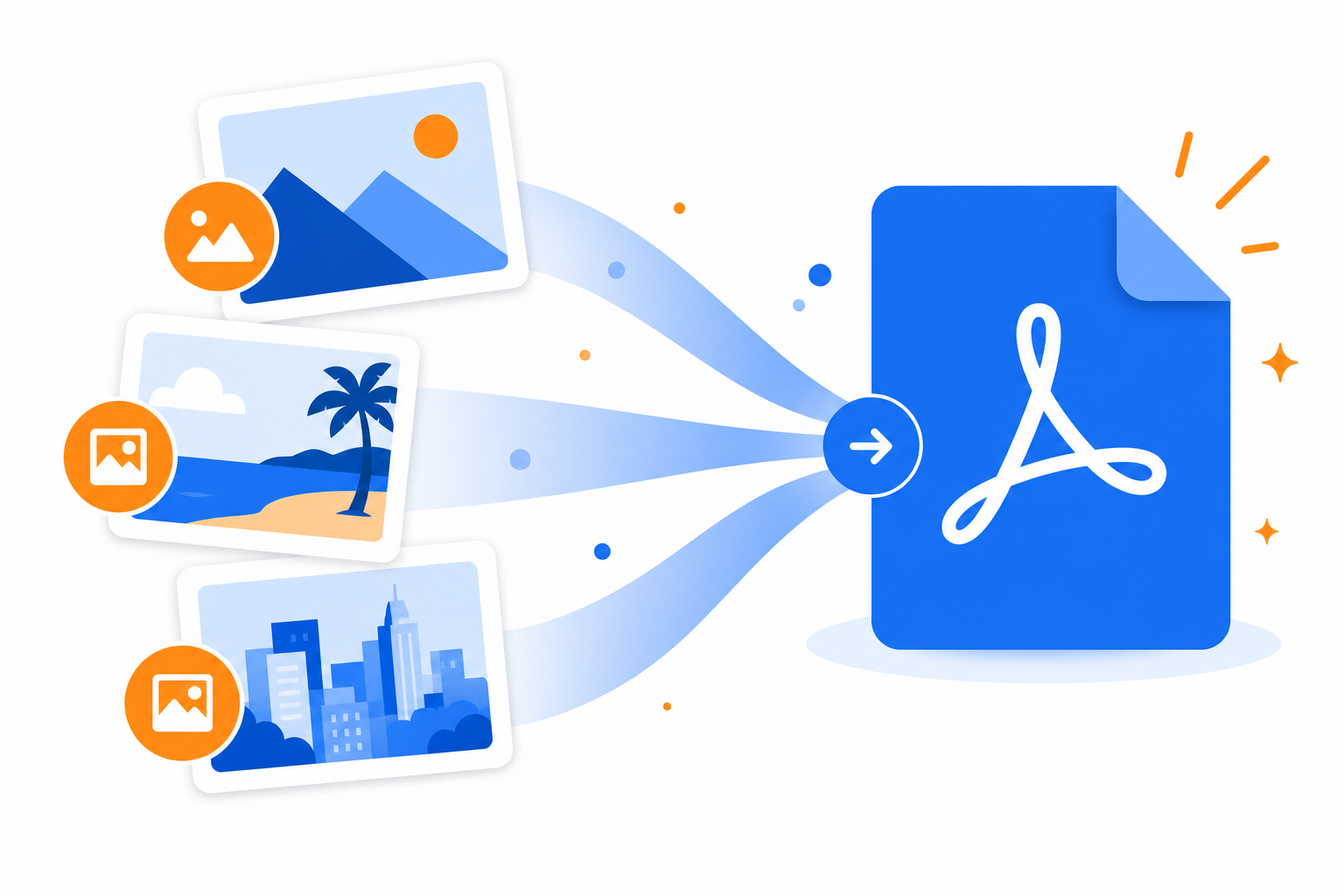
You have photos, scans, or screenshots that need to become a PDF — for a school portal, a job application, an insurance claim, or a client email. Desktop software works, but many people just need a fast tab that turns images into a shareable document without installing anything.
This guide shows how to convert images to PDF online for free with the Image to PDF Converter on UseBoldTools. The workflow is Upload → Arrange → Generate: add JPG, JPEG, PNG, or WEBP files, set page order, then download images-to-pdf.pdf from your browser. Processing uses your browser, so conversion is not sent to our servers for that step.
If you are combining several photos into one file, also read our guide on how to create a single PDF from multiple images. For more guides across PDF and image tools, visit the UseBoldTools blog.
What the Image to PDF Converter does
UseBoldTools Image to PDF Converter turns supported image files into a single PDF document. Each image becomes one page, scaled to fit an A4-style page with margins. You can upload from desktop drag-and-drop, the orange Upload Image button, or on mobile the Camera, Gallery, and Files controls.
The tool shows preview cards with file name, size, dimensions, and format before you export. On the Arrange step you can move images up or down and remove any file you added by mistake. There is no UseBoldTools watermark on the output PDF.
Unlike print-to-PDF tricks that capture your screen, this converter embeds the actual image data in a proper PDF page. That usually produces cleaner results for forms, receipts, worksheets, and photo batches you plan to email or upload.
When you need to convert images to PDF
- Portals that accept PDF only. Many university, government, and HR systems reject JPG attachments but accept a single PDF upload.
- Scanned paperwork from a phone. After photographing documents, combining them into one PDF is easier for reviewers than a camera roll full of separate shots.
- Screenshots and marked-up images. Design approvals, bug reports, and annotated photos are often clearer as a PDF packet than loose PNG files.
- Archiving visual records. Insurance photos, warranty cards, and travel receipts stay grouped when saved as one dated PDF.
- Sharing with non-technical recipients. PDFs open consistently on phones, tablets, and desktops without image-viewer quirks.
If your images still need cleanup — cropping, resizing, or background removal — prepare them first with Image Resizer or Image Background Remover. Our how to remove image background online for free walks through transparent cutouts when you need cleaner product or profile photos before export.
Step-by-step: convert images to PDF
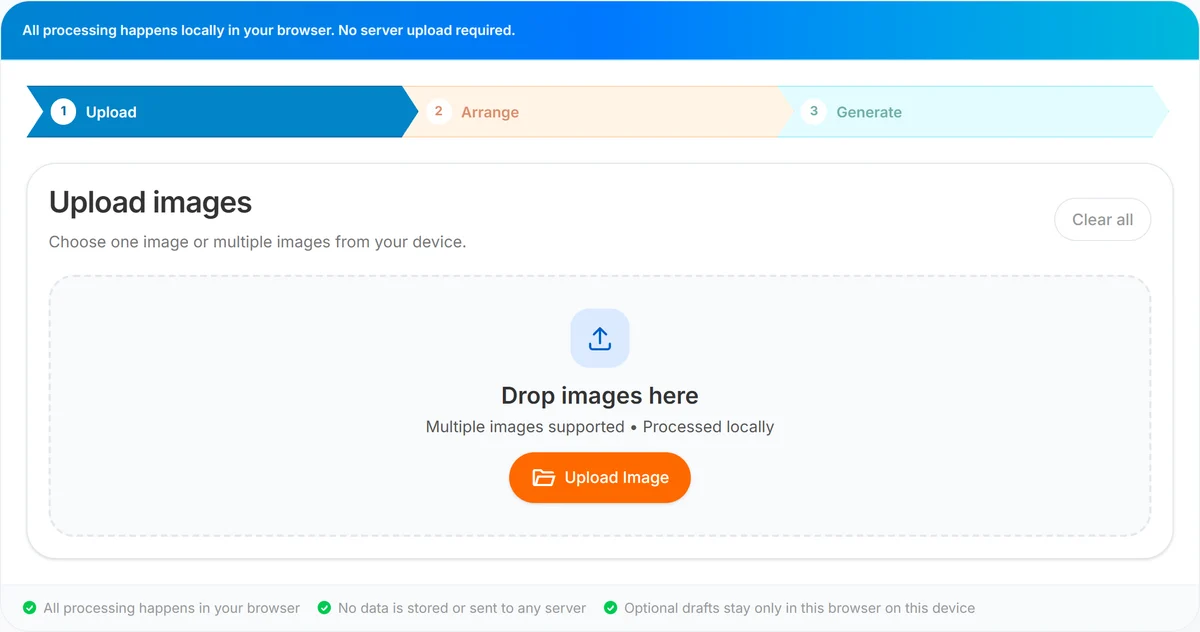
Open the Image to PDF Converter tool. You will see three chevron steps — Upload, Arrange, and Generate — so you always know where you are in the flow.
Step 1 — Upload images. Add files in any of these ways:
- Drag and drop images onto the dashed upload area on desktop.
- Click Upload Image (desktop) or use Camera, Gallery, or Files on mobile.
- Select one image or many at once — JPG, JPEG, PNG, and WEBP are accepted.
After upload, chips show how many images are selected and remind you that order is preserved in the final PDF. Use Clear all to reset if you picked the wrong batch.
Step 2 — Arrange images. When you are ready, continue to Arrange. Each image appears as a card with a thumbnail, file name, size, dimensions, and format. Use Move Up and Move Down to set page order, or Remove to drop a file. Click Continue to Generate when the sequence looks right.
Step 3 — Generate PDF. On the Generate step, click the primary button to build the PDF in your browser. The label switches to Generating… while the file is prepared, then to Download PDF when the file is ready. Save images-to-pdf.pdf to your device. On iOS installed as a PWA, follow the on-screen note if the system opens the PDF first — use Share to save to Files.
For a deeper walkthrough on multi-image ordering, see how to create a single PDF from multiple images. After conversion, you can how to merge PDF files online if this PDF needs to join other documents.
Benefits of converting images to PDF in the browser
- No install required. Open a tab, upload, and download — works on Windows, Mac, Linux, iOS, and Android.
- Fast for everyday batches. A handful of phone photos or office scans converts in seconds on typical hardware.
- Clear preview before export. Thumbnails and metadata help you catch wrong files before generating the PDF.
- Reorder without re-uploading. Move Up and Move Down fix sequence mistakes on the Arrange step.
- Privacy-aware processing. Conversion itself stays in your browser; images are not uploaded to UseBoldTools servers for that operation.
- Fits your PDF toolkit. Pair with Smart PDF Compressor before email, PDF Password Protect for sensitive packets, or PDF Merge when combining with existing PDFs.
Privacy and security
UseBoldTools Image to PDF Converter reads your image files in the browser and builds the PDF locally. That means the conversion operation does not depend on sending your photos to our servers.
You should still handle sensitive images carefully: use trusted networks, close the tab on shared computers, and keep originals until you open the download and confirm every page. Browser extensions, screen recorders, and compromised devices are outside what any web tool can control.
If the finished PDF contains personal or financial information, consider protecting it with PDF Password Protect and sharing the password through a separate channel. For a broader view of local PDF workflows, browse the PDF tools category.
Common mistakes to avoid
- Wrong page order. Receipts, forms, and ID scans often need a specific sequence — always review thumbnails on the Arrange step.
- Uploading unsupported formats. HEIC, GIF, and SVG are blocked. Export or convert to JPG, PNG, or WEBP first.
- Skipping image prep. Crooked scans and huge camera originals still convert, but resizing or cleaning first often produces a more professional PDF.
- One giant batch on a slow phone. Dozens of full-resolution photos can stress mobile browsers — split into smaller PDFs or resize with Image Resizer first.
- Deleting originals too soon. Open images-to-pdf.pdf and spot-check first and last pages before archiving source files.
- Choosing the wrong share format. Some recipients prefer images; others require PDF. Read our JPEG vs PDF — which format should you share when you are unsure.
Best practices
- Name source files clearly before upload (e.g. 01-cover.jpg, 02-form.jpg) so Arrange cards are easy to scan.
- Shoot documents flat with even lighting — fewer retakes mean faster conversion.
- Resize very large photos with Image Resizer when file size matters more than pixel-perfect detail.
- Remove distracting backgrounds from product shots with Image Background Remover before converting marketing images to PDF.
- After download, run a quick page-count check — it should match the number of images you arranged.
- Bookmark Image to PDF Converter and this guide if you convert image batches regularly.
Conclusion
Converting images to PDF online does not have to mean mystery uploads or bloated desktop apps. On UseBoldTools you upload supported images, arrange them, generate the PDF in your browser, and download images-to-pdf.pdf — without a watermark and without an account for the standard flow.
When you are ready, open Image to PDF Converter and walk through Upload → Arrange → Generate. For multi-image workflows and format decisions, keep how to create a single PDF from multiple images and JPEG vs PDF — which format should you share nearby. More guides are on the UseBoldTools blog.
Frequently asked questions
Can I convert images to PDF online for free on UseBoldTools?
Yes. Open Image to PDF Converter, upload JPG, JPEG, PNG, or WEBP files, arrange them if needed, and generate a PDF in your browser. No account is required for the standard flow.
Are my images uploaded to UseBoldTools servers?
No. Conversion runs locally in your browser. Your images are read and combined on your device for that operation.
Which image formats are supported?
The tool accepts JPG, JPEG, PNG, and WEBP. Other formats such as HEIC or GIF are not supported and will show a friendly error.
Can I convert one photo or many photos at once?
Both. Upload a single image for a one-page PDF, or select multiple images to combine them into one document in the order you choose.
What is the downloaded PDF file named?
The default download is images-to-pdf.pdf. You can rename the file after saving if your workflow needs a clearer filename.
Related guides
How to Create a Single PDF from Multiple Images
Combine multiple JPG, PNG, or WEBP images into one PDF. Upload, reorder with Move Up and Move Down, and download images-to-pdf.pdf in your browser.
JPEG vs PDF: Which Format Should You Share?
JPEG vs PDF for sharing explained: when to send images, when to convert to PDF, and how to use UseBoldTools Image to PDF Converter locally in your browser.
How to Merge PDF Files Online (Free, In Your Browser)
Combine multiple PDFs into one file using a clear Upload → Arrange → Merge → Download workflow. Everything runs locally in your browser.
How to Remove Image Background Online for Free
Remove image backgrounds online for free with UseBoldTools. Upload JPG, PNG, or WebP, preview the cutout, and download transparent PNG or flat JPG.
Related tools
PDF Merge
Merge PDF files online — combine invoices, job applications, and other PDFs in your browser.
Smart PDF Compressor
Reduce PDF file size with goal-based presets, target-size guidance, and browser-side optimization.
PDF Password Protect
Add a password to PDF files free in your browser—lock salary slips, bank statements, ITR proofs, and contracts before sharing.
Image Resizer
Resize image online free — change width, height, or percentage for forms, Instagram, YouTube, and more.
Image Background Remover
Remove background from images free in your browser—transparent PNG or flat JPG, no upload
Ready to try Image to PDF Converter?
Use our free Image to PDF Converter tool in your browser — no account required for most workflows.
Open Image to PDF Converter