
PDF Tools
JPEG vs PDF: Which Format Should You Share?
JPEG vs PDF for sharing explained: when to send images, when to convert to PDF, and how to use UseBoldTools Image to PDF Converter locally in your browser.
By UseBoldTools Team 7 min readPublished July 2, 2026
Introduction
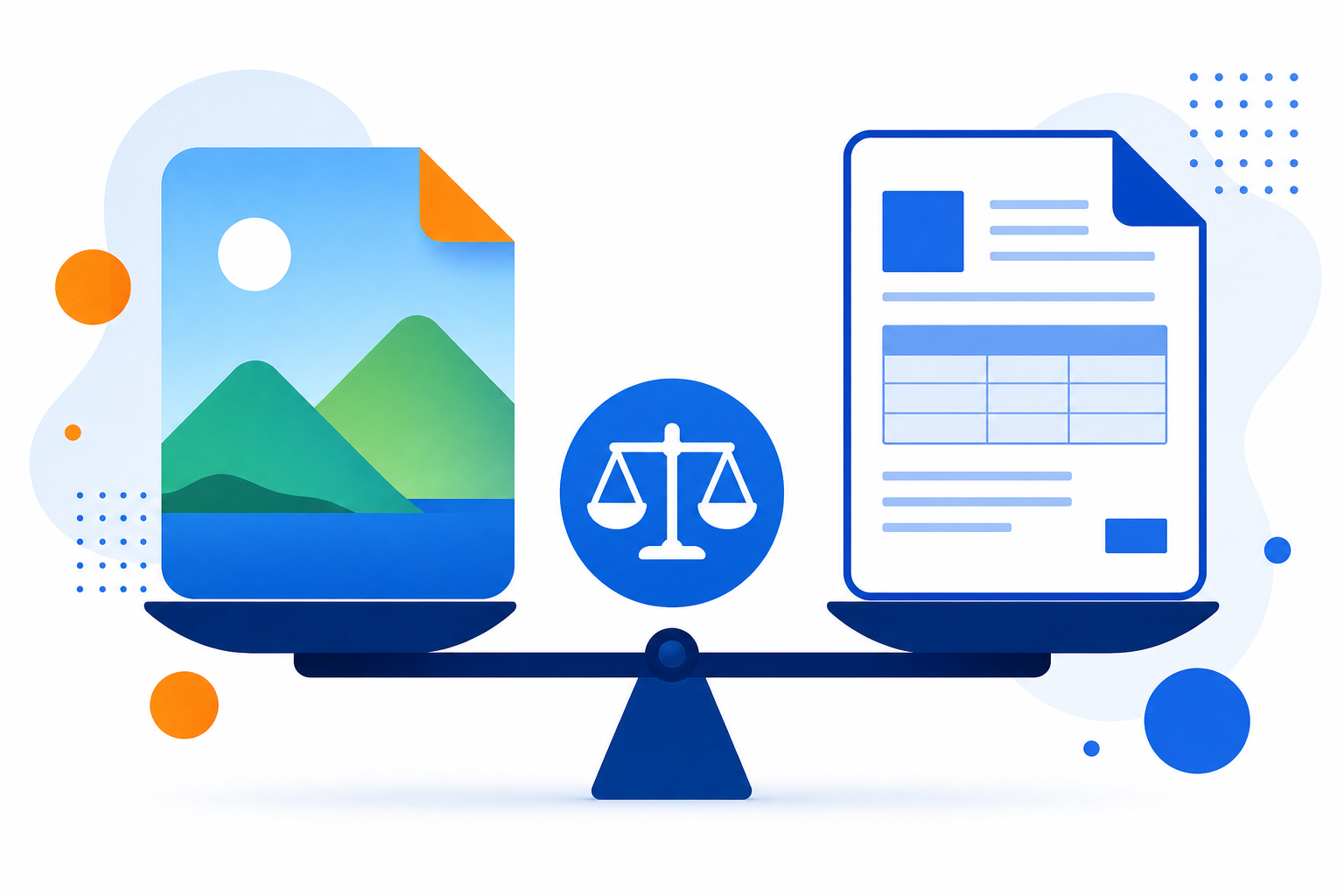
You finished scanning documents or exporting photos, and now you need to share them. The portal says “PDF only.” Your colleague asks for “just the JPG.” Same content, different containers — and picking wrong costs you a rejected upload or an extra round of email.
This guide compares JPEG vs PDF for everyday sharing: when each format wins, when to convert with the Image to PDF Converter, and how browser-local processing fits privacy-conscious workflows. For hands-on conversion steps, read how to convert images to PDF online for free and how to create a single PDF from multiple images.
More practical guides for PDF and image tasks are on the UseBoldTools blog.
What Image to PDF Converter does (and does not do)
UseBoldTools Image to PDF Converter wraps JPG, JPEG, PNG, or WEBP files inside a standard PDF — one image per page. It does not replace JPEG when a website or chat app specifically wants an image file. Think of it as packaging: the pixels stay yours; the envelope changes so portals and reviewers get a familiar document type.
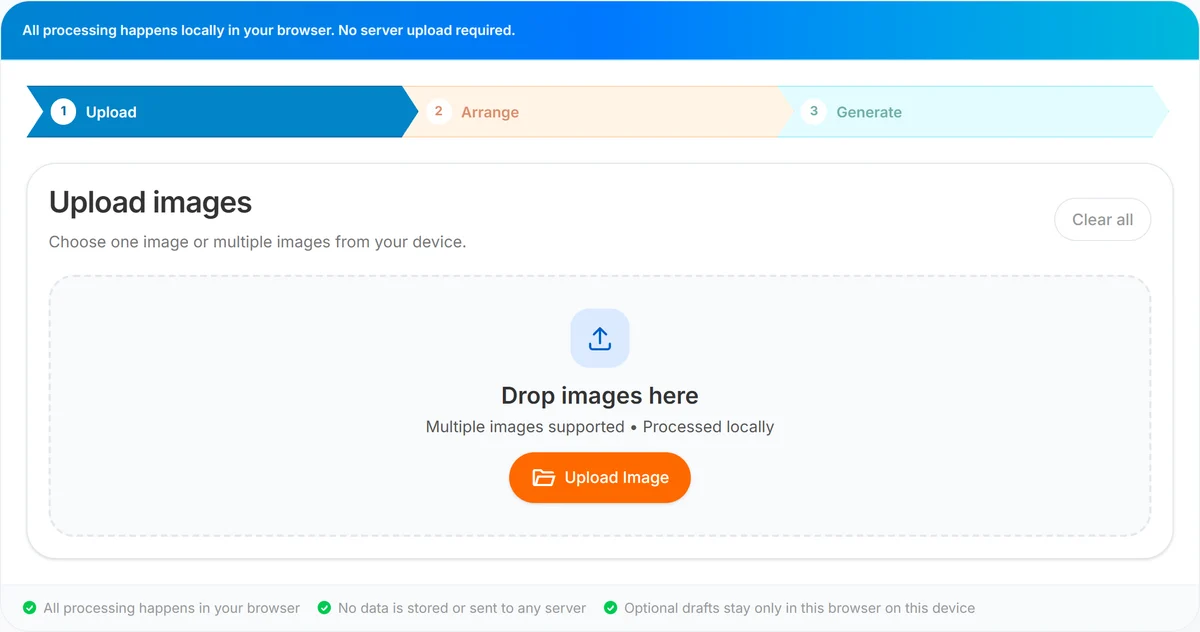
The tool runs Upload → Arrange → Generate. You can convert a single JPEG to a one-page PDF or batch many images into images-to-pdf.pdf. Processing happens locally in the browser; images are not uploaded to UseBoldTools servers for conversion.
It also does not edit image content — no cropping, filters, or background removal. Prepare photos first with Image Resizer or Image Background Remover if needed; our how to remove image background online for free covers cutouts for product and profile shots.
When you need JPEG vs when you need PDF
Choose JPEG (or PNG) when:
- A form field or social platform expects an image upload, not a document.
- The recipient will view one photo on a phone without a PDF reader.
- You need transparency (PNG or WEBP) for web or design tools.
- File size must stay minimal for MMS or lightweight chat sharing.
- You are sending a single quick snapshot where page structure does not matter.
Choose PDF (often by converting JPEGs first) when:
- An application portal, school system, or government site lists PDF as the only accepted format.
- You have multiple images that must stay in a fixed order.
- Reviewers should scroll one document instead of opening many attachments.
- You plan to merge the file with other PDFs using PDF Merge.
- You want to password-protect the final packet before email.
When requirements are unclear, ask the recipient. If they say “either is fine,” PDF is usually safer for multi-page packets; JPEG is usually faster for one photo.
Step-by-step: when to convert JPEG to PDF
If the answer is PDF, use Image to PDF Converter instead of emailing loose JPEGs.
Step 1 — Upload. Add your JPEGs (or mixed JPG, PNG, WEBP) via drag-and-drop, Upload Image on desktop, or Camera / Gallery / Files on mobile.
Step 2 — Arrange. For a single JPEG you may move straight through; for several files, set page order with Move Up and Move Down and Remove any stray duplicates.
Step 3 — Generate. Click the primary button, wait for Generating… to finish, then download images-to-pdf.pdf. Rename locally if the portal requires a specific filename.
After conversion, optional next steps depend on the recipient: Smart PDF Compressor if the PDF exceeds a size cap, PDF Password Protect if the content is sensitive, or PDF Merge if this PDF must join contracts or cover letters — see our how to merge PDF files online.
Full UI detail is in how to convert images to PDF online for free; multi-image ordering tips are in how to create a single PDF from multiple images.
Benefits of PDF for shared image content
- Predictable viewing. PDF readers show pages in order on most devices without gallery sort surprises.
- Single attachment. Easier for email filters, ticket systems, and HR portals than five separate JPEGs.
- Professional presentation. Invoices, applications, and compliance packets look intentional as one document.
- Downstream PDF tools. Merge, compress, and password-protect workflows expect PDF input.
- Local conversion on UseBoldTools. JPEGs are not sent to our servers when you generate the PDF in your browser.
- No service watermark. Output is your images inside a standard PDF page layout.
Privacy and security considerations
JPEG and PDF can both carry sensitive data — IDs, bank details, medical forms. Format choice does not change confidentiality; handling does. Converting with UseBoldTools keeps the generation step local, which avoids an extra server copy during PDF creation.
JPEGs sent by email or chat may preview inline on lock screens. PDFs can behave similarly depending on the client. For high-sensitivity content, protect the PDF with a password via PDF Password Protect and share credentials separately.
Review the PDF tools category for other browser-local PDF utilities that fit secure sharing habits.
Common format mistakes
- Ignoring portal requirements. Uploading JPEG when the form accepts PDF only — or the reverse — causes instant rejection.
- Emailing many JPEGs when one PDF was requested. Reviewers lose track of order; convert and arrange first.
- Converting to PDF then expecting editable text. Image-based PDF pages are still pictures unless you run OCR elsewhere.
- Over-compressing JPEG before conversion. Heavy JPG artifacts become permanent inside the PDF; compress the PDF after conversion if size is an issue.
- Using PNG for everything. PNG is great for screenshots; phone photos are often smaller as JPEG before PDF packaging.
- Skipping a final open. Always preview the PDF before deleting original JPEGs.
Best practices for choosing and sharing
- Read submission guidelines first — format, max size, and filename rules beat generic advice.
- For multi-page scans, convert to PDF with ordered pages via Image to PDF Converter.
- For one social or web image, keep JPEG or PNG unless the platform says otherwise.
- Resize oversized camera JPEGs with Image Resizer before conversion when portals cap file size.
- Clean product photos with Image Background Remover when the PDF is customer-facing; see how to remove image background online for free.
- After PDF export, use Smart PDF Compressor only if the recipient’s limit requires it.
- Store a master JPEG archive and a delivery PDF copy when both formats matter long term.
Conclusion
JPEG is ideal for quick single-image sharing; PDF is ideal when portals, reviewers, or multi-page order demand a document. When PDF is the right choice, convert locally with UseBoldTools — upload your images, arrange them, generate images-to-pdf.pdf in the browser, and optionally compress, protect, or merge the result. Keeping both a JPEG archive and a delivery PDF is a sensible habit when requirements change later.
Open Image to PDF Converter when you need the PDF path. Keep how to convert images to PDF online for free and how to create a single PDF from multiple images nearby for step-by-step help. More guides are on the UseBoldTools blog.
Frequently asked questions
Should I send JPEG or PDF for a job application?
Follow the employer’s instructions. If they accept only one file or ask for a PDF, convert your scans or photos with Image to PDF Converter. If they want separate image attachments, send JPEGs.
Is PDF better than JPEG for multiple pages?
Usually yes when you have several images that must stay in order. One PDF keeps page sequence fixed; a folder of JPEGs can be opened out of order.
Will converting JPEG to PDF reduce image quality?
The converter embeds your image data in PDF pages without adding a UseBoldTools watermark. Extreme compression happens only if you later run Smart PDF Compressor on the output.
When should I keep the original JPEG instead of PDF?
Keep JPEG when the recipient needs a quick mobile preview, social posting, or web upload that expects image files. Use PDF for formal submissions and multi-page documents.
Can I convert JPEGs to PDF locally on UseBoldTools?
Yes. Upload JPG or JPEG files to Image to PDF Converter, arrange order if you have several, and generate images-to-pdf.pdf in your browser.
Related guides
How to Convert Images to PDF Online for Free
Convert JPG, JPEG, PNG, and WEBP images to PDF free in your browser. Upload, arrange page order, and download images-to-pdf.pdf with local processing.
How to Create a Single PDF from Multiple Images
Combine multiple JPG, PNG, or WEBP images into one PDF. Upload, reorder with Move Up and Move Down, and download images-to-pdf.pdf in your browser.
How to Merge PDF Files Online (Free, In Your Browser)
Combine multiple PDFs into one file using a clear Upload → Arrange → Merge → Download workflow. Everything runs locally in your browser.
How to Remove Image Background Online for Free
Remove image backgrounds online for free with UseBoldTools. Upload JPG, PNG, or WebP, preview the cutout, and download transparent PNG or flat JPG.
Related tools
PDF Merge
Merge PDF files online — combine invoices, job applications, and other PDFs in your browser.
Smart PDF Compressor
Reduce PDF file size with goal-based presets, target-size guidance, and browser-side optimization.
PDF Password Protect
Add a password to PDF files free in your browser—lock salary slips, bank statements, ITR proofs, and contracts before sharing.
Image Resizer
Resize image online free — change width, height, or percentage for forms, Instagram, YouTube, and more.
Image Background Remover
Remove background from images free in your browser—transparent PNG or flat JPG, no upload
Ready to try Image to PDF Converter?
Use our free Image to PDF Converter tool in your browser — no account required for most workflows.
Open Image to PDF Converter