
PDF Tools
How to Create a Single PDF from Multiple Images
Combine multiple JPG, PNG, or WEBP images into one PDF. Upload, reorder with Move Up and Move Down, and download images-to-pdf.pdf in your browser.
By UseBoldTools Team 8 min readPublished July 2, 2026
Introduction
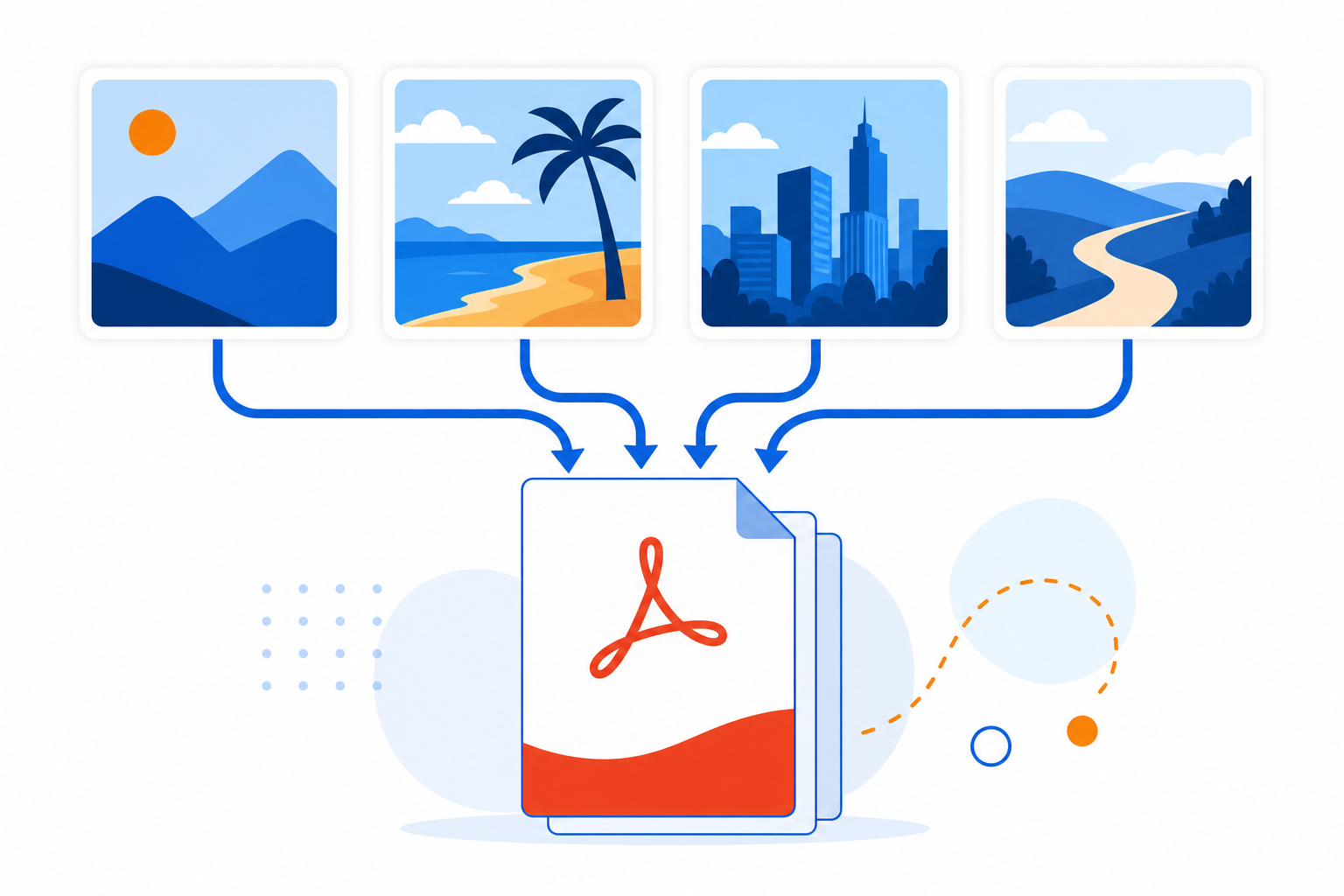
A camera roll full of separate photos is hard to email, hard to audit, and often rejected by upload portals that want one document. The practical fix is a single PDF where each image is one page — in the order you intend.
This guide explains how to create a single PDF from multiple images with the free Image to PDF Converter on UseBoldTools. You upload JPG, JPEG, PNG, or WEBP files, reorder them on the Arrange step, then generate images-to-pdf.pdf locally in your browser. No server upload is required for conversion.
New to the tool? Start with our how to convert images to PDF online for free for the full Upload → Arrange → Generate walkthrough. For sharing decisions after export, read JPEG vs PDF — which format should you share. More guides live on the UseBoldTools blog.
What the Image to PDF Converter does for multi-image batches
UseBoldTools Image to PDF Converter accepts one or many images and outputs one PDF file. Every image in your batch becomes a separate page, scaled to fit the page with margins. The tool is built for real multi-photo workflows: phone gallery picks, mixed PNG screenshots, and scanned document photos in one session.
On desktop you drag files onto the upload area or click Upload Image. On mobile you get dedicated Camera, Gallery, and Files buttons so you can capture a receipt, pull older shots from the library, and attach a screenshot without leaving the page.
The Arrange step is where multi-image jobs differ from a single-photo conversion. Preview cards show thumbnails, file names, sizes, and dimensions. Move Up and Move Down set the final page sequence. Remove drops a stray duplicate without clearing the whole batch.
When you need one PDF from multiple images
- Expense and reimbursement packets. Combine receipt photos, mileage screenshots, and approval emails into one upload.
- Rental and property documentation. Move-in photos, meter readings, and condition notes read better as a numbered PDF than a folder of JPGs.
- Student assignments. Handwritten worksheets, textbook pages, and diagram screenshots often must arrive as a single file.
- Medical and insurance claims. Providers frequently cap attachments — one PDF with ordered pages is easier to process.
- Design and QA reviews. Multiple UI screenshots in sequence tell a clearer story than separate PNG links.
When your packet also includes existing PDFs, convert images first with Image to PDF Converter, then follow our how to merge PDF files online to combine everything with PDF Merge.
Step-by-step: multiple images to one PDF
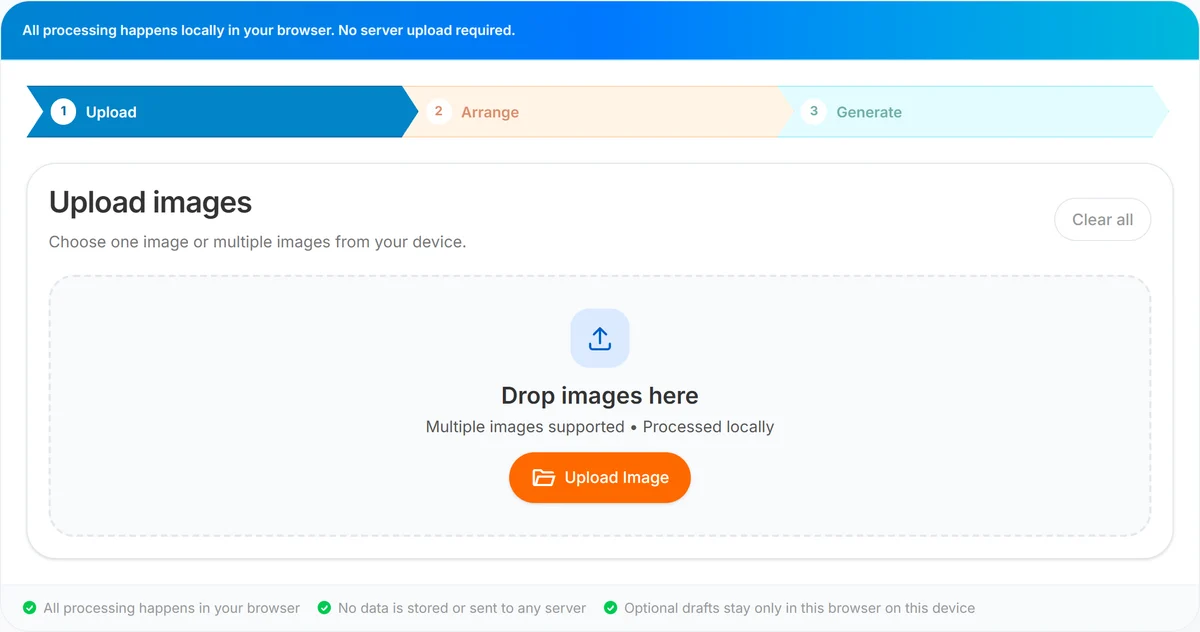
Open Image to PDF Converter. The workflow has three steps: Upload, Arrange, and Generate.
Step 1 — Upload all images. Select every file you plan to include:
- On desktop: drag multiple files onto the drop zone, or click Upload Image and multi-select in the file picker.
- On mobile: tap Gallery to pick several photos, Camera for a new shot, or Files for downloads and cloud folders.
- Supported types: JPG, JPEG, PNG, and WEBP. Unsupported formats show a clear error without breaking the rest of your batch.
After upload, status chips show how many images are selected and remind you that order is preserved in the final PDF. If you forgot a page, stay on Upload and add more files before moving on.
Step 2 — Arrange page order. Continue to Arrange when every image is loaded. Review each card’s thumbnail — wrong files are obvious here. Use Move Up and Move Down until the sequence matches how a reader should flip through the document. Remove duplicates or accidental selfies. When the order is correct, click Continue to Generate.
Step 3 — Generate and download. Click the primary button on the Generate step. The UI shows Generating… while the PDF is built in your browser, then offers Download PDF. Save as images-to-pdf.pdf (rename locally if your portal needs a specific filename). Open the file and confirm page count equals image count before sending.
Need a refresher on supported formats and mobile controls? See how to convert images to PDF online for free. Unsure whether to email the PDF or original JPEGs? JPEG vs PDF — which format should you share covers that decision.
Benefits of combining images into one PDF
- One attachment instead of many. Recipients download once; reviewers scroll in a fixed order.
- Portal-friendly uploads. Many systems accept a single PDF where they reject multiple image files.
- Visible order control. Move Up and Move Down are simpler than renaming files on disk.
- Mixed formats in one job. Combine PNG screenshots with JPG phone photos without manual conversion first.
- Local processing. The combine step runs in your browser — images are not uploaded to UseBoldTools servers for PDF generation.
- Easy next steps. Compress with Smart PDF Compressor, protect with PDF Password Protect, or merge with PDF Merge when the packet grows.
Privacy and security
Multi-image batches often include receipts, IDs, medical forms, or financial screenshots. UseBoldTools Image to PDF Converter processes those files locally in your browser. The generation step does not send your images to our servers.
Treat shared computers and public Wi‑Fi carefully. Close the tab when finished, and verify the downloaded PDF before deleting camera-roll originals. Third-party browser extensions and malware on the device are risks no online tool can eliminate.
For sensitive multi-page packets, password-protect the finished PDF with PDF Password Protect. Browse other local-first utilities on the PDF tools category.
Common mistakes with multi-image PDFs
- Assuming upload order is final order. Camera rolls sort by date, not narrative — always use Arrange.
- Including duplicate shots. Five similar photos of the same receipt add bulk; pick the clearest frame and Remove the rest.
- Ignoring orientation. Sideways pages stay sideways unless you fix the source image first.
- Mixing unrelated batches. Clear all between jobs so last week’s receipts do not land in this week’s claim.
- Oversized phone originals. Twenty full-resolution photos can slow mobile browsers — resize with Image Resizer when needed.
- Wrong delivery format. Some stakeholders want JPEGs for quick mobile viewing; others require PDF. See JPEG vs PDF — which format should you share before sending.
Best practices for multi-image PDFs
- Shoot or export images in the sequence you want when possible — Arrange is for fixes, not full reorganization from chaos.
- Use consistent lighting for document photos so every page is readable at a glance.
- Prefix filenames with numbers (01-, 02-) when selecting from desktop folders — cards stay scannable on Arrange.
- Crop or clean product photos with Image Background Remover before batch export; our how to remove image background online for free explains transparent cutouts.
- Shrink heavy batches with Image Resizer when upload limits matter more than maximum resolution.
- After download, spot-check the first page, last page, and any signature or total lines.
- Bookmark Image to PDF Converter for repeat expense, school, or inspection workflows.
Conclusion
Creating a single PDF from multiple images is straightforward when you control page order before export. On UseBoldTools you upload every image, arrange them with Move Up and Move Down, generate the PDF in your browser, and download images-to-pdf.pdf — no watermark and no account for the standard flow.
Open Image to PDF Converter when you have a batch ready. Keep how to convert images to PDF online for free and JPEG vs PDF — which format should you share handy for format and sharing questions. Explore more guides on the UseBoldTools blog.
Frequently asked questions
How many images can I combine into one PDF?
You can select multiple images in one upload session. Each image becomes one page in the final PDF, in the order you set on the Arrange step.
How do I change the page order before generating the PDF?
On the Arrange step, use Move Up and Move Down on each image card. Remove deletes a file from the batch without affecting the others.
Do all images have to be the same format?
No. You can mix JPG, JPEG, PNG, and WEBP in one batch. Each supported file is embedded as its own PDF page.
Can I add more images after the first upload?
Use Back to Upload from the Arrange step to return to step 1 and add more files, or Clear all to start fresh.
What if one image is sideways or upside down?
The converter does not rotate images automatically. Fix orientation in your phone gallery or an image editor before upload for the cleanest PDF.
Related guides
How to Convert Images to PDF Online for Free
Convert JPG, JPEG, PNG, and WEBP images to PDF free in your browser. Upload, arrange page order, and download images-to-pdf.pdf with local processing.
JPEG vs PDF: Which Format Should You Share?
JPEG vs PDF for sharing explained: when to send images, when to convert to PDF, and how to use UseBoldTools Image to PDF Converter locally in your browser.
How to Merge PDF Files Online (Free, In Your Browser)
Combine multiple PDFs into one file using a clear Upload → Arrange → Merge → Download workflow. Everything runs locally in your browser.
How to Remove Image Background Online for Free
Remove image backgrounds online for free with UseBoldTools. Upload JPG, PNG, or WebP, preview the cutout, and download transparent PNG or flat JPG.
Related tools
PDF Merge
Merge PDF files online — combine invoices, job applications, and other PDFs in your browser.
Smart PDF Compressor
Reduce PDF file size with goal-based presets, target-size guidance, and browser-side optimization.
Image Resizer
Resize image online free — change width, height, or percentage for forms, Instagram, YouTube, and more.
Image Background Remover
Remove background from images free in your browser—transparent PNG or flat JPG, no upload
PDF Password Protect
Add a password to PDF files free in your browser—lock salary slips, bank statements, ITR proofs, and contracts before sharing.
Ready to try Image to PDF Converter?
Use our free Image to PDF Converter tool in your browser — no account required for most workflows.
Open Image to PDF Converter