
PDF Tools
Common PDF Merging Errors and How to Fix Them
Fix common PDF merging errors including locked files, wrong order, invalid page ranges, large scans, corrupted PDFs, and missing downloads.
By UseBoldTools Team 4 min readPublished July 2, 2026

Introduction
Most PDF merge problems are fixable. If PDF Merge cannot combine a file, the cause is usually a locked PDF, an invalid page range, a very large scan, or source files that need cleanup before merging.
This troubleshooting guide explains common PDF merging errors and how to fix them. If you need the normal flow first, start with the PDF merge guide. If page order is your main issue, see how to organize PDF pages before merging.
Error: password-protected or locked PDF
Locked PDFs often cannot be merged because the browser cannot read the file content needed to create the combined output.
- If you own the file, remove the password with PDF Unlock before merging.
- Export a fresh unlocked copy from the original source app when possible.
- Do not try to bypass permissions on documents you are not allowed to modify.
Error: invalid page range
PDF Merge supports simple page range input on each file card. If the range is invalid, fix it before merging.
- Use all to include every page.
- Use 1-3,5 to include pages 1 through 3 plus page 5.
- Do not request pages that do not exist in that source PDF.
- Do not reverse a range like 5-2.
If selecting pages feels too hard from ranges, use PDF Organizer + Cleanup Studio or PDF Split first so each source file is cleaner before upload.
Problem: pages or files are in the wrong order
Wrong order is one of the easiest problems to prevent. The upload order, filename order, and intended reading order may not always be the same.
- Use the Arrange step to move files up or down.
- Rename source files with numbers before upload when order matters.
- Review the order summary before merging.
- For page order inside a single PDF, read the guide to organize PDF pages before merging.
Error: file is too large or browser slows down
Large scanned PDFs can use a lot of browser memory. This is more noticeable on phones, older laptops, or documents with many image-heavy pages.
- Use PDF Split to break a very large PDF into smaller sections before merging.
- Remove blank or unnecessary pages before the final merge.
- Use Smart PDF Compressor after merging if the final PDF is too large for email or upload.
- Try desktop if mobile struggles. The merge PDFs on Windows, Mac, and mobile guide explains the device differences.
Error: corrupted or unusual PDF
Some PDFs look normal in a viewer but contain damaged structure or unusual export settings that make merging harder.
- Open the PDF and export or print it to a new PDF from a trusted app.
- Download a fresh copy if the file came from email or cloud storage.
- Try merging the problem file by itself with one simple test PDF to isolate the issue.
- If the file still fails, use the original source document to create a new PDF.
Problem: merged PDF downloads but cannot be found
Sometimes merge succeeds but the file seems missing. This is usually a browser or device download-location issue, not a merge issue.
- Check the browser downloads list.
- Check the Downloads folder on desktop.
- On mobile, check Files, Downloads, or the browser download manager.
- Set a clear output filename before merging so the file is easier to search.
Privacy checks while troubleshooting
PDF Merge processes the merge in your browser. For more detail, read the PDF merge safety guide. While troubleshooting sensitive files, still close the tab when done, avoid shared devices, and keep originals until the final PDF is verified.
Quick fixes checklist
- Locked PDF: unlock or export an unlocked copy.
- Invalid page range: use all, 1-3, or 1-3,5 style input.
- Wrong order: use Arrange and review the summary.
- Too large: split first, remove pages, then compress after merge.
- Corrupted PDF: export a fresh copy from the source app.
- Need more PDF utilities: browse the PDF tools category.
Conclusion
PDF merging errors usually have a practical fix: unlock protected files, correct page ranges, organize pages, reduce huge inputs, or export a fresh PDF. Once the source files are clean, PDF Merge can combine them into one browser-generated output.
For the smoothest workflow, follow the PDF merge guide, organize files before merging, and keep this troubleshooting guide nearby when a merge does not behave as expected.
Frequently asked questions
Why does PDF merging fail?
Common causes include password-protected files, corrupted PDFs, invalid page ranges, very large files, low device memory, or PDFs exported with unusual structure.
How do I fix a password-protected PDF before merging?
If you own the file and have permission, remove the password first with a PDF unlock workflow or export an unlocked copy, then upload the unlocked PDF to the merge tool.
What should I do if the merged PDF is too large?
Remove unnecessary pages first, then merge. If the final file is still too large, use Smart PDF Compressor after merging.
Why is my page order wrong after merging?
Upload order can be different from final order. Always use the Arrange step and review the order summary before clicking Merge PDF.
Related guides
How to Merge PDF Files Online (Free, In Your Browser)
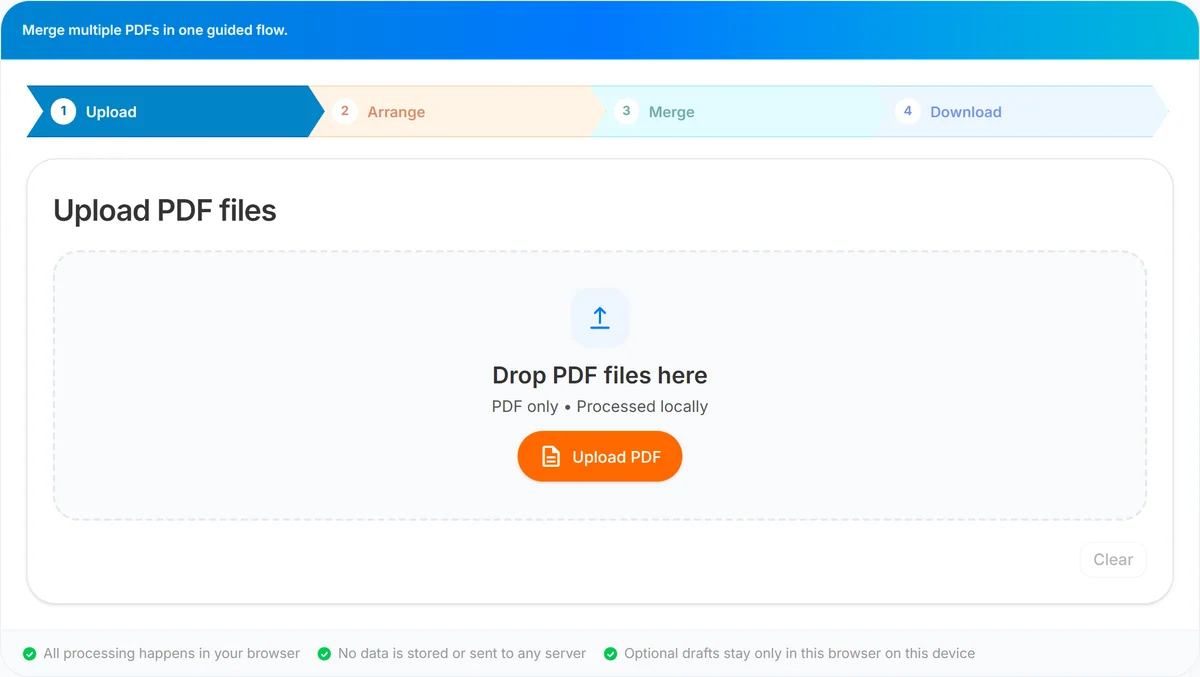
Combine multiple PDFs into one file using a clear Upload → Arrange → Merge → Download workflow. Everything runs locally in your browser.
How to Organize PDF Pages Before Merging
Learn how to organize PDF pages before merging by using page ranges, visual cleanup, splitting, compression, and a final review workflow.
How to Merge PDF Files on Windows, Mac, and Mobile
Merge PDF files on Windows, Mac, iPhone, iPad, or Android with a browser-based workflow for upload, arrange, merge, and download.
Is Online PDF Merge Safe?
Understand how browser-based PDF merge works on UseBoldTools, what data leaves your device, and practical steps to merge sensitive documents more safely.
Related tools
PDF Unlock
Remove password protection from a PDF when you already know the password.
PDF Split
Split one PDF by range, selected pages, or fixed page intervals in your browser.
Smart PDF Compressor
Reduce PDF file size with goal-based presets, target-size guidance, and browser-side optimization.
PDF Organizer + Cleanup Studio
Reorder, rotate, and delete PDF pages in your browser—ideal for office filings, ITR bundles, school work, and portal uploads.
Ready to try PDF Merge?
Use our free PDF Merge tool in your browser — no account required for most workflows.
Open PDF Merge