
PDF Tools
How to Merge Bank Statements into One PDF
Combine monthly bank statement PDFs into one chronological file with Upload → Arrange → Merge → Download. keeps merging on your device.
By UseBoldTools Team 7 min readPublished July 2, 2026
Introduction
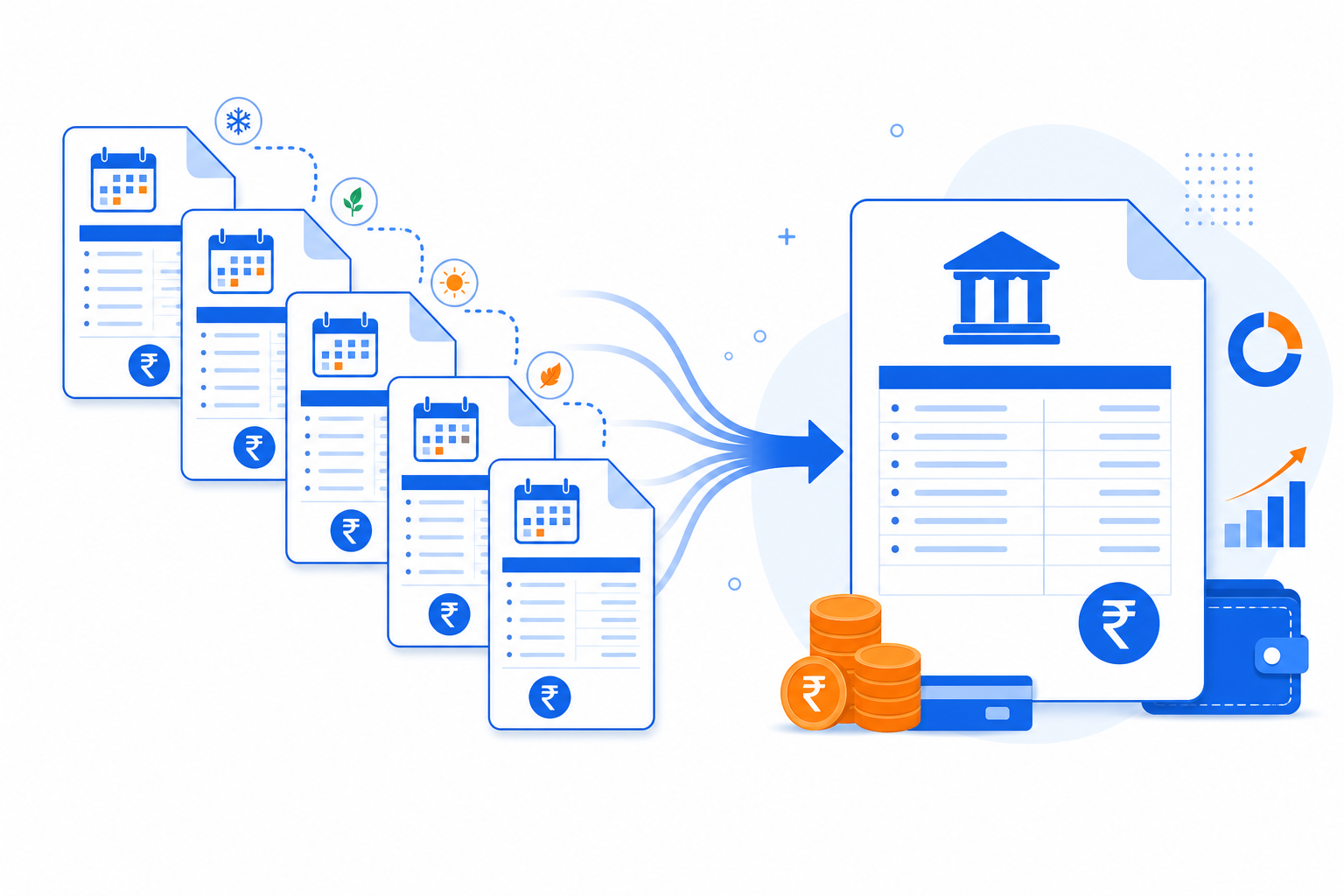
Mortgage underwriters, accountants, and small-business owners routinely ask for several months of bank statements in a single file. You might have January through March as separate downloads from your bank, plus a savings account export and a credit-card statement PDF. Sending six attachments invites confusion about order and completeness; one merged PDF is easier to review and archive.
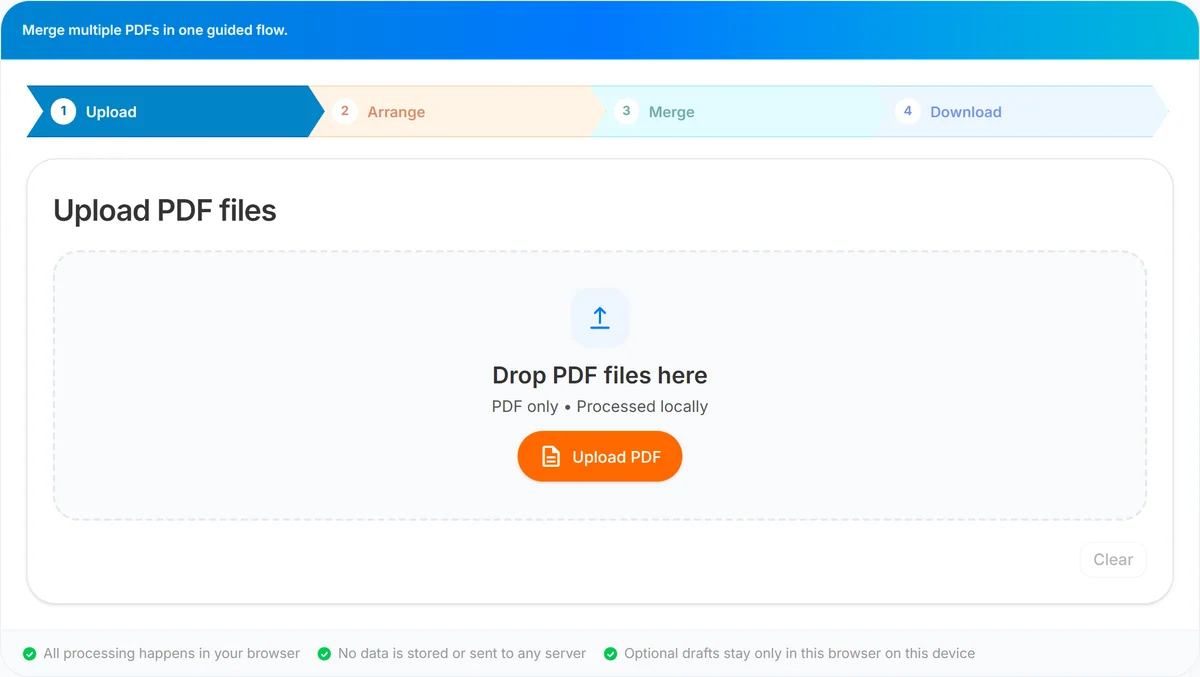
This guide explains how to merge bank statements into one PDF using the free PDF Merge tool on UseBoldTools. You will upload each statement, arrange them in chronological order, optionally trim pages you do not need, merge locally in your browser, and download one combined file. For the full Upload → Arrange → Merge → Download walkthrough, see our how to merge PDF files online.
Financial documents deserve careful handling. Read is online PDF merge safe if you want detail on browser-local processing, and browse more guides on the UseBoldTools blog.
What PDF Merge does for bank statements
UseBoldTools PDF Merge stitches multiple PDF files into one output document. For statements, that means each month or account stays intact inside the bundle, but recipients open a single download instead of hunting through email threads.
The tool runs in your browser. You control file order with drag-and-drop or Up/Down controls, and you can limit each statement to specific pages when a download includes cover sheets or legal disclaimers you want to omit.
Unlike some desktop suites, there is no install step. Unlike ad-heavy merge sites, the workflow stays focused: upload, arrange with page ranges, review the merge summary, then download. No UseBoldTools watermark is added to your statement packet.
When you need one PDF of bank statements
- Mortgage and rental applications. Lenders often request two to twelve months of statements in one upload field.
- Business loans and grants. You may need operating and payroll accounts combined in date order for an underwriter.
- Tax preparation and audits. Accountants prefer one chronological file per account rather than dozens of loose downloads.
- Immigration or visa paperwork. Proof-of-funds packets frequently require merged statements with consistent naming.
- Personal record keeping. Archiving a year of statements in one file simplifies backup and search later.
If you only have phone photos of paper statements, convert them with Image to PDF Converter first, then merge the resulting PDFs. For invoice-style business records, see how to combine multiple invoices into one PDF.
Before you merge bank statements
Download each statement as a PDF from your bank or card issuer. CSV or OFX exports are useful for spreadsheets but cannot be merged with PDF Merge—you need PDF sources.
Remove passwords before merging. If your bank locks downloads, use PDF Unlock with the password you already have, or export a fresh copy from online banking. See common PDF merging errors and how to fix them when merge fails on a locked file.
Rename files with a clear date prefix (2025-01-checking.pdf, 2025-02-checking.pdf) so cards on the Arrange step are easy to sort. Keep originals until you open the merged download and verify the first and last page of each month.
Step-by-step: merge bank statements with PDF Merge
Step 1 — Upload. Open PDF Merge. Drag statement PDFs onto the upload area or use Upload PDF. You need at least two files before Arrange files unlocks. Chips show total pages and size; stay near 50 MB combined for smoother performance on typical laptops and phones.
Step 2 — Arrange. Click Arrange files. Order cards chronologically—oldest month first unless your recipient specified otherwise. Use Up/Down or drag-and-drop. Under Pages to include, leave all for full statements, or enter a range like 2-5 if page 1 is a generic cover you want to skip. Invalid syntax shows an error on that card; fix it before continuing.
Step 3 — Merge. Review the order summary on the Merge PDF step. Set a clear output name such as 2025-Q1-bank-statements.pdf. Click Merge PDF; the button shows Merging… while the file is prepared locally. If a statement fails, try re-downloading it or how to organize PDF pages before merging to remove problem pages first.
Step 4 — Download. Save the combined file, open it, and spot-check that each statement appears in the right sequence with readable text. Use Smart PDF Compressor if an upload portal has a size cap. Protect the final packet with PDF Password Protect before emailing if your policy requires a password.
Benefits of merging statements in the browser
- One attachment for reviewers. Underwriters see the full timeline without opening six separate files.
- Controlled page order. Chronological arrangement is explicit on the Arrange step, not left to email client sort order.
- No watermark on output. The merged file is yours; UseBoldTools does not stamp statements.
- Local merge processing. Combining runs in your browser tab rather than uploading statements to a merge server for that step.
- Works on any device. Follow our merge PDFs on Windows, Mac, and mobile if you merge from a phone after downloading statements from a banking app.
Privacy and security for financial PDFs
Bank statements contain account numbers, balances, and transaction detail. PDF Merge reads and combines them locally; the merge operation itself does not depend on uploading those files to UseBoldTools servers.
You should still merge on a trusted device and network, close the tab on shared computers, and avoid leaving downloads in public folders. For sharing, PDF Password Protect adds a password; send the password through a separate channel.
Read is online PDF merge safe for a broader look at browser-local PDF tools and what they do not protect against (screen capture, compromised extensions, etc.).
Common mistakes when merging bank statements
- Wrong chronological order. Always read the order summary on the Merge step. March before January is a common rejection reason.
- Mixing account types without labels. Name output files clearly (checking-vs-savings) or merge each account into its own PDF.
- Including marketing pages. Some banks add promo inserts; trim them with page ranges if the reviewer only wants transaction pages.
- Merging password-locked downloads. Unlock or re-export first—see common PDF merging errors and how to fix them.
- Oversized batches on mobile. Twelve months of high-resolution scans can stress a phone browser—merge quarterly batches or Smart PDF Compressor first.
- Deleting originals too soon. Verify the merged PDF before archiving source files.
Best practices for statement packets
- Use consistent file naming: YYYY-MM-account-type.pdf before upload.
- Merge one account per output file unless the recipient explicitly asked for combined accounts.
- Match the portal’s page or size limits—compress after merge rather than lowering statement quality at download.
- If scans are crooked or duplicated, clean them in PDF Organizer + Cleanup Studio or how to merge scanned documents into one PDF before merging.
- Keep a spreadsheet index if you send statement packets often; the PDF is the proof, the index is the map.
- Bookmark PDF Merge for recurring statement packets.
Conclusion
Merging bank statements into one PDF is straightforward when you download clean PDFs, sort them chronologically, review page ranges, and merge locally in your browser. UseBoldTools PDF Merge gives you explicit control over order and included pages without adding watermarks or requiring desktop software.
Open PDF Merge when you are ready: Upload your statements, Arrange them in date order, Merge, and Download one file for your lender, accountant, or records. More PDF guides live on the UseBoldTools blog.
Frequently asked questions
Can I merge bank statements from different banks into one PDF?
Yes. Export or download each statement as a PDF, then upload all of them to PDF Merge. Arrange them in chronological order before merging.
Should I include every page of each statement?
For most audits or loan applications you want full statements. If a file includes marketing inserts you do not need, use page ranges on the Arrange step to include only the account pages.
Are my bank statements uploaded to UseBoldTools servers?
No. PDF Merge combines files inside your browser tab. The merge operation does not send your statements to our servers.
What if my bank PDF is password-protected?
Unlock the file first with PDF Unlock if you have the password, or re-export an unprotected copy from your bank portal. Locked PDFs often fail during in-browser merge.
How do I keep statements in date order?
Rename files with year-month prefixes before upload (for example 2025-01-statement.pdf), then drag cards on the Arrange step so January appears before February.
Related guides
How to Merge PDF Files Online (Free, In Your Browser)
Combine multiple PDFs into one file using a clear Upload → Arrange → Merge → Download workflow. Everything runs locally in your browser.
Is Online PDF Merge Safe?
Understand how browser-based PDF merge works on UseBoldTools, what data leaves your device, and practical steps to merge sensitive documents more safely.
How to Combine Multiple Invoices into One PDF
Combine monthly invoice PDFs into one file. Open Merge PDF, upload, arrange by date, and download.
How to Merge Scanned Documents into One PDF
Merge multiple scanned PDFs into one ordered file. Upload scans, arrange pages, trim blanks, merge in your browser, and download.
Related tools
PDF Unlock
Remove password protection from a PDF when you already know the password.
PDF Password Protect
Add a password to PDF files free in your browser—lock salary slips, bank statements, ITR proofs, and contracts before sharing.
Smart PDF Compressor
Reduce PDF file size with goal-based presets, target-size guidance, and browser-side optimization.
PDF Organizer + Cleanup Studio
Reorder, rotate, and delete PDF pages in your browser—ideal for office filings, ITR bundles, school work, and portal uploads.
Image to PDF Converter
Convert JPG, PNG, and WEBP images into one PDF directly in your browser.
Ready to try PDF Merge?
Use our free PDF Merge tool in your browser — no account required for most workflows.
Open PDF Merge