
PDF Tools
How to Merge Scanned Documents into One PDF
Merge multiple scanned PDFs into one ordered file. Upload scans, arrange pages, trim blanks, merge in your browser, and download.
By UseBoldTools Team 6 min readPublished July 2, 2026
Introduction
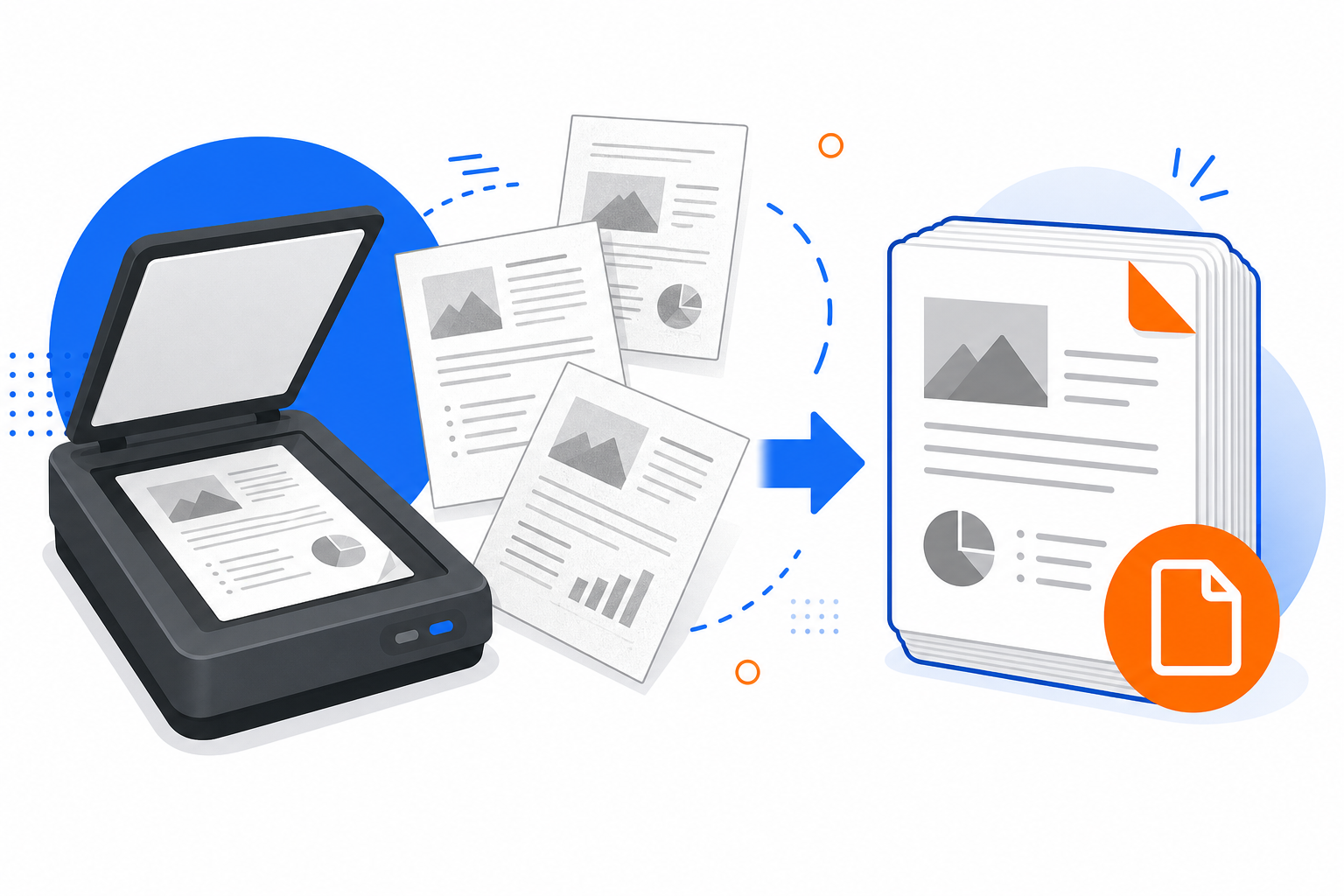
Paper arrives in pieces: signed contracts page by page, receipt stacks from a trip, medical intake forms, or homework assignments captured with a phone camera. Each scan becomes its own PDF—or ten photos you need in one file for email, a portal upload, or archival storage. Merging scanned documents into one PDF keeps page order under your control without rescanning an entire stack as a single job.
This guide explains how to merge scanned documents into one PDF using PDF Merge on UseBoldTools. You will upload scan PDFs (or PDFs you built from images), arrange them, trim unwanted pages, merge in your browser, and download. For image files not yet in PDF form, start with Image to PDF Converter.
See how to merge PDF files online for the core workflow and is online PDF merge safe when scans contain personal data. More guides are on the UseBoldTools blog.
What PDF Merge does for scanned files
Scanned PDFs are image-heavy: each page is typically a photograph or bitmap. PDF Merge does not run OCR or edit pixels—it concatenates pages in the order you specify, preserving the visual appearance of every scan.
The Arrange step is especially useful for scans. Reorder individual scan files when you photographed pages out of sequence, and use page ranges to drop blank separator pages or duplicate captures.
Merging runs inside your browser. The operation does not upload your scans to UseBoldTools servers for processing, and the output carries no UseBoldTools watermark.
When you need one PDF from multiple scans
- Insurance and claims. Combine receipt scans, forms, and photos of damaged items for one adjuster upload.
- Rental and real estate. Merge signed lease pages, inspection photos saved as PDF, and addenda.
- School and university. Submit handwritten assignments or signed permission slips as one packet.
- Immigration and government forms. Many portals accept a single PDF but not twelve separate camera uploads.
- Home archiving. Store years of paper records digitized session-by-session into quarterly files.
Financial scans such as statements follow similar steps; see how to merge bank statements into one PDF for chronological ordering tips. Business receipt scans pair with how to combine multiple invoices into one PDF when you are building vendor documentation.
Before you merge scanned PDFs
If your scans are still JPG or PNG files, convert them with Image to PDF Converter—one multi-page PDF per batch or one PDF per image, depending on how you photographed the stack.
Open each PDF locally and confirm pages are upright. Rotate or clean in PDF Organizer + Cleanup Studio when pages are sideways or duplicated. Remove passwords with PDF Unlock if a scanner app locked the export.
Expect large file sizes. Ten full-color phone photos can exceed email limits after merge; plan to compress afterward rather than reducing camera resolution before you merge (order matters more first).
Step-by-step: merge scanned documents
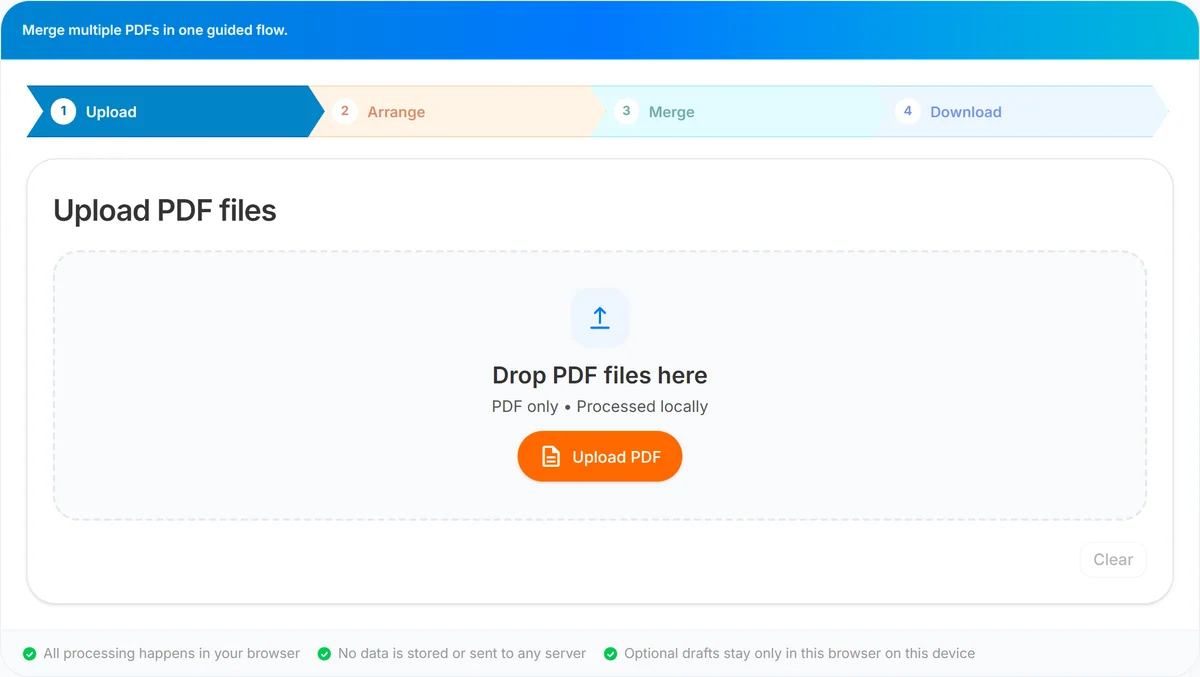
Step 1 — Upload. Open PDF Merge. Add scan PDFs via drag-and-drop or Upload PDF. You need at least two files. On mobile, follow merge PDFs on Windows, Mac, and mobile if you are merging directly after saving scans from a camera app.
Step 2 — Arrange. Click Arrange files. Order cards to match reading sequence—page 1 of the contract before page 2, even if they were separate scan jobs. Use Pages to include with ranges like 1 or 2-4 to skip blank leads or duplicate retakes. Drag cards or use Up/Down arrows.
Step 3 — Merge. Verify the order summary lists files in the sequence you expect. Name the output descriptively (lease-signed-scan-2026.pdf). Click Merge PDF; large scan batches may take longer while processing runs locally.
Step 4 — Download. Open the PDF and zoom into fine print—merging does not fix blur. Run Smart PDF Compressor if the file is too large to email. Use PDF Password Protect when scans include ID numbers or health information.
Benefits for scan-heavy workflows
- Fix order without rescanning. Reorder files when pages were captured out of sequence.
- Drop bad takes. Page ranges exclude retakes and blank shots.
- Single portal upload. Government and insurance sites often allow one PDF attachment.
- Local merge. Image-heavy files stay in the browser tab for the merge step.
- No watermark. Official-looking packets stay clean.
Privacy for scanned personal documents
Scans often include ID cards, signatures, account numbers, and medical handwriting. PDF Merge combines them locally; it does not send those images to our servers for the merge operation.
Read is online PDF merge safe for limits—browser tools cannot control screenshots or malware on your device. Merge on a private computer when possible and delete downloads from shared Downloads folders.
For how to merge PDF files for job applications packets that mix scans and native PDFs, protect the final file with PDF Password Protect before transmission.
Common mistakes with scanned PDF merges
- Wrong page sequence. Always read the order summary; out-of-order contract pages invalidate submissions.
- Merging uncompressed camera PDFs for email. Merge first for order, compress second for size.
- Including blank “separator” photos. Trim with page ranges or organizer cleanup.
- Expecting searchable text. Merge does not OCR scans; text remains non-selectable unless you OCR elsewhere first.
- Very large batches on old phones. Split into chapters with PDF Split, merge in parts, or use a desktop browser—see common PDF merging errors and how to fix them.
- Upside-down pages. Fix rotation before merge; merging does not auto-rotate.
Best practices for scan packets
- Number files before upload: scan-01.pdf, scan-02.pdf, especially when each file is one page.
- Use Image to PDF Converter with consistent margins when converting photos so pages align visually.
- Clean duplicates in PDF Organizer + Cleanup Studio before merge when you bracketed each page with a blank shot.
- Follow how to organize PDF pages before merging when only some pages from each scan file should appear in the final packet.
- Compare file size on the Download step with portal limits; compress only after order is correct.
- For text-native documents (not scans), how to combine multiple resumes into a single PDF covers sharper PDF sources.
Conclusion
Merging scanned documents into one PDF turns a folder of piecemeal captures into a single, ordered packet—without running everything through the scanner bed again. Upload your scan PDFs, arrange and trim pages, merge locally, and download.
Start at PDF Merge when your scans are ready. Additional PDF workflows are published on the UseBoldTools blog.
Frequently asked questions
Can I merge phone photos of scanned documents?
Yes, if they are already PDFs. Convert JPG or PNG scans with Image to PDF first, then merge those PDFs. Each photo becomes one or more pages in the combined file.
Why are my scanned PDFs so large?
Scanners and camera apps often save high-resolution images per page. Merge first if order matters, then compress with Smart PDF Compressor for email-sized output.
How do I skip blank pages between scans?
Use page ranges on the Arrange step to omit blank pages, or clean the source with PDF Organizer + Cleanup Studio before merging.
Does merging scanned PDFs reduce image quality?
PDF Merge copies pages as they are; it does not recompress scans during merge. Quality changes happen only if you compress afterward.
Is merging scanned tax or medical forms safe online?
Merging runs locally in your browser. Still use trusted devices and read our guide on whether online PDF merge is safe for sensitive scans.
Related guides
How to Organize PDF Pages Before Merging
Learn how to organize PDF pages before merging by using page ranges, visual cleanup, splitting, compression, and a final review workflow.
Is Online PDF Merge Safe?
Understand how browser-based PDF merge works on UseBoldTools, what data leaves your device, and practical steps to merge sensitive documents more safely.
Common PDF Merging Errors and How to Fix Them
Fix common PDF merging errors including locked files, wrong order, invalid page ranges, large scans, corrupted PDFs, and missing downloads.
How to Merge Bank Statements into One PDF
Combine monthly bank statement PDFs into one chronological file with Upload → Arrange → Merge → Download. keeps merging on your device.
Related tools
Image to PDF Converter
Convert JPG, PNG, and WEBP images into one PDF directly in your browser.
PDF Organizer + Cleanup Studio
Reorder, rotate, and delete PDF pages in your browser—ideal for office filings, ITR bundles, school work, and portal uploads.
Smart PDF Compressor
Reduce PDF file size with goal-based presets, target-size guidance, and browser-side optimization.
PDF Split
Split one PDF by range, selected pages, or fixed page intervals in your browser.
PDF Password Protect
Add a password to PDF files free in your browser—lock salary slips, bank statements, ITR proofs, and contracts before sharing.
Ready to try PDF Merge?
Use our free PDF Merge tool in your browser — no account required for most workflows.
Open PDF Merge