
PDF Tools
How to Combine Multiple Invoices into One PDF
Combine monthly invoice PDFs into one file. Open Merge PDF, upload, arrange by date, and download.
By UseBoldTools Team 6 min readPublished July 2, 2026 · Updated September 27, 2026
Introduction
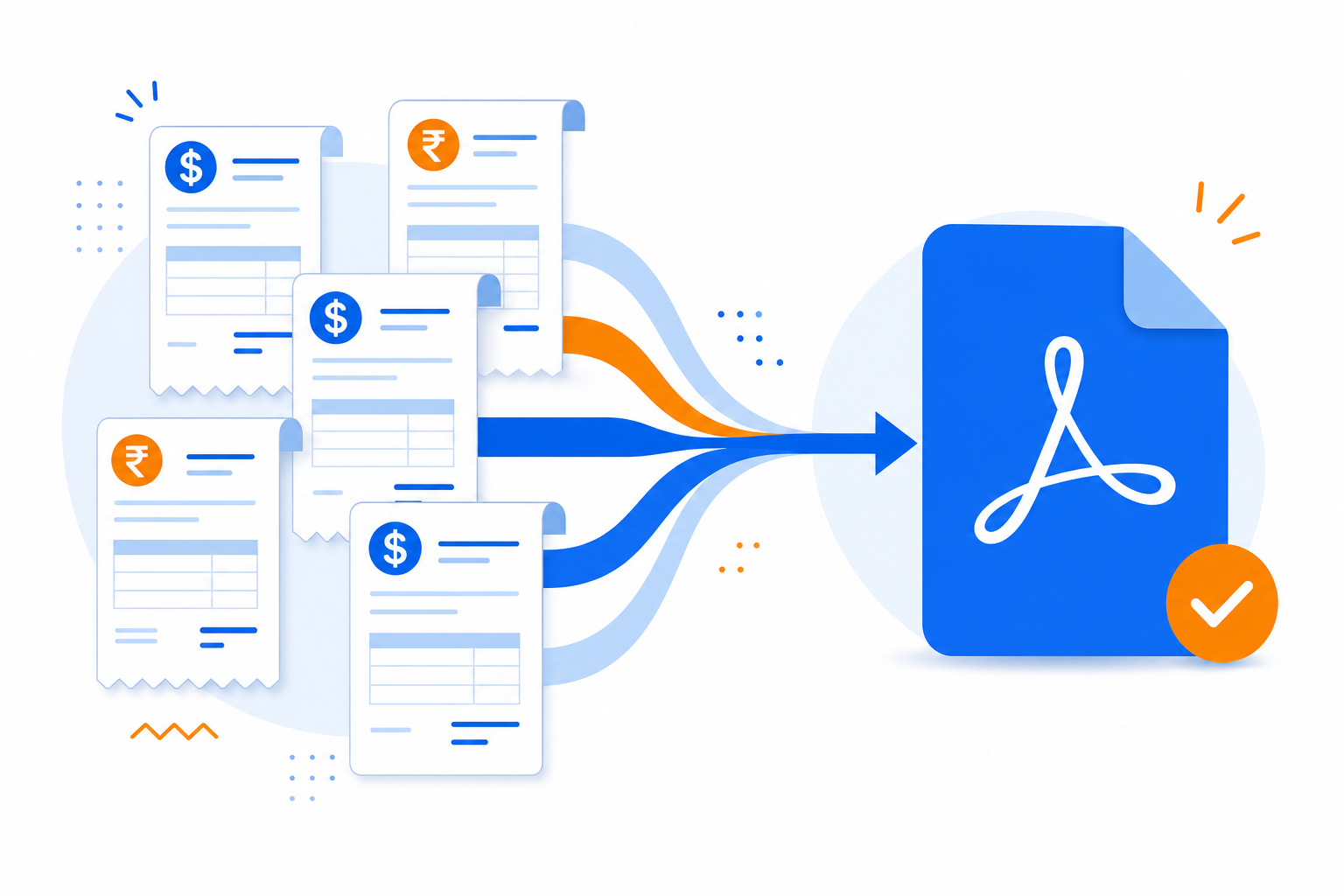
Open PDF Merge to combine invoice PDFs now. Upload the files, put them in date order, merge, and download one PDF.
Month-end close means dozens of invoice PDFs: SaaS subscriptions, contractor bills, supply receipts, and client-facing sales invoices you need to attach to a single email. Accountants ask for “March invoices in one file.” Clients want one download for approval. Shipping one attachment reduces back-and-forth and matches how finance teams actually review records.
This guide explains how to combine multiple invoices into one PDF with PDF Merge on UseBoldTools. You will upload invoice PDFs, arrange them in logical order, optionally trim pages, merge in your browser, and download. For general merge steps, see how to merge PDF files online; for scanned receipt photos, see how to merge scanned documents into one PDF.
Financial privacy matters—read is online PDF merge safe before merging tax-sensitive PDFs on a shared PC. More guides are on the UseBoldTools blog.
What PDF Merge does for invoice batches
PDF Merge stacks separate invoice exports into one continuous document. Each invoice keeps its original branding, line items, and totals—the tool does not recalculate amounts or merge spreadsheet data.
Arrange controls let you sort by date or vendor and use page ranges when a PDF includes a remittance stub you do not need in the client-facing packet.
Output has no UseBoldTools watermark. Combining runs locally in your browser, so the merge step does not upload your invoices to our servers.
When finance teams merge invoices
- Client billing packages. Attach supporting vendor invoices behind your summary bill.
- Bookkeeper handoffs. Send one PDF per month instead of thirty separate downloads.
- Expense reimbursement. Combine receipts and formal invoices for approvers.
- Audit samples. Merge selected invoices requested by reviewers into one exhibit.
- Accounts payable batches. Group approved invoices for payment authorization signatures.
Bank statements for reconciliation belong in how to merge bank statements into one PDF; invoice merges focus on bills you issued or received. Freelancers bundling proposals with samples may overlap with how to merge PDF files for job applications.
Before you merge invoice PDFs
Export or download each invoice as PDF from QuickBooks, Xero, FreshBooks, Stripe, or vendor portals. CSV exports cannot be merged with this tool.
Rename with date and vendor: 2026-03-15-acme-supplies.pdf. Unlock password-protected vendor bills with PDF Unlock. If a scan is a photo, convert with Image to PDF Converter first.
Confirm whether your recipient wants chronological order or grouped by vendor—arrange accordingly before merge. Keep source files until you verify totals on screen in the merged PDF.
Step-by-step: combine invoices with PDF Merge
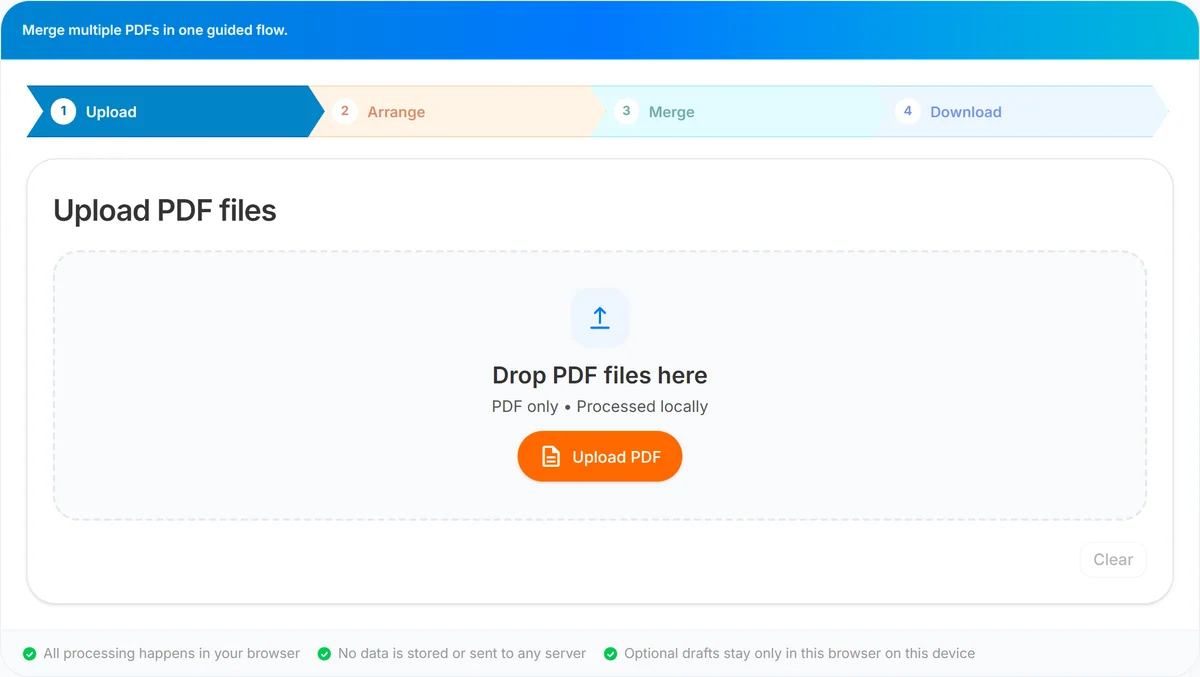
Step 1 — Upload. Open PDF Merge. Drag invoice PDFs into the upload area or use Upload PDF. Watch total size—large scan-heavy invoices may approach the ~50 MB comfort zone; merge in weekly batches if needed.
Step 2 — Arrange. Click Arrange files. Sort cards by invoice date or vendor name. Use Up/Down or drag-and-drop. Under Pages to include, use all for complete invoices or 1 when only the summary page matters. Fix invalid ranges before continuing.
Step 3 — Merge. Verify the order summary lists invoices in the sequence finance expects. Name output 2026-03-invoices.pdf. Click Merge PDF and wait for local processing.
Step 4 — Download. Spot-check first and last invoices in the packet. Smart PDF Compressor before email if the bundle is large. PDF Password Protect when sending client financials externally.
Benefits for invoice workflows
- One attachment per period. Bookkeepers stop chasing missing files in email threads.
- Preserves vendor formatting. Logos, tax lines, and QR payment codes remain intact.
- Flexible ordering. Drag-and-drop beats filename sort when vendors use inconsistent naming.
- Page trimming. Drop remittance stubs or terms pages when not required.
- Browser-local merge. No server upload for the combine step itself.
Privacy for invoice PDFs
Invoices expose vendor relationships, rates, tax IDs, and client names. PDF Merge processes them locally for merging.
Use trusted networks and devices. Read is online PDF merge safe for a clear picture of browser-local limits. After download, store files in your finance drive with normal access controls.
Password-protect sensitive bundles with PDF Password Protect before emailing; share passwords separately.
Common invoice merge mistakes
- Out-of-order dates. Auditors reject March-before-February packets—read the order summary.
- Mixing currencies or entities without labels. Split merges per legal entity when books are separate.
- Including duplicate invoice PDFs. Same invoice twice double-counts in manual review—dedupe filenames first.
- Scan-only when text PDF exists. Prefer accounting exports for clarity; use how to merge scanned documents into one PDF only when necessary.
- Locked vendor PDFs. See common PDF merging errors and how to fix them and unlock before merge.
- Oversized email attachments. Compress after merge; do not delete line items from source PDFs.
Best practices for invoice PDFs
- Standardize filenames: YYYY-MM-DD-vendor-invoice-number.pdf.
- Merge one calendar month per output file unless auditors specify otherwise.
- Use how to organize PDF pages before merging when multi-page exports include terms you want to strip via page ranges.
- Pair with how to merge bank statements into one PDF only when a reviewer explicitly wants invoices and statements in one exhibit—otherwise keep separate.
- For internal HR invoice samples in hiring packets, see how to combine multiple resumes into a single PDF—keep finance docs out of resume merges.
- Bookmark PDF Merge for recurring month-end merges.
Conclusion
Combining multiple invoices into one PDF turns scattered downloads into a professional finance handoff. Upload, sort by date or vendor, trim unneeded pages, merge locally, and deliver a single file your bookkeeper or client can review in one sitting.
Open PDF Merge for your next invoice batch. Additional PDF guides are on the UseBoldTools blog.
Frequently asked questions
Can I merge invoices from different vendors into one PDF?
Yes. Upload each vendor invoice PDF, arrange them in the order your accountant or client expects—often by invoice date or vendor name—then merge.
Should invoices be in date order?
Usually yes for month-end close and audits. Rename files with YYYY-MM-DD prefixes before upload to make sorting easier on the Arrange step.
Can I include only the first page of each invoice?
Yes. Set Pages to include to 1 on each card when summary pages are enough and trailing payment stubs are not needed.
Will merging change invoice totals or text?
No. PDF Merge copies pages visually; numbers and layout stay as exported from your accounting or vendor system.
Are invoice PDFs uploaded to UseBoldTools when I merge?
Merging runs in your browser. That merge operation does not send invoice files to our servers.
Related guides
How to Merge Bank Statements into One PDF
Combine monthly bank statement PDFs into one chronological file with Upload → Arrange → Merge → Download. keeps merging on your device.
How to Merge PDF Files Online (Free, In Your Browser)
Combine multiple PDFs into one file using a clear Upload → Arrange → Merge → Download workflow. Everything runs locally in your browser.
Is Online PDF Merge Safe?
Understand how browser-based PDF merge works on UseBoldTools, what data leaves your device, and practical steps to merge sensitive documents more safely.
How to Merge Scanned Documents into One PDF
Merge multiple scanned PDFs into one ordered file. Upload scans, arrange pages, trim blanks, merge in your browser, and download.
Related tools
Smart PDF Compressor
Reduce PDF file size with goal-based presets, target-size guidance, and browser-side optimization.
PDF Unlock
Remove password protection from a PDF when you already know the password.
PDF Password Protect
Add a password to PDF files free in your browser—lock salary slips, bank statements, ITR proofs, and contracts before sharing.
PDF Organizer + Cleanup Studio
Reorder, rotate, and delete PDF pages in your browser—ideal for office filings, ITR bundles, school work, and portal uploads.
Image to PDF Converter
Convert JPG, PNG, and WEBP images into one PDF directly in your browser.
Ready to try PDF Merge?
Use our free PDF Merge tool in your browser — no account required for most workflows.
Open PDF Merge