
PDF Tools
How to Combine Multiple Resumes into a Single PDF
Combine multiple resume PDFs into one file with clear order and optional page ranges. Upload, arrange, merge in your browser, and download—no watermark.
By UseBoldTools Team 6 min readPublished July 2, 2026

Introduction
Recruiters, career coaches, and hiring managers sometimes receive more than one resume PDF: a general version, a role-specific rewrite, and an export from LinkedIn or a design tool. Internal teams may want a single comparison file. Job seekers building a portfolio packet might combine a resume with a one-page project summary. In each case, multiple PDFs become easier to review when they live in one download with a clear page order.
This guide covers how to combine multiple resumes into a single PDF with PDF Merge on UseBoldTools. The workflow is Upload → Arrange (with optional page ranges) → Merge → Download, all in your browser. For application-specific ordering (cover letter, resume, transcripts), also read how to merge PDF files for job applications.
New to the tool? Start with our how to merge PDF files online on the UseBoldTools blog.
What PDF Merge does for resume files
PDF Merge combines two or more PDF documents without reformatting the text inside each file. Your Arial resume and your Canva export stay visually identical—they simply appear back-to-back in one output file.
On the Arrange step you reorder files and set page ranges per source. That matters when a “resume” PDF is actually three pages but you only want page 1 in a comparison packet, or when a PDF includes a blank trailing page from export settings.
Processing runs locally in the browser tab. There is no account requirement for the standard merge flow, and no UseBoldTools branding stamped onto your career documents.
When combining multiple resumes makes sense
- Recruiter comparison packets. Present two tailored resumes for different roles in one file labeled by order.
- Career coaching reviews. Merge “before” and “after” rewrites so feedback references a single attachment.
- Portfolio booklets. Append project one-pagers or reference lists after the main resume PDF.
- Archive snapshots. Store quarterly resume versions in chronological order for your own records.
- University career centers. Collect student resume drafts submitted as separate PDFs into one batch for advisors.
For a single job submission, most ATS portals want one resume file—not a bundle of variants. Use merge when the recipient asked for one PDF or when you control the review packet. Scanned paper resumes should be converted or cleaned first; see how to merge scanned documents into one PDF.
Before you combine resume PDFs
Export each resume as PDF from Word, Google Docs, LaTeX, or your design tool. Avoid merging DOCX files—PDF Merge accepts PDF only.
Name files clearly: resume-product-manager.pdf, resume-general.pdf. Remove password protection with PDF Unlock if an export is locked. Trim stray blank pages with how to organize PDF pages before merging when an export added an extra sheet.
Decide the story order before upload. Comparison packets often put the preferred version first; archive packets may go oldest-to-newest.
Step-by-step: combine resumes with PDF Merge
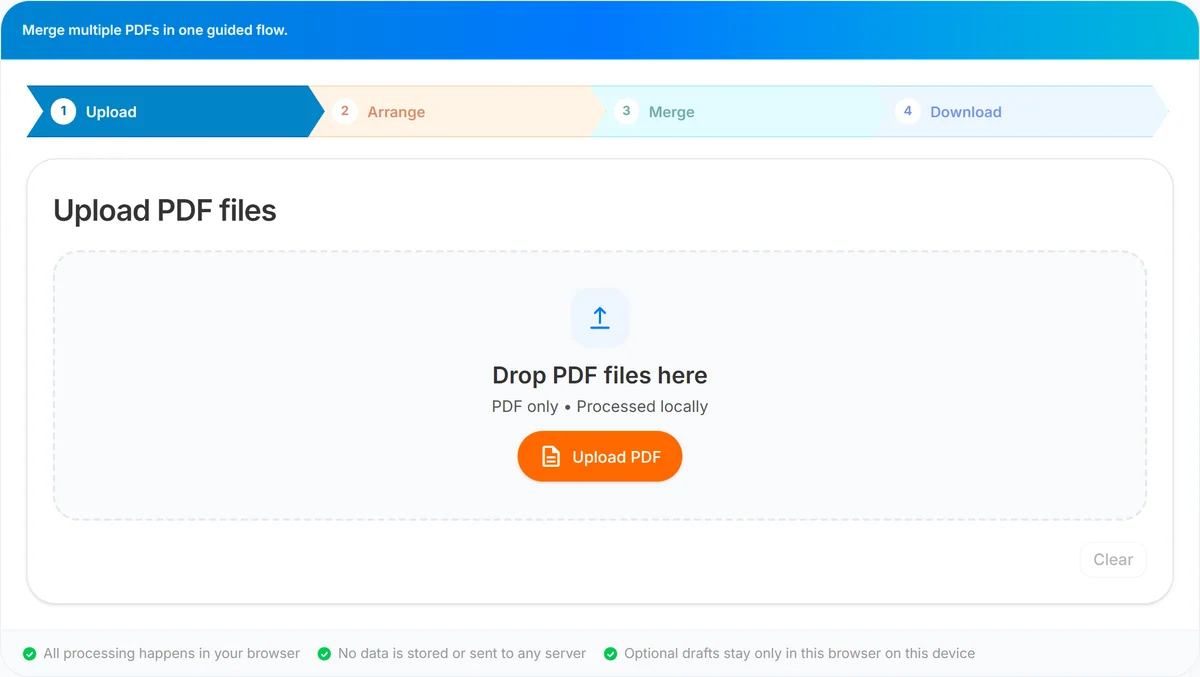
Step 1 — Upload. Open PDF Merge. Add at least two resume PDFs via drag-and-drop or Upload PDF. Watch the total page count chip—two one-page resumes should show two pages included before you arrange.
Step 2 — Arrange. Click Arrange files. Drag the primary resume to position #1 unless you intentionally want a cover sheet first. Set Pages to include to all or a range like 1 when comparing first pages only. Fix any range syntax errors shown on cards before clicking Merge.
Step 3 — Merge. On the Merge PDF step, read the order summary line—it lists exact file sequence. Name the output resume-packet-2026.pdf or similar. Click Merge PDF and wait for local processing to finish.
Step 4 — Download. Open the merged PDF and confirm fonts rendered correctly (especially if one resume used custom type). Use Smart PDF Compressor if email size is tight. For sensitive drafts, PDF Password Protect before sharing outside your organization.
Benefits of merging resumes in the browser
- Preserves original formatting. Each resume keeps its layout; merge does not reflow bullets or margins.
- Explicit order control. Drag-and-drop beats relying on email attachment sort order.
- Page-level trimming. Include only the pages you need from multi-page exports.
- No watermark. Professional packets stay clean for recruiters.
- Local processing. Merging happens in your browser tab without uploading resumes for that merge step.
Privacy when merging career documents
Resumes contain contact details, employment history, and sometimes salary or visa information. PDF Merge processes files locally for the merge operation itself.
Treat shared computers and public Wi‑Fi carefully. Close the tab after download, and read is online PDF merge safe for a realistic view of what browser-local tools protect.
When emailing a combined packet, consider PDF Password Protect and share the password separately. This is especially useful for packets that include references with phone numbers.
Common mistakes with resume PDF bundles
- Submitting multiple versions to an ATS. Unless asked, upload one tailored resume—not a merge of every draft.
- Wrong version first. Double-check the order summary; recruiters often stop at page one.
- Forgetting trailing blank pages. Export settings sometimes add a blank sheet—trim with page ranges or PDF Organizer + Cleanup Studio.
- Mixing portrait and landscape pages. Acceptable in a portfolio, but odd in a standard resume packet; split or reorganize if it looks unprofessional.
- Locked PDFs. Password-protected exports fail merge—see common PDF merging errors and how to fix them.
Best practices for resume packets
- Lead with the version meant for the role; label filenames so cards are self-explanatory on the Arrange step.
- Keep a one-page comparison merge separate from full application packets—page ranges make this fast.
- Pair with how to merge PDF files for job applications when the packet also includes cover letters or transcripts.
- Compress after merge if a portal caps file size; do not shrink fonts before export.
- For finance-role packets that include how to merge bank statements into one PDF, keep those documents in a separate PDF unless the employer requested combined proof.
- Explore related business document tips in how to combine multiple invoices into one PDF only when your packet includes freelance invoices as work samples.
Conclusion
Combining multiple resumes into a single PDF is a small step that makes review packets clearer—whether you are comparing drafts, archiving versions, or building a portfolio booklet. UseBoldTools PDF Merge keeps each resume’s formatting intact while giving you control over order and page ranges.
Open PDF Merge, upload your resume PDFs, arrange them, merge locally, and download one file. More career and PDF workflows are on the UseBoldTools blog.
Frequently asked questions
Should I merge multiple resume versions into one PDF?
Usually no for job applications—send one tailored resume. Merge when you need an internal packet (for example, recruiter review of two role-specific versions) or a portfolio booklet.
What order should resume sections be in?
For a portfolio packet: cover page first (if any), then resume, then supporting pages such as references or project samples. For job portals, follow the employer’s requested order—often cover letter before resume.
Can I include only page one of each resume draft?
Yes. On the Arrange step, set Pages to include to 1 for each file when you want a quick comparison PDF of first pages only.
Will merging add a watermark to my resume?
No. UseBoldTools does not watermark merged PDF output.
Are my resumes uploaded to a server when I merge?
Merging runs in your browser. That merge step does not send your files to UseBoldTools servers.
Related guides
How to Merge PDF Files for Job Applications
Build one job application PDF from cover letter, resume, and supporting docs. Upload, arrange in posting order, merge in-browser, and download.
How to Organize PDF Pages Before Merging
Learn how to organize PDF pages before merging by using page ranges, visual cleanup, splitting, compression, and a final review workflow.
How to Merge PDF Files Online (Free, In Your Browser)
Combine multiple PDFs into one file using a clear Upload → Arrange → Merge → Download workflow. Everything runs locally in your browser.
Common PDF Merging Errors and How to Fix Them
Fix common PDF merging errors including locked files, wrong order, invalid page ranges, large scans, corrupted PDFs, and missing downloads.
Related tools
Smart PDF Compressor
Reduce PDF file size with goal-based presets, target-size guidance, and browser-side optimization.
PDF Organizer + Cleanup Studio
Reorder, rotate, and delete PDF pages in your browser—ideal for office filings, ITR bundles, school work, and portal uploads.
PDF Password Protect
Add a password to PDF files free in your browser—lock salary slips, bank statements, ITR proofs, and contracts before sharing.
PDF Split
Split one PDF by range, selected pages, or fixed page intervals in your browser.
Image to PDF Converter
Convert JPG, PNG, and WEBP images into one PDF directly in your browser.
Ready to try PDF Merge?
Use our free PDF Merge tool in your browser — no account required for most workflows.
Open PDF Merge