
PDF Tools
How to Merge PDF Files for Job Applications
Build one job application PDF from cover letter, resume, and supporting docs. Upload, arrange in posting order, merge in-browser, and download.
By UseBoldTools Team 6 min readPublished July 2, 2026
Introduction
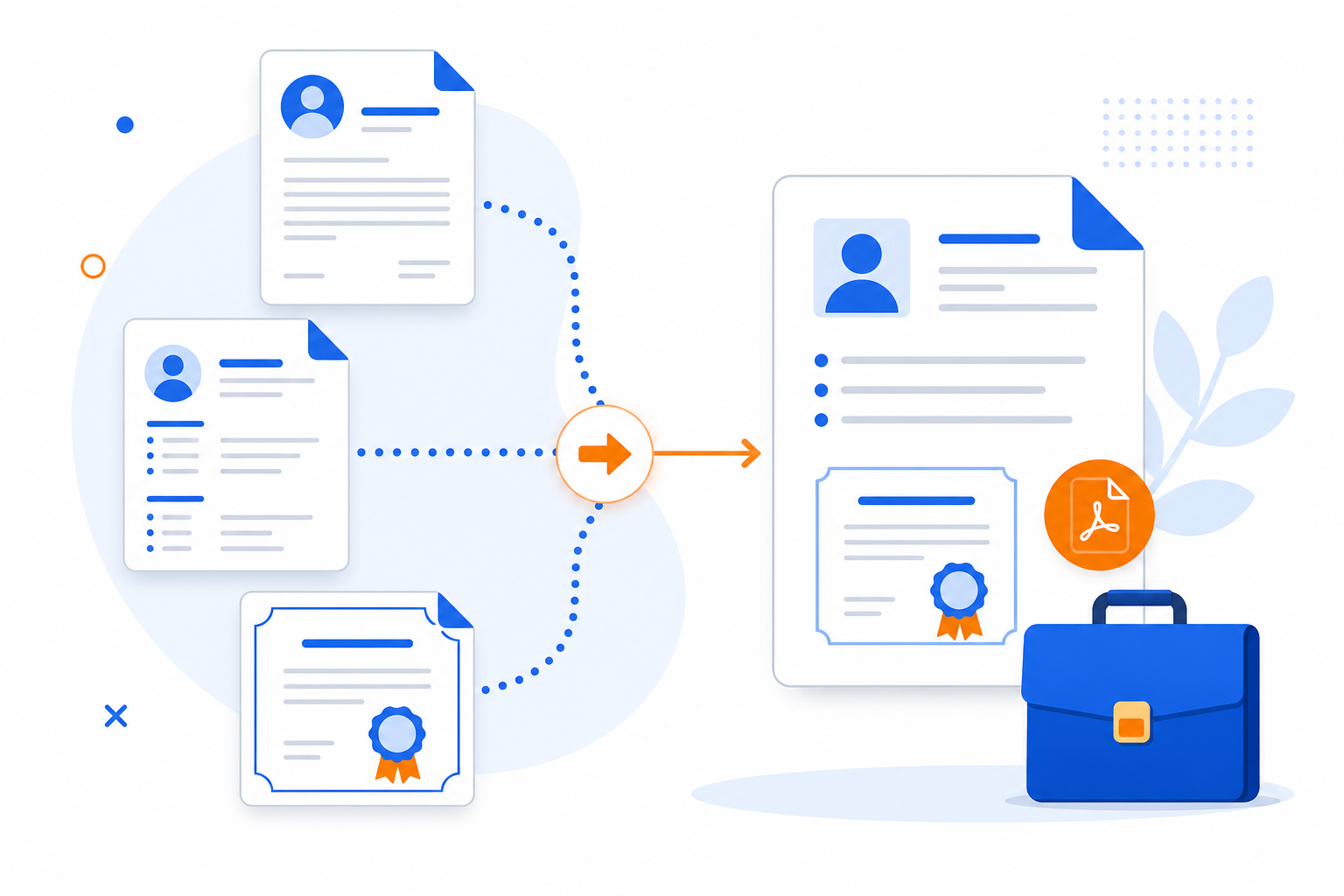
Job boards and employer portals often provide one upload field for “application materials.” You have a cover letter PDF, a resume PDF, unofficial transcripts, certification scans, and maybe a work sample. Uploading them separately is not an option—or it looks disorganized when email is the channel. Merging into one PDF with a deliberate order is the standard fix.
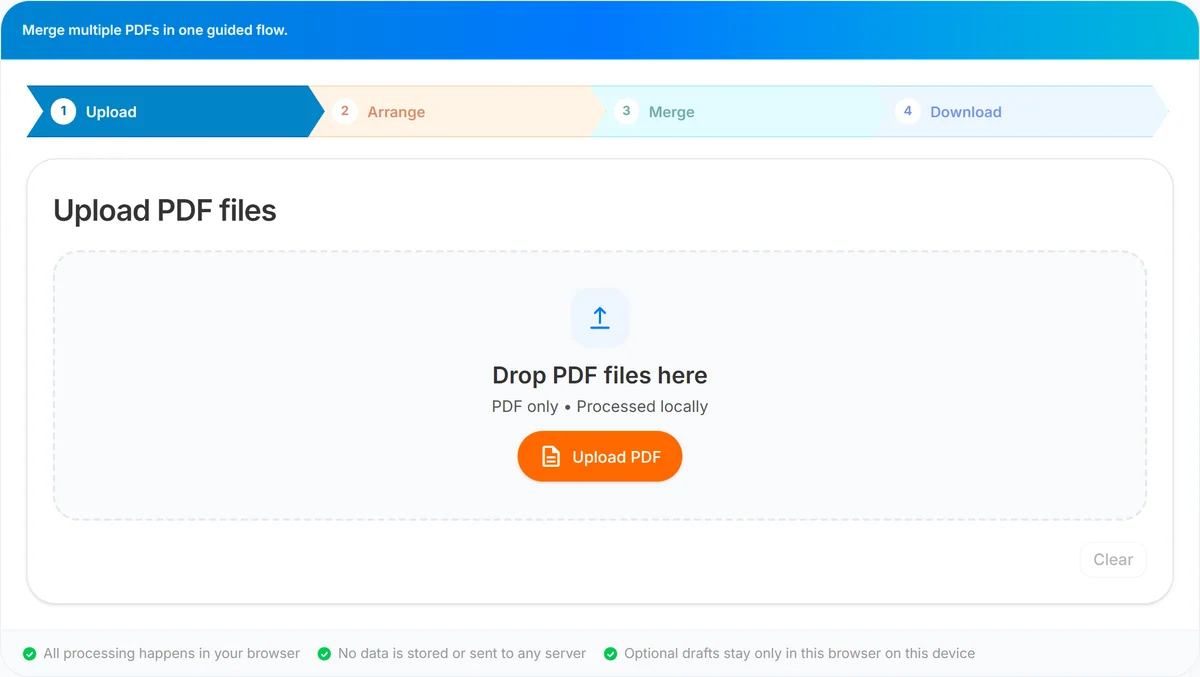
This guide shows how to merge PDF files for job applications with PDF Merge on UseBoldTools: Upload → Arrange with page ranges → Merge → Download, all in your browser. For resume-only bundles, see how to combine multiple resumes into a single PDF. For the general merge walkthrough, see how to merge PDF files online.
Applying from a phone? Read merge PDFs on Windows, Mac, and mobile. More career PDF tips are on the UseBoldTools blog.
What PDF Merge does for application packets
PDF Merge concatenates separate PDFs without rewriting your resume layout or cover letter formatting. Each source file becomes a sequential block of pages in the output.
The Arrange step lets you place the cover letter before the resume, move transcripts to the end, and exclude cover pages from long university exports using page ranges like 2-5.
There is no watermark on merged applications, and merging itself runs locally in your browser rather than on a remote merge server.
When job seekers need one application PDF
- Single-upload ATS portals. Greenhouse, Lever, and many corporate sites accept one PDF attachment.
- Email applications. Recruiters prefer one thoughtfully ordered file over five attachments.
- Academic and fellowship programs. Combine statement of purpose, CV, and writing samples per instructions.
- Government and civil service postings. Strict checklists often mandate one merged packet.
- Freelance proposals. Merge proposal letter, rate sheet, and portfolio excerpt—similar to how to combine multiple invoices into one PDF for client docs.
Before you build the application PDF
Read the posting twice for required order and page limits. Some employers want resume only; others specify cover letter first.
Export text-based PDFs for resume and cover letter when possible—ATS parsers handle them better than scans. If you only have scans, see how to merge scanned documents into one PDF and consider OCR outside UseBoldTools before merge.
Unlock password-protected transcripts with PDF Unlock. Trim university booklet covers via how to organize PDF pages before merging. Keep originals until you verify the merged download.
Step-by-step: merge job application PDFs
Step 1 — Upload. Open PDF Merge. Add cover letter, resume, and supporting PDFs. You need at least two files to continue. Check total pages on the upload chips against the employer’s limit.
Step 2 — Arrange. Click Arrange files. Typical order: cover letter #1, resume #2, transcripts #3, certifications #4. Drag cards or use arrows. Set Pages to include on bulky transcripts—all or 1-2 as allowed.
Step 3 — Merge. Read the order summary carefully—recruiters notice cover letters buried on page 5. Name the file Smith-Jane-application.pdf. Click Merge PDF.
Step 4 — Download. Open the PDF on desktop and mobile if possible. Confirm hyperlinks in portfolios still work (merge preserves them in most exports). Smart PDF Compressor if the portal caps file size. Optional: PDF Password Protect when emailing directly to a hiring manager.
Benefits for applicants
- Meets single-file requirements. One upload, complete packet.
- Professional presentation. Explicit order beats random attachment sorting.
- Page-level control. Include only permitted transcript pages.
- No install or watermark. Finish on any computer with a browser.
- Local merge processing. Application materials stay in your tab for the merge step.
Privacy for application materials
Applications include names, addresses, employment history, and sometimes salary or visa details. PDF Merge combines files locally.
Review is online PDF merge safe before merging on a library or coworking PC. Close the tab afterward and store the final PDF in a secure folder.
Do not merge unrelated financial proofs unless asked—use how to merge bank statements into one PDF for statement packets sent to lenders, not mixed into a resume upload unless the job requires it.
Common job application merge mistakes
- Resume after supporting docs. Put the resume where the posting expects it—often page 1 or 2.
- Including disallowed materials. Extra portfolio pages can violate page limits—trim with ranges.
- Scanned resume only. ATS may not parse images; export a text PDF from your editor.
- Wrong file name. Use the employer’s naming convention in the output filename field.
- Locked PDFs from university portals. Fix with PDF Unlock or re-export—see common PDF merging errors and how to fix them.
- Skipping a final read-through. Blank pages from Word exports should be removed before upload.
Best practices for application PDFs
- Mirror the job posting’s document order literally in the Arrange step.
- Keep the merged file under stated megabyte limits—compress after merge, not before quality export.
- Maintain one master resume PDF; merge fresh cover letters per role rather than combining every resume variant—see how to combine multiple resumes into a single PDF.
- Test upload in the portal’s preview if available before you submit.
- Use PDF Organizer + Cleanup Studio to drop instructional cover pages from certification PDFs.
- Save a copy labeled with company name and date for your tracking spreadsheet.
Conclusion
A strong application is not only what you write but how you deliver it. Merging cover letter, resume, and supporting PDFs into one ordered file meets portal rules and makes recruiters’ work easier.
Use PDF Merge to upload, arrange, merge, and download your packet today. More guides—including how to merge PDF files online—are on the UseBoldTools blog.
Frequently asked questions
What order should job application PDFs be in?
Follow the employer’s instructions. A common order is cover letter first, resume second, then supporting documents such as transcripts, certifications, or portfolio pages.
Can I merge only some pages from my transcript PDF?
Yes. On the Arrange step, set Pages to include to a range like 1-2 if only the summary pages are required.
Will ATS systems read a merged application PDF?
Many ATS tools parse the first pages best. Keep the resume text-based (not a scan) when possible, and put the resume early in the packet if the portal parses a single upload.
Is it safe to merge application PDFs online?
UseBoldTools merges in your browser. The merge step does not upload your files to our servers. Still use trusted devices for personal data.
What if the job site allows only one attachment?
Merge cover letter, resume, and requested extras into one PDF, verify page order, compress if there is a size cap, then upload the single file.
Related guides
How to Combine Multiple Resumes into a Single PDF
Combine multiple resume PDFs into one file with clear order and optional page ranges. Upload, arrange, merge in your browser, and download—no watermark.
How to Merge PDF Files Online (Free, In Your Browser)
Combine multiple PDFs into one file using a clear Upload → Arrange → Merge → Download workflow. Everything runs locally in your browser.
How to Merge PDF Files on Windows, Mac, and Mobile
Merge PDF files on Windows, Mac, iPhone, iPad, or Android with a browser-based workflow for upload, arrange, merge, and download.
Common PDF Merging Errors and How to Fix Them
Fix common PDF merging errors including locked files, wrong order, invalid page ranges, large scans, corrupted PDFs, and missing downloads.
Related tools
Smart PDF Compressor
Reduce PDF file size with goal-based presets, target-size guidance, and browser-side optimization.
PDF Organizer + Cleanup Studio
Reorder, rotate, and delete PDF pages in your browser—ideal for office filings, ITR bundles, school work, and portal uploads.
PDF Unlock
Remove password protection from a PDF when you already know the password.
Image to PDF Converter
Convert JPG, PNG, and WEBP images into one PDF directly in your browser.
PDF Password Protect
Add a password to PDF files free in your browser—lock salary slips, bank statements, ITR proofs, and contracts before sharing.
Ready to try PDF Merge?
Use our free PDF Merge tool in your browser — no account required for most workflows.
Open PDF Merge